
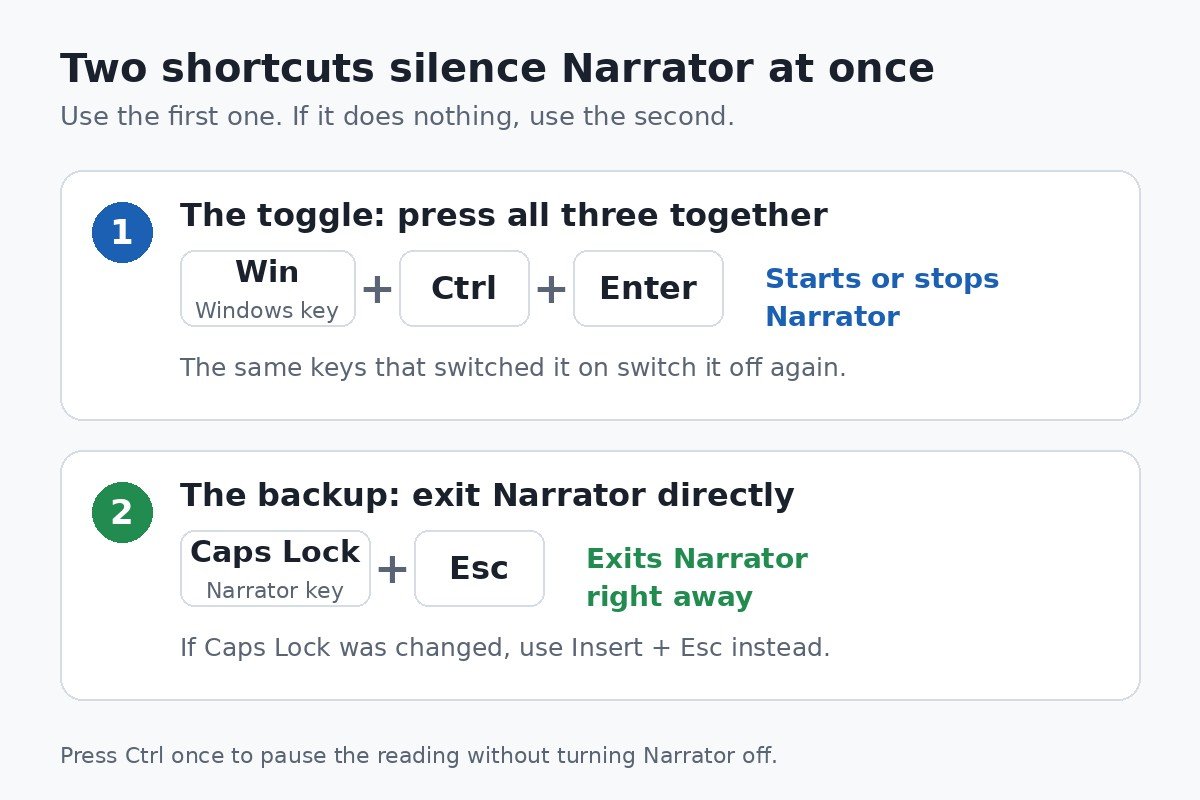
Press Windows + Ctrl + Enter. That is the whole fix when Narrator is talking right now, because the same shortcut that switches Narrator on switches it off again. The voice stops at once, and you can carry on with what you were doing.
If that is where the story ends for you, you are done. For a lot of people, though, it is not the end. Narrator comes back after a restart, or it starts again the next time those three keys get pressed by accident, and the shortcut that silenced it does nothing to stop that happening. This guide covers both halves: the instant silence first, then the three settings that decide whether Narrator returns.
Silence Narrator right now
Narrator is the screen reader built into Windows 11. It reads menus, buttons, and text aloud, which is a lifeline for people who cannot see the screen well. It is also easy to switch on without meaning to, because its shortcut sits on keys people press for other reasons. If a voice has suddenly started describing everything on your screen, one of the shortcuts below stops it in seconds.
- Press Windows + Ctrl + Enter together. This is the toggle: the same keys start Narrator and stop it. The voice stops right away.
- If that does nothing, hold Caps Lock and press Esc. Caps Lock is the Narrator key by default, and Narrator plus Esc is the command that exits Narrator. If Caps Lock has been set to something else, Insert + Esc works instead, because Insert is the other default Narrator key.
- If you only want it to stop mid-sentence, press Ctrl once. That stops the reading in progress without turning Narrator off, so it speaks again at the next thing on screen.
There is also a middle option worth knowing. In the April 2026 Narrator release, Microsoft added a way to turn off speech while Narrator keeps running: press Narrator + Shift + S, which is Caps Lock + Shift + S on the default layout. All spoken output stops, and pressing the same keys again brings the voice back. That helps in a meeting or while listening to audio, when you want quiet without losing Narrator itself. The full list of Narrator keyboard commands is in Microsoft’s list of Narrator keyboard commands.
Turn Narrator off in Settings
Use this route when the shortcut does not work, or when you would rather see a switch that confirms Narrator is off.
- Press Windows + Ctrl + N. Settings opens directly on the Narrator page. If that shortcut does nothing, open Settings with Windows + I, choose Accessibility in the left column, then select Narrator.
- Find the Narrator switch at the top of the page.
- Set the switch to Off. The voice stops immediately.
Turning the switch off stops Narrator for this session. It does not change what happens the next time you sign in. If Narrator keeps returning after a restart, the cause is one of the startup checkboxes on this same page, which is the next section.
Stop Narrator coming back after a restart
This is the part most short guides skip, and it is the reason the problem feels like it never stays fixed. Turning Narrator off stops it now. Two checkboxes on the Narrator settings page decide whether Windows starts it again on its own, and a third switch decides whether the keyboard shortcut can start it by accident. All three live on the same page, under the Show all settings button next to the Narrator switch.
- Press Windows + Ctrl + N to open Narrator settings.
- Select the small arrow next to the Narrator switch. Microsoft calls this Show all settings.
- Clear the checkbox next to Start Narrator after sign-in. With this on, Narrator starts automatically every time you sign in, even if you turned it off the day before.
- Clear the checkbox next to Start Narrator before sign-in. With this on, Narrator runs on the sign-in screen before anyone has signed in, for all users of the PC.
- Set the Narrator switch itself to Off, if it is still on.
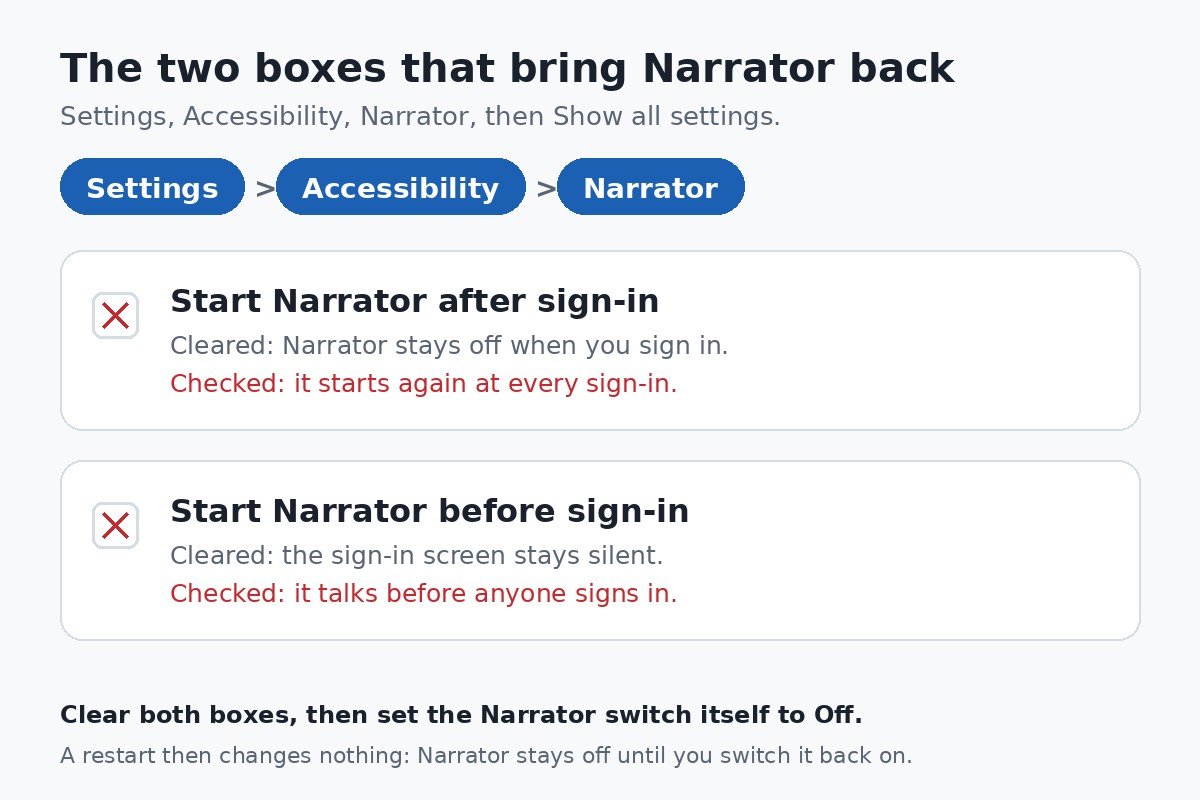
Once both boxes are clear, a restart changes nothing: Narrator stays off until somebody deliberately switches it back on. The quickest way to tell which box was your problem is the moment Narrator starts talking. The table below matches each symptom to its cause and its fix, so you can check only the setting that applies to you.
| What happens | What causes it | The fix |
|---|---|---|
| Narrator starts when keys get pressed by accident | The keyboard shortcut is switched on | Turn off Keyboard shortcut for Narrator |
| Narrator starts every time you sign in | Start Narrator after sign-in is checked | Clear the checkbox in Narrator settings |
| Narrator talks on the sign-in screen, before anyone signs in | Start Narrator before sign-in is checked | Clear the checkbox in Narrator settings |
Turn off the keyboard shortcut so it cannot start by accident
If Narrator keeps switching itself on while you work, the usual culprit is the shortcut, not a setting you changed. Windows + Ctrl + Enter is easy to hit by mistake, especially on a compact keyboard, and each accidental press starts the voice again. The fix is a single switch on the same Narrator settings page.
- Press Windows + Ctrl + N to open Narrator settings.
- Find Keyboard shortcut for Narrator on the page.
- Set it to Off.
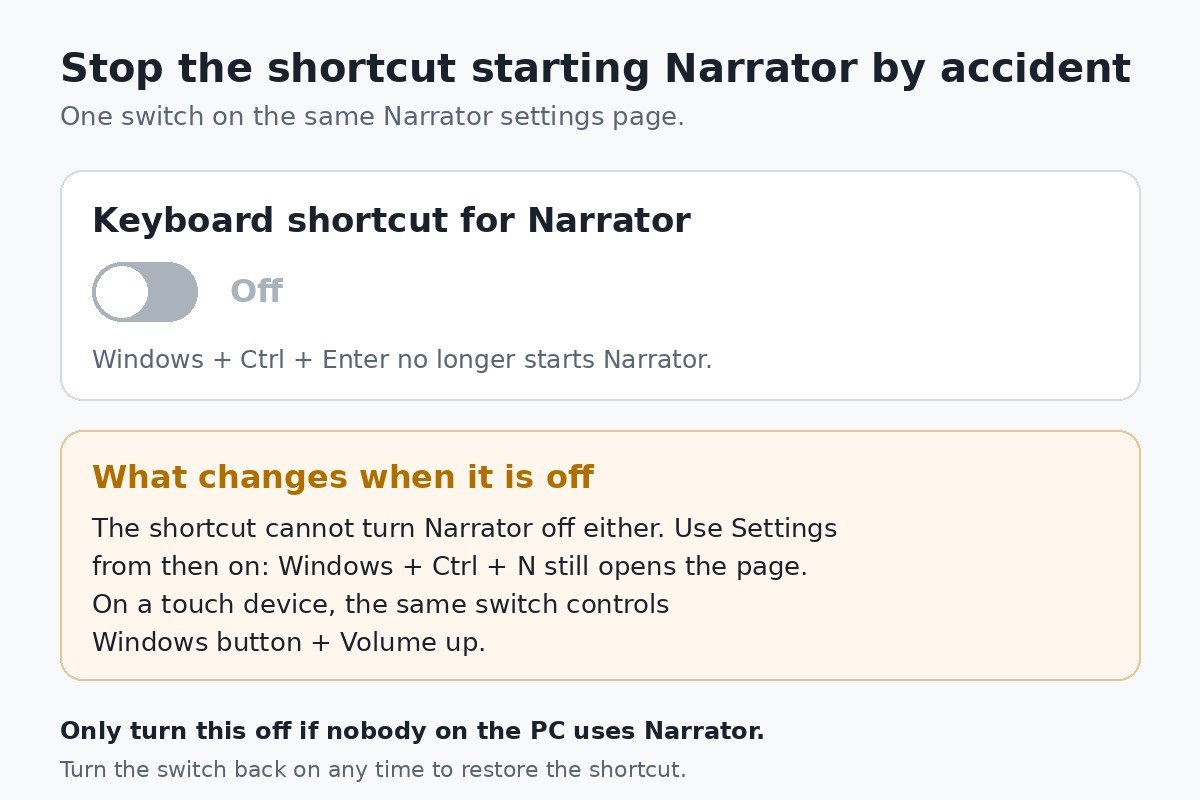
One consequence is worth knowing before you flip it. Turning this switch off disables Windows + Ctrl + Enter in both directions, so the shortcut can no longer turn Narrator off either. From then on, Settings is the way in and out: press Windows + Ctrl + N, which still opens the Narrator page, and use the switch at the top. On a touch device without a keyboard, the same switch controls the Windows button plus Volume up combination. Microsoft’s complete guide to Narrator lists every setting on this page, including the voice and verbosity options that stay untouched by any of this.
Narrator is talking on the sign-in screen
If the voice starts before you have signed in, you can stop it without entering your password first. Look at the bottom right corner of the sign-in screen and select the Accessibility icon. A menu opens with a Narrator switch: set it to Off. If you have a keyboard connected, Windows + Ctrl + Enter may also work here, but the Accessibility icon switch is the documented way to stop it.
Stopping it on the sign-in screen is only a one-time fix, though. If the voice is back the next time you restart, the Start Narrator before sign-in checkbox is checked, and the steps in the restart section above are the permanent answer.
Narrator is not the same as Live Captions
Windows 11 has two features that people mix up, and they have separate switches. Narrator is a screen reader: it reads the screen aloud, describing buttons, menus, and text as you move around. Live Captions does the opposite job: it writes spoken audio as text on the screen, so you can read what is being said in a video or a call. One speaks, the other writes.
The test is simple. If a voice is reading the screen to you, that is Narrator, and this guide is the fix. If words are appearing on screen as captions for audio, that is Live Captions, and it has its own switch: how to turn off Live Captions in Windows 11 covers it step by step. Turning off one never affects the other.
When the shortcut does nothing
A shortcut that does nothing usually has a simple cause, and each one points to a different fix.
- Windows + Ctrl + Enter does nothing. The Keyboard shortcut for Narrator switch is probably off. Open Settings with Windows + Ctrl + N, which still works, and turn the switch back on if you want the shortcut, or use the Narrator switch at the top of the page instead.
- Caps Lock + Esc does nothing. The Narrator key may have been changed from Caps Lock to Insert. Try Insert + Esc instead. Both keys serve as the Narrator key by default, and the setting can be changed on the Narrator settings page.
- You are on a tablet with no keyboard. Press the Windows button + Volume up together to start or stop Narrator, or use the Accessibility icon on the sign-in screen and the Narrator switch in Settings.
| Shortcut | What it does |
|---|---|
| Windows + Ctrl + Enter | Start or stop Narrator |
| Caps Lock + Esc, or Insert + Esc | Exit Narrator |
| Windows + Ctrl + N | Open Narrator settings |
| Ctrl | Stop the reading in progress, Narrator keeps running |
| Caps Lock + Shift + S | Turn Narrator speech off and on |
| Windows button + Volume up | Start or stop Narrator on a touch device |
Questions people ask after turning Narrator off
How do I turn Narrator back on? Open Settings, go to Accessibility, then Narrator, and set the switch to On. If the keyboard shortcut switch is still on, Windows + Ctrl + Enter works too. Narrator Home opens when Narrator starts: it is a small window with links to the guide and settings, and you can close it or leave it alone.
I turned the keyboard shortcut off. How do I start Narrator again if I need it? Use the Narrator switch in Settings. If you want the shortcut back as well, turn Keyboard shortcut for Narrator on again first, then Windows + Ctrl + Enter works again.
Does turning off Narrator change anything else? No. It only stops the screen reader. Magnifier, Live Captions, and the other accessibility features each keep their own settings, and none of them change when Narrator is switched off.
Narrator is easy to start by accident and easy to silence, and the part that trips most people up is not the switch itself but the settings that bring it back. Press Windows + Ctrl + Enter to stop the voice, clear the two start automatically checkboxes so a restart does not undo the fix, and turn off the keyboard shortcut if those three keys keep getting pressed by mistake. Once all three are done, Narrator stays quiet until you decide otherwise.

- How to Turn Off Narrator on Windows 11 - November 22, 2026
- How to Turn Off Emergency SOS on iPhone - November 21, 2026
- How to Adjust Brightness on Windows 11 - November 20, 2026