
The ERR_NAME_NOT_RESOLVED error appears when your Android device cannot find a website’s IP address. Think of it like trying to call someone whose phone number doesn’t exist in your contacts. Your phone knows the name, but it can’t find what it connects to.
This error happens during DNS (Domain Name System) lookup. DNS translates website names like google.com into numerical addresses that your device understands. When this translation fails, you get this error message.
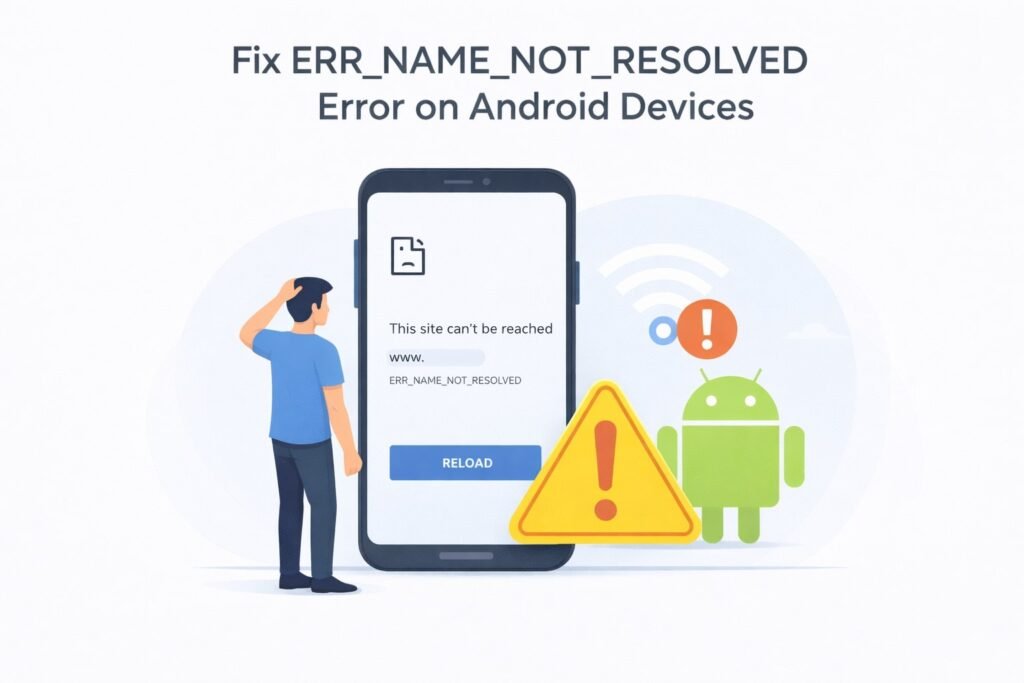
You’ll usually see this error message in your browser when trying to visit a website. The page shows a plain error screen with these exact words: “ERR_NAME_NOT_RESOLVED.”
Why This Error Happens on Android
Several things cause this problem. Understanding the root cause helps you fix it faster.
Network Connection Issues
Your Android device needs a working internet connection first. If WiFi or mobile data isn’t properly connected, DNS requests fail.
DNS Server Problems
Your device uses specific DNS servers to look up website addresses. If these servers are down or unreachable, you can’t access websites even if your internet works fine.
WiFi Router Issues
Your WiFi router connects you to the internet. When it malfunctions, DNS queries don’t reach the proper servers.
Incorrect Date and Time Settings
Android devices use timestamps for security verification. Wrong date or time settings can block DNS lookups for security reasons.
Browser Cache Problems
Stored browser data sometimes contains outdated or corrupted DNS information. This prevents fresh lookups from happening.
Android System Cache
Your entire Android system stores cached network data. Corrupted cache files interfere with all apps trying to access the internet.
Third-party App Interference
Some apps control network traffic. A misbehaving security app or VPN can block DNS requests.
Quick Fixes You Should Try First
Try these solutions in order. Most people fix the error using one of these methods.
1. Turn Off and On Your Device
This sounds simple, but it works surprisingly often.
Restart your Android phone completely. Hold the power button until you see the shutdown menu. Select restart. Wait for your device to fully boot up. Then open your browser and try the website again.
Restarting clears temporary network glitches and resets connections.
2. Check Your Internet Connection
Verify you actually have working internet.
Open Settings. Go to Network or Connections. Check WiFi or mobile data status. You should see a connected network with a signal indicator.
If you’re using WiFi, try moving closer to the router. Physical distance can weaken signals. Check if other devices can connect to the same network. If they can’t, your router needs attention.
3. Switch Between WiFi and Mobile Data
Sometimes one connection works while the other doesn’t.
If you’re on WiFi, turn it off and use mobile data instead. Open Settings, find WiFi, and toggle it off. Then try accessing the website.
If you’re using mobile data, find a WiFi network and connect instead. This helps you identify which connection type has the problem.
4. Clear Your Browser Cache
Corrupted cached data often causes this error.
Open your browser application. Look for Settings or More options (usually three dots in the corner). Find “Clear browsing data” or similar option. Make sure “Cookies and site data” and “Cached images and files” are selected. Tap Clear.
Don’t worry about losing important data. Cache is temporary storage that websites recreate when you visit them again.
5. Forget and Reconnect to WiFi
This resets your WiFi connection completely.
Go to Settings. Open Network or WiFi. Find your WiFi network name. Press and hold it. Select “Forget network.” Now find the network again in available networks. Tap it and enter your password carefully. This creates a fresh connection.
Advanced Fixes for Persistent Problems
If basic fixes didn’t work, try these more detailed solutions.
Change Your DNS Server
Your device uses default DNS servers provided by your internet company. Switching to a different DNS server often resolves lookup issues.
How to change DNS on Android:
- Go to Settings
- Open Network or WiFi settings
- Long-press your connected WiFi network
- Select “Manage network settings”
- Look for “IP settings” or similar
- Change from DHCP to Static IP
- Find DNS fields
- Replace existing DNS with: 8.8.8.8 and 8.8.4.4 (Google’s public DNS)
These Google DNS servers are reliable and free. They rarely have lookup problems.
Some people prefer Cloudflare DNS instead. Use 1.1.1.1 and 1.0.0.1. Both work well for fixing ERR_NAME_NOT_RESOLVED errors.
Important: Write down your original DNS settings before changing them. You might need to revert if something breaks.
Clear System Cache
Your entire Android system caches network information. Clearing this cache doesn’t delete your apps or personal files.
- Turn off your Android device
- Hold Power + Volume Down button simultaneously
- Keep holding until recovery mode appears
- Use volume buttons to select “Wipe cache partition”
- Press Power button to confirm
- Select “Reboot system now”
This process varies by manufacturer, so your exact steps might differ slightly. Google your specific device model if you get stuck.
Reset Network Settings
This clears all network configurations and starts fresh.
- Go to Settings
- Find System or About device
- Look for Reset options
- Select “Reset WiFi, mobile & Bluetooth”
- Confirm the action
Warning: This removes all saved WiFi passwords. You’ll need to reconnect to networks and re-enter passwords.
Check Your Date and Time
Android uses accurate time for security verification. Incorrect time blocks some network requests.
- Open Settings
- Find Date and Time settings
- Enable “Automatic date and time”
- Enable “Automatic time zone”
Let your device sync with network time. This usually takes a minute.
Disable VPN or Proxy Apps
VPN apps and proxies redirect your network traffic. Sometimes they block DNS requests.
- Go to Settings
- Find Network or Apps
- Look for VPN settings
- If a VPN is active, tap it and select Disconnect
- Try accessing your website again
If you need a VPN, try reconnecting after you’ve fixed the error. The problem might have been a temporary VPN issue.
Similarly, check proxy settings in your browser:
- Open your browser
- Go to Settings
- Look for Proxy or Connection settings
- Make sure no proxy is enabled
Uninstall Recently Updated Apps
Apps updated recently sometimes cause network issues.
- Go to Settings
- Open Apps or Application Manager
- Find recently updated apps (check last week’s updates)
- For security or network-related apps, try uninstalling
- Restart your device
- Test your internet again
If this fixes the problem, the app caused the issue. You can reinstall it, but check for updates from the developer.
Check for Malware
Malicious apps sometimes block internet access to hide their activity.
- Go to Settings
- Open Security or Google Play Protect
- Run a security scan
- Remove any detected threats
- Restart your device
Use Google Play Protect (Google’s built-in malware scanner) or download Malwarebytes from the Google Play Store for deeper scanning.
Quick Comparison of Solutions
| Solution | Difficulty | Time Required | Success Rate | When to Use |
|---|---|---|---|---|
| Restart device | Very Easy | 2 minutes | 40% | Always try first |
| Clear browser cache | Easy | 5 minutes | 35% | After restart fails |
| Switch WiFi/mobile | Easy | 2 minutes | 25% | Test which works |
| Change DNS | Medium | 10 minutes | 50% | Multiple websites fail |
| Clear system cache | Medium | 10 minutes | 45% | Error persists |
| Reset network settings | Hard | 15 minutes | 60% | Nothing else works |
| Check date/time | Very Easy | 1 minute | 20% | Recently changed time |
Special Situations and Solutions
This Error Happens on One Website Only
If ERR_NAME_NOT_RESOLVED appears only for one specific website, your device found the problem but can’t reach that particular site.
First, wait a few minutes. The website might be temporarily offline. Try again.
Then open that website on a different device using the same WiFi. If other devices can access it, the problem is specific to your Android device’s cached data.
Clear your browser cache specifically. Some browsers let you clear cache for specific websites instead of all data.
Try accessing the website with a different browser app. If it works in a different browser, your original browser has corrupted cache.
Multiple Websites Show This Error
When many websites fail, the problem isn’t with individual sites. Your device has a broader network issue.
This usually points to DNS problems or network configuration errors. Start with these in order:
First, change your DNS server to Google’s (8.8.8.8 and 8.8.4.4). This fixes most cases where your ISP’s DNS servers malfunction.
Second, reset your network settings completely. This clears all problematic configurations.
Third, check your router. Restart your WiFi router by unplugging it for 30 seconds, then plugging it back in. Wait 2-3 minutes for it to fully restart.
Error Appears Only on Mobile Data
If ERR_NAME_NOT_RESOLVED only happens when using cellular data (not WiFi), your mobile carrier’s DNS or network has issues.
Change your DNS using the static IP method described earlier. This forces your mobile data to use Google’s DNS instead of your carrier’s servers.
Contact your mobile carrier if this doesn’t work. Ask if they’re experiencing DNS issues. Some carriers have regional problems affecting DNS lookups.
Error Appears Only on WiFi
If the error only happens on WiFi, your router or its DNS settings are the problem.
Restart your WiFi router. Unplug it for 30 seconds. Plug it back in. Wait 3 minutes.
Log into your router’s settings (usually through a web browser or app). Check DNS settings in the router configuration. Some routers force specific DNS servers. You might need to change these in the router itself, not just on your Android device.
If you’re not comfortable accessing router settings, contact your internet service provider. They can adjust router settings remotely.
Using a Hotspot from Another Device
When your Android device connects to a hotspot from another phone, DNS problems can occur.
Ask the device owner to restart their phone. This refreshes the hotspot connection.
If available, connect to a different WiFi network instead. This helps identify if the hotspot itself is problematic.
Prevention Tips for the Future
Once you’ve fixed this error, prevent it from happening again.
Keep Your Android Updated
Manufacturers release updates with bug fixes and security improvements. These updates sometimes fix network-related issues.
Go to Settings. Find About device. Check for System updates. Install any available updates.
Use Reliable DNS Servers
Stick with Google’s DNS (8.8.8.8 and 8.8.4.4) or Cloudflare’s DNS (1.1.1.1 and 1.0.0.1). These are fast and reliable.
Regularly Clear Cache
Clear your browser cache every month or two. This prevents corrupted data from accumulating.
Keep Your WiFi Updated
If you control your WiFi router, check the manufacturer’s website monthly for firmware updates. Routers need updates just like Android devices.
Avoid Suspicious Apps
Download apps only from Google Play Store. Third-party app stores sometimes contain malicious apps that block internet access.
Monitor Network Changes
If you change DNS settings or install new network apps, watch for changes in your internet stability. Problematic apps usually cause issues within hours of installation.
Why This Error Specifically Happens on Android
Android devices handle DNS differently than computers. Android uses a simplified network management system designed for mobile devices.
When your phone connects to WiFi, it automatically receives DNS server addresses from the router. Most users never change these settings. This means if your ISP’s DNS servers malfunction, you might not even realize it’s the problem.
Android also caches DNS lookups in the system. Unlike computers where you can easily view and clear DNS cache, Android buries this cache deep in the system. Corrupted cache entries persist until you use the recovery mode wipe or reset network settings.
Additionally, Android prioritizes battery life and data usage over network reliability. It might skip some network verification steps that computers perform. This occasionally causes legitimate websites to appear unresolvable.
When to Contact Your Internet Service Provider
Sometimes the problem isn’t with your device at all.
Contact your ISP if:
- ERR_NAME_NOT_RESOLVED appears on multiple devices using your WiFi
- Changing DNS servers to Google’s didn’t help
- Restarting your router multiple times didn’t work
- The error happens across all browsers and apps
- You’ve tried all solutions listed here
Tell them: “Multiple devices on my network can’t resolve domain names. I suspect DNS server issues on your end.”
They can check their DNS infrastructure and might escalate to their technical team if needed.
Detailed Walkthrough: Complete Solution for Stubborn Errors
If you’ve tried basic fixes and nothing worked, follow this complete walkthrough.
Step 1: Document Your Current Settings (5 minutes)
Before making changes, document what you have now.
Go to Settings > Network > WiFi. Long-press your connected network. Select “Manage network settings.” Write down:
- IP address
- Gateway
- DNS 1 and DNS 2
Take a screenshot if possible. You might need these later.
Step 2: Restart Everything (10 minutes)
Power down your Android device completely. Wait 30 seconds.
Unplug your WiFi router. Wait 30 seconds. Plug it back in. Wait 3 minutes for it to fully restart. Look for lights stabilizing and returning to normal.
Power on your Android device. Wait for it to fully boot. Connect to WiFi again.
Step 3: Change DNS to Google’s Public DNS (10 minutes)
Go to Settings > Network > WiFi. Long-press your connected network. Select “Manage network settings.”
Look for “IP settings” or “Advanced settings.” Change from DHCP to Static.
Find DNS fields. Replace existing values with:
- DNS 1: 8.8.8.8
- DNS 2: 8.8.4.4
Save settings. Your phone will disconnect and reconnect.
Step 4: Clear All Caches (15 minutes)
Clear browser cache: Open browser > Settings > Clear browsing data. Select all options. Clear.
Clear system cache: Power off phone. Hold Power + Volume Down. Go to recovery mode. Select “Wipe cache partition.” Confirm. Reboot.
Step 5: Test Internet Access (5 minutes)
Open your browser. Try accessing multiple websites:
- google.com
- wikipedia.org
- bbc.com
If these work, your error is fixed. If not, continue.
Step 6: Reset Network Settings (15 minutes)
Go to Settings > System > Reset options > Reset WiFi, mobile & Bluetooth. Confirm.
This removes all network data and starts fresh.
Reconnect to your WiFi. Re-enter the password. Optionally, set DNS to Google’s again.
Test your internet access. Most users’ errors resolve by this point.
Step 7: Contact Support (if needed)
If errors persist after step 6, the problem likely involves your hardware or ISP.
Contact your device manufacturer’s support if you think it’s a hardware issue. Contact your internet service provider if you think it’s a network issue.
FAQ
Will resetting my phone fix ERR_NAME_NOT_RESOLVED?
A factory reset will fix the error in about 70% of cases. However, you’ll lose all data on your phone unless you back it up first. Try all other solutions before factory resetting. It’s your last resort because it erases everything.
Q2: Does changing DNS to Google’s DNS slow down my internet?
Google’s DNS (8.8.8.8 and 8.8.4.4) is actually very fast. Most people don’t notice a speed difference. Some users report slightly faster browsing. Cloudflare’s DNS (1.1.1.1) is equally fast. Both are free and more reliable than many ISP DNS servers.
Can a VPN cause ERR_NAME_NOT_RESOLVED error?
Yes, VPNs sometimes cause this error. VPN apps redirect all network traffic through their servers. If the VPN connection becomes unstable, DNS lookups fail. Try disconnecting your VPN and testing. If websites work without VPN but not with it, your VPN app is the problem.
How long does it take to fix this error?
Quick fixes take 5-15 minutes. Restarting, clearing cache, and switching connections usually work fast. If you need to change DNS settings or clear system cache, add another 10-20 minutes. Complete solutions with multiple steps might take 45 minutes to an hour.
Why does my Android keep getting this error even after fixing it?
If the error keeps returning, the root cause wasn’t addressed. Usually, this means your DNS server is unreliable or your WiFi router has ongoing issues. Consider permanently switching to Google’s DNS. If your router keeps malfunctioning, contact your ISP about getting a replacement.
Conclusion
ERR_NAME_NOT_RESOLVED on Android devices means your phone can’t translate website names to IP addresses. This error has multiple causes, from simple connection problems to DNS server issues.
Start with the easiest fixes: restart your device, switch between WiFi and mobile data, and clear your browser cache. These solve the problem in about 40-50% of cases.
If those don’t work, change your DNS server to Google’s public DNS (8.8.8.8 and 8.8.4.4) or clear your system cache using recovery mode.
For persistent errors, reset your network settings or contact your internet service provider. A complete troubleshooting walkthrough addressing each potential cause usually resolves the error within an hour.
Remember: this error affects your device’s ability to access the internet, but it’s almost always fixable with the methods described here. Take time to work through solutions methodically, and your Android device will return to normal internet functionality.

- How to Clear Cache on Windows 11: Quick Guide in 2026 - February 23, 2026
- Top 10 Trending AI Apps in 2026 You Should Actually Be Using - February 22, 2026
- Top 10 AI Based Resume Makers in 2026 That Actually Get You Hired - February 22, 2026