
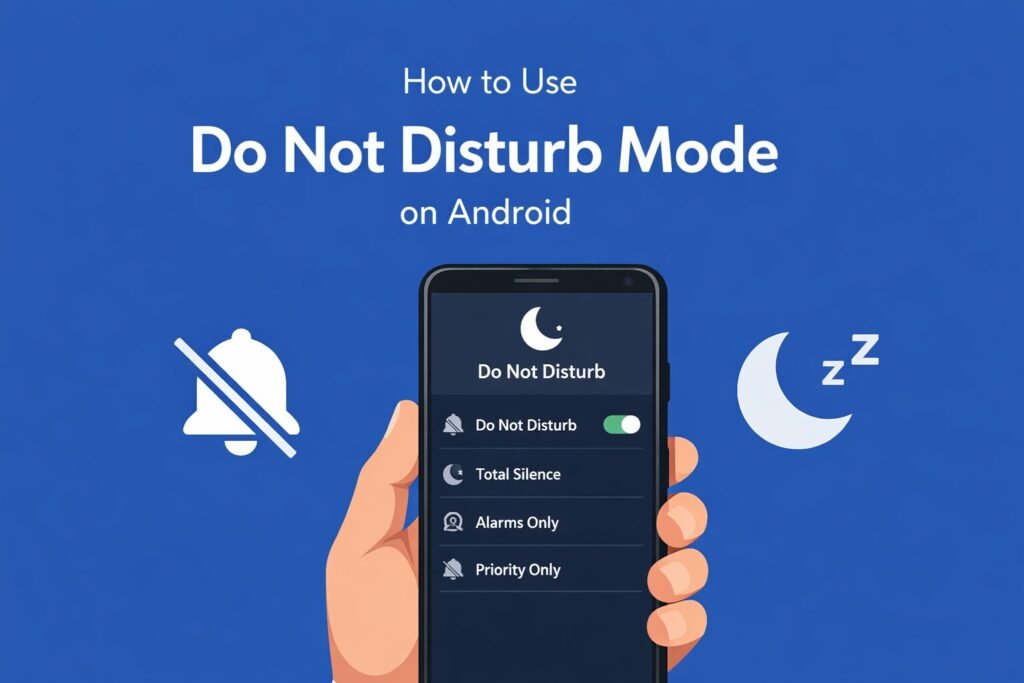
Do Not Disturb mode silences notifications, calls, and alerts on your Android phone. You can turn it on from Quick Settings by swiping down twice and tapping the Do Not Disturb icon, or through Settings > Sound & vibration > Do Not Disturb.
This guide shows you exactly how to set up and customize Do Not Disturb on Android devices running the latest versions in 2026.
What Do Not Disturb Mode Actually Does
Do Not Disturb (DND) blocks interruptions on your phone. When active, it stops:
- Notification sounds and vibrations
- Phone call ringtones (with exceptions you control)
- Alarm sounds from apps (not your alarm clock)
- Visual pop-ups on your screen
Your phone still receives everything. Messages arrive, calls come through, and apps update. You just don’t hear or see them until you check manually or turn DND off.
The mode keeps your alarm clock working. Your morning alarm will still ring even with DND enabled all night.
Quick Ways to Turn On Do Not Disturb
Method 1: Quick Settings Panel
This is the fastest method for most people.
- Swipe down from the top of your screen once
- Swipe down again to expand the full Quick Settings panel
- Look for the Do Not Disturb icon (a circle with a line through it)
- Tap the icon once to activate DND
- Tap again to turn it off
If you don’t see the icon, swipe left on the Quick Settings tiles. It might be on the second page.
Method 2: Volume Buttons
Many Android phones let you activate DND through volume controls.
- Press either volume button (up or down)
- A volume slider appears on your screen
- Tap the icon above or below the slider
- Select “Do Not Disturb” from the menu
This method varies by manufacturer. Samsung, Google Pixel, and OnePlus phones typically support this.
Method 3: Settings Menu
Use this method to access full customization options.
- Open the Settings app
- Tap “Sound & vibration” or “Sound”
- Select “Do Not Disturb”
- Toggle the switch to “On”
The exact wording changes between Android versions and phone manufacturers, but the path remains similar.
Setting Up Automatic Schedules
Schedules turn DND on and off automatically. This works great for sleep time, work hours, or meetings.
Creating a New Schedule
- Go to Settings > Sound & vibration > Do Not Disturb
- Tap “Schedules” or “Turn on automatically”
- Select “Add schedule” or the plus (+) icon
- Choose a schedule type:
- Time schedule: Activates during specific hours daily
- Event schedule: Links to calendar events
- Bedtime schedule: Connects with your Digital Wellbeing settings
- Name your schedule (like “Sleep” or “Work Hours”)
- Set start and end times
- Select which days it repeats
- Tap “Done” or “Save”
Example Schedules That Work Well
Sleep Schedule: 10:00 PM to 7:00 AM, every day
Work Schedule: 9:00 AM to 5:00 PM, Monday through Friday
Meeting Schedule: Syncs with calendar events tagged as “Busy”
You can run multiple schedules. They work together without conflicts.
Allowing Important Calls and Messages Through
Complete silence isn’t always practical. You might need to hear from family during emergencies or let specific contacts reach you.
Setting Up Priority Exceptions
- Open Settings > Sound & vibration > Do Not Disturb
- Tap “People” or “Exceptions”
- Choose categories to allow:
- Conversations (from specific contacts)
- Calls (from selected people)
- Messages (from chosen contacts)
- Tap each category to select who can break through
- Pick from options like:
- Starred contacts
- All contacts
- Custom contact list
- Anyone calling repeatedly
The Repeated Calls Feature
This useful setting lets emergency calls through even from unknown numbers.
When enabled, if someone calls twice within 15 minutes, the second call rings through. This helps during real emergencies when someone might call from an unfamiliar number.
To enable it:
- Go to DND settings > People > Calls
- Turn on “Allow repeated callers”
Allowing Apps to Interrupt
Some apps deserve exceptions.
- Navigate to Do Not Disturb settings
- Select “Apps” or “App notifications”
- Choose which apps can override DND
- Common choices: delivery apps, security apps, VIP messaging apps
Be selective here. Too many exceptions defeat the purpose of DND.
Customizing What DND Blocks
You control exactly what gets silenced.
Sound and Vibration Options
Alarms: Always allowed by default (this means your alarm clock app)
Media sounds: Music and video playback usually continue at your set volume
Touch sounds: Key taps and screen touches can be silenced
Reminder notifications: You decide if reminders break through
Access these in Settings > Do Not Disturb > Notifications or Sounds.
Visual Disturbance Settings
DND can hide visual interruptions too.
- Open Do Not Disturb settings
- Find “Display options” or “Notifications”
- Toggle these options:
- No visuals at all: Completely hides notification badges and pop-ups
- Show in notification shade only: Notifications collect silently in your pull-down menu
- Dim notification light: Keeps the LED off or dimmed
- Hide status bar icons: Removes notification icons from the top of your screen
For focused work or deep sleep, turn on “No visuals at all.”
Using Quick Settings Variations
Priority Only Mode
Some Android versions separate DND into levels:
- Total silence: Blocks everything except alarms
- Priority only: Allows exceptions you’ve configured
- Alarms only: Silences everything except alarm clock apps
Tap and hold the DND Quick Settings icon to switch between modes quickly.
Duration Shortcuts
When you tap DND in Quick Settings, you might see duration options:
- Until you turn it off
- For 1 hour
- For 2 hours
- Until next alarm
Pick the duration that fits your situation. The phone automatically disables DND when time runs out.
Location-Based and Smart Activation
Newer Android versions offer advanced triggers.
Digital Wellbeing Integration
If your phone has Digital Wellbeing features:
- Open Settings > Digital Wellbeing & parental controls
- Tap “Bedtime mode”
- Enable “Do Not Disturb during bedtime”
- Set your sleep schedule
This dims your screen, switches to grayscale, and activates DND to help you sleep better.
Driving Mode
Some Android phones detect when you’re driving and can auto-enable DND.
- Go to Settings > Sound & vibration > Do Not Disturb
- Look for “Driving” or similar option
- Enable automatic detection
- Choose if you want to allow Bluetooth calls through
This feature uses motion sensors and Bluetooth connections to detect driving.
Troubleshooting Common DND Problems
DND Turns Off By Itself
Cause: You likely set a schedule or duration limit.
Fix: Check Settings > Do Not Disturb > Schedules. Delete unwanted automatic schedules, or tap the DND icon and select “Until I turn it off.”
Important Calls Still Get Silenced
Cause: The contact isn’t in your exception list.
Fix: Add them to your starred contacts, then allow starred contacts in DND settings under People > Calls.
Notifications Still Make Sounds
Cause: An app has notification permission that overrides DND, or you’re in Priority mode with too many exceptions.
Fix: Go to Settings > Apps > See all apps. Find the loud app, tap Notifications, and make sure it respects DND. Or switch to Total Silence mode.
Alarms Don’t Ring
Cause: Your alarm app might be blocked as a notification instead of recognized as an alarm.
Fix: Use your phone’s default Clock app for alarms. Third-party alarm apps sometimes get treated as regular notifications. Check that “Allow alarms” is enabled in DND settings.
DND Icon Doesn’t Appear in Quick Settings
Cause: It’s hidden or on another page of Quick Settings.
Fix:
- Swipe down to open Quick Settings
- Tap the pencil/edit icon
- Find “Do Not Disturb” in the available tiles
- Drag it to your active tiles section
- Tap Done
Do Not Disturb Across Different Android Versions
Settings locations change between Android versions and phone brands.
Stock Android (Google Pixel Phones)
- Settings > Sound & vibration > Do Not Disturb
- Clean interface with clear options
- Tight integration with Digital Wellbeing
Samsung One UI
- Settings > Notifications > Do Not Disturb
- Called “Do not disturb” (lowercase)
- Extra options for edge lighting and AOD behavior
- Can sync with Bixby Routines for advanced automation
OnePlus OxygenOS
- Settings > Sound & vibration > Do Not Disturb
- Similar to stock Android
- Includes gaming mode integration
Xiaomi MIUI
- Settings > Sound & vibration > Do Not Disturb
- May be called “Silent mode” in some regions
- Second Space feature has separate DND settings
The core functionality remains the same. Menu names and locations shift slightly.
Advanced DND Tips for Power Users
Combining DND with Other Modes
Focus Mode: Pairs well with DND to block distracting apps during work hours. Find it in Digital Wellbeing settings.
Bedtime Mode: Activates DND plus screen dimming and grayscale to improve sleep quality.
Driving Mode: Automatically enables DND when your phone detects you’re in a moving vehicle.
Stack these modes to create powerful automation. For example, bedtime mode can trigger DND, grayscale, and app blocking simultaneously.
Using Tasker or Automation Apps
Advanced users can create complex DND rules with automation apps like Tasker.
Examples:
- Enable DND when you arrive at work (location-based)
- Activate DND when battery drops below 20% to conserve power
- Turn on DND when you open specific apps like meditation or reading apps
- Disable DND automatically when you disconnect from home WiFi
These require setup time but offer incredible flexibility.
Syncing DND with Calendar Events
Your phone can read your calendar and activate DND during busy events.
- Go to Do Not Disturb settings
- Tap Schedules > Add schedule
- Select “Event”
- Choose your calendar
- Pick which event types trigger DND (meetings marked “Busy”)
- Save the schedule
Now DND activates automatically during calendar blocks. Perfect for professionals with packed schedules.
Privacy and Battery Considerations
Does DND Save Battery?
Yes, moderately. By preventing your screen from lighting up with each notification, DND reduces power consumption. The savings aren’t dramatic but add up over a full day.
Expect 5-10% better battery life if you use DND during your entire workday or overnight.
Privacy Benefits
DND prevents notification previews from appearing on your lock screen when others might see your phone. Sensitive messages stay hidden until you deliberately check.
For maximum privacy, combine DND with:
- Disabled lock screen notifications
- Face-down phone placement
- Screen timeout set to 30 seconds or less
Network and Data Usage
DND doesn’t affect network connections. Your phone still:
- Downloads emails
- Receives messages
- Updates apps
- Syncs data
It only controls how and when you get alerted to this activity. This is different from Airplane Mode, which actually disconnects your radios.
Summary Table of DND Functions
| Function | What It Does | Where to Find It |
|---|---|---|
| Quick Toggle | Turn DND on/off instantly | Quick Settings panel |
| Schedules | Auto-enable at set times | Settings > DND > Schedules |
| Priority Contacts | Allow specific people through | Settings > DND > People |
| Repeated Callers | Let emergency calls ring twice | Settings > DND > People > Calls |
| App Exceptions | Choose apps that can interrupt | Settings > DND > Apps |
| Visual Silence | Hide notification badges and pop-ups | Settings > DND > Display options |
| Duration Limits | Auto-disable after set time | Quick Settings DND tile (long press) |
| Calendar Sync | Activate during busy events | Settings > DND > Schedules > Event |
Common Questions About DND
Will my alarm still go off?
Yes. Clock app alarms always work through DND. Only notification-style alarms from third-party apps might get blocked.
Can people tell I have DND enabled?
No. Callers hear normal ringing. They don’t receive any message indicating DND is active. Your phone just doesn’t make noise on your end.
Does DND work with smartwatches?
Usually yes. When you enable DND on your phone, connected Wear OS watches typically sync the setting. You can also toggle DND directly from your watch.
What’s the difference between DND and Airplane Mode?
DND silences alerts but keeps all connections active. Airplane Mode shuts down cellular, WiFi, and Bluetooth entirely. Use DND when you want peace without disconnecting.
When to Use Each DND Setting
Total Silence: Important meetings, movie theaters, deep focus work, meditation
Priority Only: Nighttime (allowing family through), work hours (allowing VIPs through), daily use with important exceptions
Alarms Only: Deep sleep when you need complete silence but must wake for work
Scheduled DND: Any recurring quiet period like sleep, work, gym time, commute
Manual DND: Unexpected situations like sudden meetings, library visits, important conversations
Conclusion
Do Not Disturb mode gives you control over interruptions without missing important calls or messages. Start with the Quick Settings toggle for immediate silence. Then customize exceptions for priority contacts, set up automatic schedules for recurring quiet times, and adjust exactly what gets blocked.
The best DND setup matches your daily rhythm. Most people benefit from a sleep schedule (10 PM to 7 AM) with exceptions for close family. Add work hour blocks if needed, or use calendar sync for meeting-heavy days.
Test your settings by having someone call you while DND is active. Make sure your priorities come through and everything else stays silent.
For detailed guidance on Android features and settings, visit Android’s official help documentation. For more advanced customization and automation options, check out Android Central’s tutorials.
Your phone should serve you, not interrupt you constantly. Do Not Disturb puts you back in charge of when and how you receive information.

- How to Clear Cache on Windows 11: Quick Guide in 2026 - February 23, 2026
- Top 10 Trending AI Apps in 2026 You Should Actually Be Using - February 22, 2026
- Top 10 AI Based Resume Makers in 2026 That Actually Get You Hired - February 22, 2026