
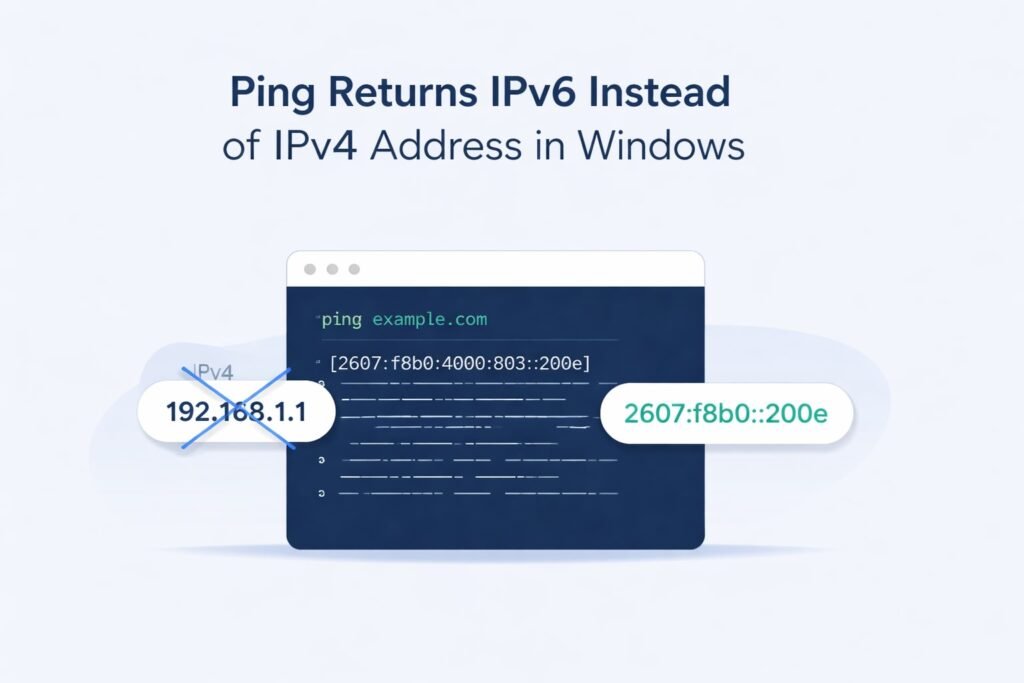
When you ping a website or hostname on Windows and get back an IPv6 address instead of IPv4, something is telling your computer to prefer the newer internet protocol. This happens more often than you’d think, and it usually catches people off guard.
Here’s what’s happening: your system is correctly resolving the domain name, but it’s choosing IPv6 (the newer protocol) over IPv4 (the older one most of us grew up with). If your network doesn’t actually support IPv6 well, or if you specifically need IPv4 for compatibility reasons, this creates real problems.
The good news? You can fix this. It’s not complicated, and you don’t need to be technical to do it.
Why Windows Prefers IPv6
Windows doesn’t randomly choose IPv6. There are actual reasons your system behaves this way.
When a hostname resolves to both IPv4 and IPv6 addresses, Windows follows something called address selection preferences. Think of it like a priority list. IPv6 sits higher on that list by default in modern Windows versions.
This preference existed even back in Windows Vista and was reinforced through Windows 7, 8, 10, and 11. Microsoft made this choice because IPv6 is the future of the internet. IPv4 addresses are running out, so pushing toward IPv6 makes sense from a long-term perspective.
The problem arrives when:
- Your ISP doesn’t fully support IPv6
- Your local network can’t handle IPv6 properly
- An application you rely on only works with IPv4
- You’re troubleshooting network issues and need predictable results
Method 1: Use the Force IPv4 Flag with Ping
The simplest fix is to force ping to use IPv4 directly. This takes five seconds.
Open Command Prompt (search for “cmd” in Windows) and use this syntax:
ping -4 example.comThe “-4” flag tells ping to only use IPv4. Replace “example.com” with whatever domain you’re pinging.
Here’s what the output looks like:
Pinging example.com [93.184.216.34] with 32 bytes of data:
Reply from 93.184.216.34: bytes=32 time=45ms TTL=55
Reply from 93.184.216.34: bytes=32 time=43ms TTL=55
Reply from 93.184.216.34: bytes=32 time=44ms TTL=55
Reply from 93.184.216.34: bytes=32 time=46ms TTL=55
Notice the address in brackets? That’s IPv4. The command worked.
This method works immediately and doesn’t change any system settings. You’re just telling this one ping command to behave differently.
If you want IPv6 specifically, you’d use:
ping -6 example.comMethod 2: Disable IPv6 on Your Network Interface
If you need a more permanent solution that affects all your network commands, you can disable IPv6 on specific network interfaces.
Note: Only do this if you’re sure you don’t need IPv6. Most systems benefit from having it available, even if they don’t use it actively.
Here’s how:
- Press the Windows key and type “Network Connections”
- Click “View network connections”
- Right-click your active network (usually “Ethernet” or “Wi-Fi”)
- Select “Properties”
- Uncheck “Internet Protocol Version 6 (TCP/IPv6)”
- Click “OK”
Your system will stop preferring IPv6 on that connection. Ping will now return IPv4 addresses by default.
To reverse this, follow the same steps and check the IPv6 box again.
Method 3: Modify the Prefix Policy
This is more technical but gives you fine control without completely disabling IPv6.
Windows uses something called “IPv6 Address Selection” (RFC 6724). It’s a set of rules that decide which address type gets priority.
You can change this using PowerShell:
- Right-click PowerShell and select “Run as administrator”
- Enter this command:
Set-NetIPv6DefaultPolicy -PolicyStore ActiveStore -Level 20 -Precedence 10This command modifies the prefix policy to deprioritize IPv6 while keeping it available.
To check your current settings, run:
Get-NetIPv6DefaultPolicyTo restore the default behavior:
Set-NetIPv6DefaultPolicy -PolicyStore ActiveStore -Level 40 -Precedence 35This method is reversible and doesn’t completely remove IPv6 from your system.
Method 4: Adjust the Registry
The registry approach works but requires more caution. One wrong edit breaks things.
Here’s the safe way:
- Press Windows key and R together
- Type “regedit” and press Enter
- Navigate to:
HKEY_LOCAL_MACHINE\SYSTEM\CurrentControlSet\Services\Tcpip6\Parameters - Look for a value called “DisabledComponents”
- If it doesn’t exist, right-click and create a new DWORD (32-bit)
- Name it “DisabledComponents”
- Set the value to “32” to prefer IPv4
The number “32” tells Windows to prefer IPv4 for local connections while keeping IPv6 functional for other uses.
Other values:
- “0” = IPv6 fully enabled
- “16” = Prefers IPv4
- “32” = Strongly prefers IPv4
After making changes, restart your computer.
Warning: Always back up your registry before editing it. Export the key first by right-clicking and selecting “Export.”
Checking Your Current IPv6 Status
Before making changes, know what you’re working with.
In Command Prompt, run:
ipconfig /allLook for “IPv6 Address” in the output. If you see entries like fe80::... or 2001:..., IPv6 is active on your system.
To test what your system prefers, run:
ping example.comIf you get back an address like 2001:4860:4860::8888, that’s IPv6. If you get 8.8.8.8, that’s IPv4.
When You Might Actually Want IPv6
Before disabling IPv6 completely, consider whether you need it.
Modern networks increasingly rely on IPv6. Cloud services, content delivery networks, and major websites all support it. If you disable it entirely, you might experience slower connections to some services.
The sweet spot for most users is keeping IPv6 available but preferring IPv4 when both exist. This gives you compatibility while maintaining modern protocol support.
Comparison of Methods
| Method | Effort | Permanence | Completeness | Best For |
|---|---|---|---|---|
| Ping -4 flag | 5 seconds | One command only | Incomplete | Quick troubleshooting |
| Disable IPv6 interface | 2 minutes | Permanent for that connection | Complete | Specific networks only |
| Prefix policy | 1 minute | Permanent system-wide | Balanced | Most situations |
| Registry edit | 3 minutes | Permanent system-wide | Complete | Full control needs |
Testing Your Changes
After applying any fix, test to confirm it worked.
Run ping again:
ping example.comYou should now see an IPv4 address. If you still get IPv6, try restarting your computer. Windows sometimes caches network settings.
For more complex testing, use:
nslookup example.comThis shows you all available addresses for a domain. You’ll see both IPv4 and IPv6 addresses listed. Then use the -4 flag to specifically query for IPv4:
nslookup -querytype=A example.comThe “A” record is IPv4. “AAAA” records are IPv6. This helps you understand what your DNS is returning.
Troubleshooting Still Seeing IPv6
If ping still returns IPv6 after trying these methods, check these things:
DNS might be the issue. Some DNS providers (like Cloudflare or Google Public DNS) return IPv6 addresses by default. Change your DNS server to one that prioritizes IPv4, or use a command like:
ping -4 example.comThis overrides DNS preferences.
Your network requires IPv6. Corporate or university networks sometimes mandate IPv6. Ask your network administrator if you can switch to IPv4.
A software firewall is interfering. Security software occasionally overrides system settings. Check your antivirus or firewall settings for IPv6 preferences.
The hostname only resolves to IPv6. Some newer services only have IPv6 addresses. You can’t force IPv4 if it doesn’t exist. Check with nslookup:
nslookup example.comIf you only see AAAA records (IPv6) and no A records (IPv4), IPv4 literally isn’t available.
Real-World Example Scenario
Let’s say you’re running an older application that only understands IPv4. You ping the server and get back a long IPv6 address. The application can’t connect because it doesn’t recognize the address format.
Your solution:
- First try the simple fix:
ping -4 servername - If that works, tell the application to use IPv4 (most applications have a settings option for this)
- If the application still fails, use the registry method to prefer IPv4 system-wide
- Test again with ipconfig and ping
This approach solves the problem without over-correcting by completely disabling IPv6.
Performance Considerations
Here’s something important: preferring IPv4 over IPv6 doesn’t make your network slower in most cases. IPv6 isn’t inherently faster or slower than IPv4.
The speed difference, if any, comes from how well your local network and ISP support each protocol. A poorly configured IPv6 setup could be slower than a solid IPv4 connection.
If your ISP supports IPv6 well, keeping it enabled might actually help performance on some services. The opposite is true if your ISP’s IPv6 implementation is weak.
The best approach: test both and see what works better for your specific situation. Use ping with both -4 and -6 flags and compare response times.
Summary and When to Use Each Method
For most people, the ping -4 flag solves the immediate problem. Use it when you need IPv4 for one specific command or troubleshooting session.
Use the network interface method if you’re on a corporate network that doesn’t support IPv6 well and you need a permanent fix for just that connection.
Use the prefix policy if you want system-wide preference for IPv4 while keeping IPv6 functional for applications that need it.
Use the registry method if you need complete control and understand the risks.
None of these methods is “wrong.” They’re tools for different situations. Choose based on what you’re trying to accomplish.
Key Takeaways
- Windows prefers IPv6 by default in modern versions
- The simplest fix is
ping -4 example.comfor immediate results - Permanent solutions involve network settings, PowerShell, or registry changes
- Don’t completely disable IPv6 unless you have a specific reason
- Test your changes to confirm they worked
- Document what you changed so you can reverse it if needed
The fix that’s right for you depends on whether you need a one-time solution or a permanent change, and whether you’re working with one connection or your entire system.
FAQs
What’s the difference between ping -4 and ping -6?
The -4 flag forces ping to use IPv4 addresses only. The -6 flag forces IPv6 only. Without either flag, Windows chooses based on its preference settings. Most modern Windows systems prefer IPv6, which is why you see it returned more often.
Will disabling IPv6 break my internet?
Probably not. Most websites and services support both IPv4 and IPv6. However, some newer services or specific applications might rely on IPv6. Test your changes carefully, and you can always re-enable it if something stops working.
Why does my DNS return IPv6 but I need IPv4?
Your DNS server is correctly returning all available addresses. Windows is choosing IPv6 because of its preference settings. Use ping -4 to specifically request IPv4, or change your system preferences to prefer IPv4 as described in this guide.
Can I prefer IPv4 just for one application?
Most applications have network settings where you can specify IPv4. Check the application’s preferences first before making system-wide changes. Some applications also accept command-line parameters to force IPv4 use.
Do I need to restart Windows after making these changes?
For most methods, yes. The registry edit especially requires a restart. The prefix policy and network interface changes usually take effect immediately, but restarting ensures the settings fully apply and removes any cached network configurations.

- How to Clear Cache on Windows 11: Quick Guide in 2026 - February 23, 2026
- Top 10 Trending AI Apps in 2026 You Should Actually Be Using - February 22, 2026
- Top 10 AI Based Resume Makers in 2026 That Actually Get You Hired - February 22, 2026