
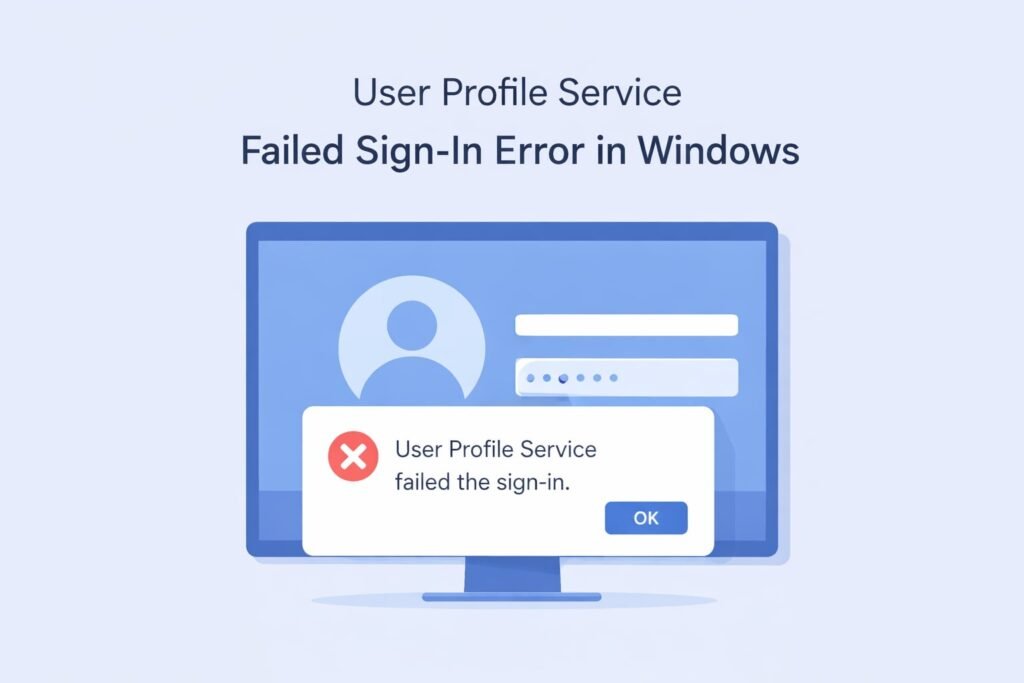
The “User Profile Service failed the sign-in” error occurs when Windows cannot load your user profile during startup. Your computer reaches the login screen, you enter your credentials, and then Windows stops responding with this specific error message. You’re stuck and can’t access your desktop.
This happens because the User Profile Service is a critical Windows component that loads your personal files, settings, and configurations when you log in. When it fails, Windows locks you out of your account as a safety measure.
The good news: this error is fixable. Most solutions take 15 to 45 minutes. You won’t lose your files or need to reinstall Windows in most cases.
Why Windows Shows This Error
Several things trigger this problem:
Corrupted user profile data — Your profile folder contains configuration files that Windows couldn’t read properly.
Hard drive or storage issues — Bad sectors on your drive prevent Windows from accessing profile information.
Recent Windows updates — Updates sometimes conflict with profile services, especially if your installation was interrupted.
Third-party antivirus interference — Some security software blocks profile access during startup.
Registry corruption — The Windows registry contains profile references that became damaged.
Insufficient permissions — Your profile lost proper access rights to its own folder.
Login cache problems — Cached login information became invalid or corrupted.
System file corruption — Critical Windows files needed for profile loading are missing or damaged.
Any one of these causes the same error message. That’s why fixing it requires testing multiple solutions.
Solution 1: Restart in Safe Mode and Run System File Checker
Safe Mode loads Windows with minimal drivers and services. This helps identify whether third-party software caused the problem.
Steps to restart in Safe Mode:
- At the login screen, hold Shift and click the Power button in the bottom right corner
- Select Restart while holding Shift
- After your computer restarts, you see the “Choose an option” screen
- Click Troubleshoot, then Advanced Options
- Select Startup Settings
- Press 4 or F4 to enter Safe Mode
Once in Safe Mode, you can try logging in with your affected account. If you can log in here, the issue involves a third-party program or driver.
Run System File Checker to repair corrupted files:
- Press Windows key and type “cmd”
- Right-click Command Prompt and select Run as Administrator
- Type this command exactly:
sfc /scannow - Press Enter and wait for the scan to complete (this takes 10 to 20 minutes)
- Restart your computer when finished
The System File Checker finds and repairs damaged Windows system files automatically. This solves the problem in roughly 30 percent of cases.
Solution 2: Check Your Hard Drive for Errors
Physical drive problems often trigger profile loading failures. The Check Disk utility scans for bad sectors and fixes errors.
Run Check Disk from Command Prompt:
- Right-click Start menu and select Windows Terminal (Admin)
- Type:
chkdsk C: /F /R - Type Y and press Enter when prompted to schedule the scan at next restart
- Restart your computer
The scan runs before Windows boots. This process takes 30 to 60 minutes depending on drive size. Let it complete fully without interrupting.
Alternative method using Settings:
- Open File Explorer
- Right-click your C drive
- Select Properties
- Click the Tools tab
- Under Error checking, click Check
- Select Scan and repair drive
This method requires administrator permission and restarts your computer automatically.
Solution 3: Delete Corrupted Profile and Create a New One
When a profile becomes severely corrupted, Windows can’t repair it. Creating a new profile sometimes works better than trying to fix the old one.
Create a temporary administrator account first:
- At the login screen, click Accessibility options button (bottom left)
- Enable Narrator (you’ll hear prompts, or skip if you can see clearly)
- Press Windows key and X simultaneously
- Select Windows Terminal (Admin)
- Type:
net user tempaccount password123 /add - Type:
net localgroup administrators tempaccount /add - Press Enter
- Restart and log into the temporary account
Remove your corrupted profile:
- Right-click This PC and select Properties
- Click Advanced system settings (left sidebar)
- Go to the User Profiles section and click Settings
- Find your corrupted profile in the list
- Click it once to select it
- Click Delete
- Click Yes to confirm
Create a new profile:
- Log out of the temporary account
- At the login screen, click “Other user”
- Type a new username and password
- Complete the initial setup process
- Log in with your new profile
Windows creates a fresh profile folder with default settings. You’ll need to restore your personal files from backup or recover them from the old profile folder if you have access.
Delete the temporary account afterward:
- Right-click This PC and select Properties
- Click Advanced system settings
- Go to User Profiles and click Settings
- Select the tempaccount profile
- Click Delete
- Restart your computer
Solution 4: Repair the Registry Using Command Line
The registry stores profile references. Corruption here prevents Windows from loading your profile.
Access Command Prompt before logging in:
- At the login screen, press Ctrl, Alt, and Delete simultaneously
- Press Shift and click the Power button
- Select Restart while holding Shift
- Go to Troubleshoot > Advanced Options > Command Prompt
- You’re now at a command prompt without logging in
Rename corrupted registry files:
- Type:
cd \Users\[YourUsername]\AppData\Local\Microsoft\Windows - Type:
ren USRCLASS.DAT USRCLASS.DAT.bak - Type:
cd .. - Type:
ren ntuser.dat ntuser.dat.bak - Type:
wpeutil reboot
Windows rebuilds these registry files on next startup using backup copies. This often resolves profile loading issues.
Solution 5: Use Windows Startup Repair Tool
The Startup Repair tool automatically detects and fixes common boot problems, including profile service failures.
Access Startup Repair:
- Turn off your computer completely
- Turn it back on and immediately press F8 repeatedly as it starts
- If F8 doesn’t work, use the Shift-restart method from Solution 1
- Select Troubleshoot from the options screen
- Click Advanced Options
- Select Startup Repair
Windows runs diagnostic scans and repairs issues without your input. This takes 10 to 15 minutes. Restart when complete.
If your computer won’t boot to the login screen at all, you need the Windows installation media. Use another computer to create a Windows recovery USB drive using the Windows Media Creation Tool. Boot from the USB and access Startup Repair from the recovery options.
Solution 6: Disable Fast Startup and Check Windows Updates
Fast Startup can conflict with profile loading. Disabling it helps some users.
Turn off Fast Startup:
- Type “power settings” in the search box
- Click Change what the power button does
- Click Change settings that are currently unavailable
- Uncheck Turn on fast startup
- Click Save changes
Check for pending Windows updates:
- Right-click Start and select Settings
- Go to System > About
- Click Check for updates
- Install any available updates and restart
Some users encounter this error after partial Windows updates. Completing the update process resolves the issue.
Solution 7: Restore From System Image or Backup
If your computer has a recent system image, restoration is faster than trying multiple repairs.
Restore from a system image:
- Boot into Windows Recovery Environment
- Select Troubleshoot > Advanced Options > System Image Recovery
- Follow the wizard to select your backup
- Windows restores your entire system to that point in time
This solution requires that you created a system image before the error appeared. If you don’t have a backup, this option isn’t available.
System images are worth creating regularly. They save hours of troubleshooting when major problems occur.
Step-by-Step Troubleshooting Flowchart
| Situation | First Try | If That Fails | Next Step |
|---|---|---|---|
| Can log in via Safe Mode | Run SFC scan | Update drivers | Move to Solution 5 |
| Can’t log in anywhere | Run Check Disk | Delete profile | Create new profile |
| Recent update installed | Uninstall update | Disable Fast Startup | Run Startup Repair |
| Have system backup | Try Solution 1 first | Restore from backup | Backup worked? Done |
Important: Back Up Your Files Before Major Changes
Before deleting profiles or running aggressive repairs, protect your data:
Access your files before logging in:
- Boot into Safe Mode with Command Prompt
- Navigate to C:\Users[YourUsername]\Documents
- Copy important files to an external drive
- Store this backup somewhere safe
Even if you can’t log in normally, you can still access your files through command prompt or File Explorer in Safe Mode.
When to Contact Microsoft Support
Some situations require professional help:
You should call Microsoft Support if:
Your hard drive shows numerous errors during the Check Disk scan. This indicates hardware failure, not software corruption.
You have a work computer managed by your organization. System administrators have tools and access to fix this faster.
You tried all solutions and the error persists. This suggests a hardware issue requiring professional diagnosis.
You can’t access Safe Mode or Command Prompt at all. This indicates a more serious system problem.
Microsoft Support can be reached through the Microsoft Support website or by calling your region’s support number. Have your Windows license key ready.
Prevention: Stop This Error From Happening Again
Once you fix this error, take these steps to prevent it:
Create regular backups — Use Windows Backup to create automatic system images weekly.
Keep Windows updated — Install updates when prompted, don’t postpone them repeatedly.
Monitor disk space — Keep at least 10 percent of your drive free for Windows operations.
Use antivirus software wisely — Whitelist your Windows System32 folder in security software settings.
Shut down properly — Use Shut Down, not Force Power Off. Forced shutdowns can corrupt profiles.
Update drivers regularly — Outdated drivers sometimes cause profile service conflicts.
Check hard drive health monthly — Use free tools like CrystalDiskInfo to monitor drive status.
FAQ
Can I recover files from my corrupted profile?
Yes. Boot into Safe Mode and navigate to C:\Users[YourUsername] through File Explorer. Copy your Documents, Desktop, Pictures, and Downloads folders to an external drive. These folders usually remain intact even when the profile won’t load. After creating a new profile, you can move these folders back.
Will I lose my programs when I delete my profile?
No. Installed programs remain on your computer. Deleting a profile only removes your personal settings and documents. After creating a new profile, your programs still work, but you’ll need to reconfigure settings in some applications.
How long does each solution take?
System File Checker takes 10 to 20 minutes. Check Disk takes 30 to 60 minutes. Creating a new profile takes 15 to 30 minutes. Startup Repair takes 10 to 15 minutes. Running all solutions sequentially takes 2 to 4 hours, though most problems solve in the first or second attempt.
Do I need to uninstall and reinstall Windows?
No. Reinstalling Windows is a last resort that you should consider only after trying all other solutions. In most cases, one of the solutions above fixes the error completely. Reinstallation takes 1 to 2 hours and removes all your files unless you back them up first.
What if Safe Mode also shows the error?
This suggests a system file or hardware problem rather than a third-party software conflict. Skip directly to Solution 2 (Check Disk) and Solution 3 (System File Checker). If those don’t work, your hard drive may be failing, and you need professional diagnosis.
Summary
The User Profile Service failed sign-in error stops you from accessing Windows. It’s caused by corrupted profiles, hard drive issues, registry problems, or system file corruption. Most people solve it using System File Checker or Check Disk. If those fail, creating a new profile or using Startup Repair usually works. Back up your files before making major changes. If nothing works after trying all solutions, contact Microsoft Support or a technician, as hardware failure may be responsible.
Start with Solution 1 today. Most people succeed within the first attempt.

- How to Clear Cache on Windows 11: Quick Guide in 2026 - February 23, 2026
- Top 10 Trending AI Apps in 2026 You Should Actually Be Using - February 22, 2026
- Top 10 AI Based Resume Makers in 2026 That Actually Get You Hired - February 22, 2026