Best Free Alternatives to Windows Operating Systems: Complete Guide for Switching Today

Windows dominates the desktop market, but it’s not your only option. Millions of people use free alternatives that work just as well, cost nothing, and often give you more control over your computer. If you’re tired of Windows updates, licensing fees, or slow performance, there are solid replacements waiting for you.

This guide covers the best free operating systems you can use right now. You’ll learn what each one does best, how to get started, and whether it’s right for your needs.

Why People Switch Away from Windows

Before exploring alternatives, understand why switching makes sense.

Windows requires a license. Even when bundled with new computers, you’re paying for it. Updates sometimes break things. System requirements keep increasing, forcing hardware upgrades. Privacy concerns exist around data collection. These frustrations drive people toward free alternatives.

The good news: free operating systems have matured significantly. They handle everyday tasks smoothly. Work, browsing, email, documents, and entertainment all work well. Professional work and gaming have expanded support too.

The Main Free Alternatives to Windows

Three operating systems dominate the free space. Each takes a different approach to solving your computing needs.

Linux: The Most Popular Free Alternative

Linux powers most of the internet. Servers, smartphones, and websites run on it. Desktop Linux is equally capable but less common only because Windows had a 30-year head start.

Why Linux works as a Windows replacement:

You own it completely. No licensing. No forced updates on Microsoft’s schedule. Thousands of applications run on it, all free. Security is stronger by default. Your computer runs faster because Linux doesn’t bloat itself over time.

The catch:

Learning takes effort initially. Some programs don’t run on Linux. Gaming support exists but isn’t as vast as Windows. Getting help sometimes requires reading documentation.

Best Linux distributions for beginners:

The Linux ecosystem splits into dozens of distributions. Pick one designed for newcomers.

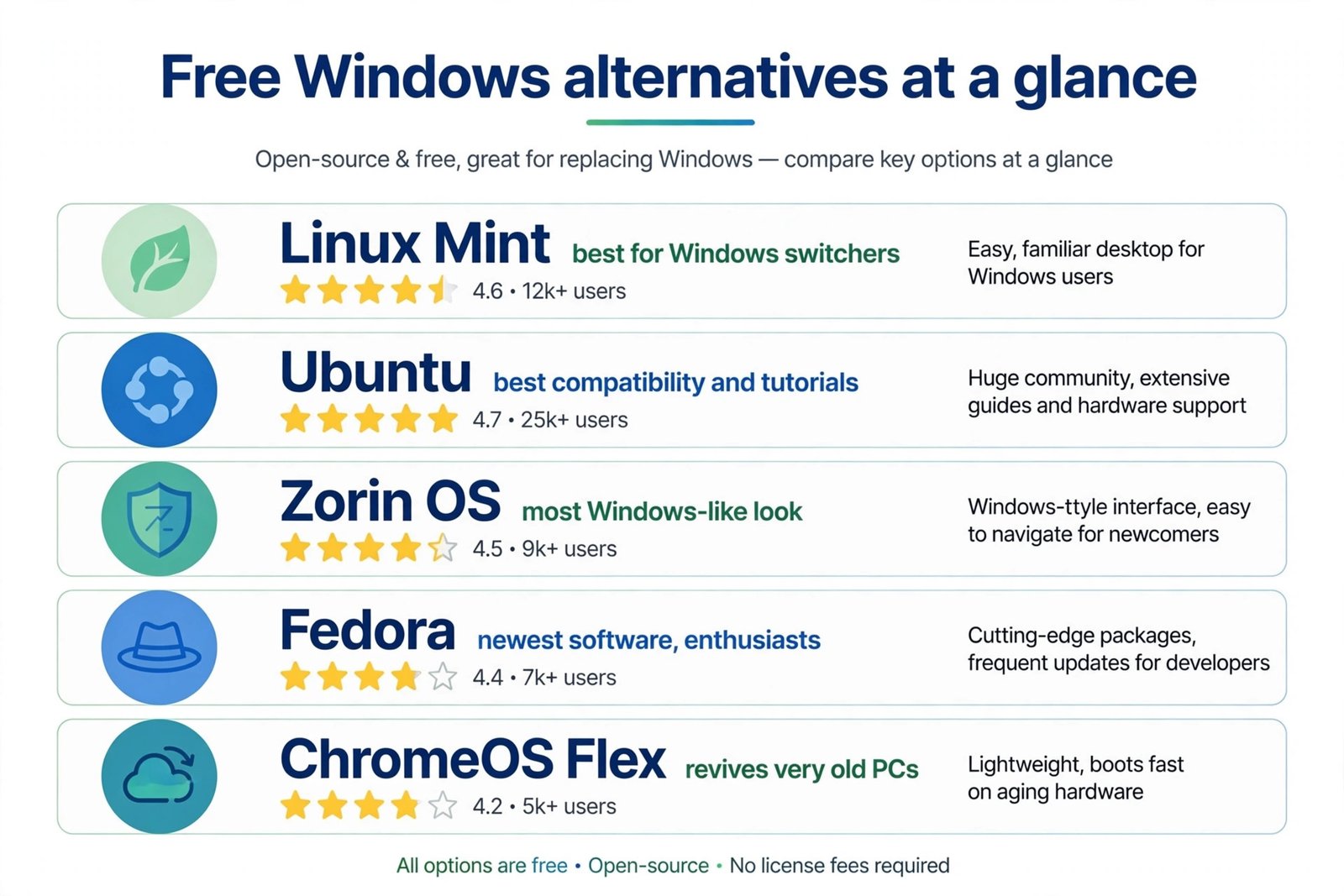
Ubuntu remains the easiest entry point. It feels familiar if you know Windows. Installation is straightforward. The community is enormous, so help is easy to find. Download it from ubuntu.com.

Linux Mint smooths Ubuntu’s rough edges. The interface feels even more Windows-like. It includes essential software pre-installed. Many people prefer it as their first Linux experience. Get it from linuxmint.com.

Fedora offers cutting-edge features. Updates arrive frequently. It’s solid and dependable despite its modern approach. Choose this if you want something more current than Ubuntu. Visit fedoraproject.org.

Elementary OS prioritizes beautiful design. If aesthetics matter to you, it’s worth trying. The user experience is refined and thoughtful. Download from elementaryos.org.

Comparison table of popular Linux distributions:

DistributionBest ForLearning CurvePre-installed Apps
UbuntuBeginners, stabilityLowModerate
Linux MintFamiliar feelVery LowHigh
FedoraModern featuresModerateModerate
Elementary OSBeautiful interfaceLowModerate
ManjaroCustomizationModerateLow

macOS: If You’re Considering Apple Hardware

macOS isn’t free to download separately. However, it comes free with Apple computers. If you’re buying new hardware anyway, Mac computers arrive with macOS included, making the operating system effectively free.

Why consider macOS:

It’s built for creative work. Designers and video editors often prefer it. The operating system and hardware are designed together, so performance is smooth. Unix-based foundation means power users love it. Excellent security model.

The reality check:

You must buy Apple hardware. Entry-level Macs start around $600 and go much higher. Once you own the hardware, macOS updates are free and mandatory. You get less control than Linux.

See also  Fix: RDP Can't Connect to Remote Computer (8 Solutions)

Who should choose macOS:

Creative professionals working with design, video, or music. People already in the Apple ecosystem. Anyone willing to invest in hardware for software quality. If you just need an affordable free OS, macOS requires spending significantly upfront.

ChromeOS: The Lightweight Option

ChromeOS is simple, fast, and security-focused. It’s the operating system inside Chromebooks, which start at affordable prices.

How ChromeOS works:

Everything happens in the browser. You work online through Google’s ecosystem. Local file storage exists but isn’t the main focus. Updates happen automatically without disruption. The system boots in seconds.

Best for:

Students. People who primarily use web applications. Anyone needing something simple and fast. Light internet browsing and document editing.

The limitation:

It’s web-first, not desktop-first. Running traditional desktop applications is difficult. Offline functionality is limited. You’re deeply tied to Google’s services.

Honest take:

If you live in web apps (Gmail, Google Docs, web browsers, streaming services), ChromeOS works perfectly. If you need desktop software like specialized tools or games, look elsewhere.

Installing Linux: A Step-by-Step Start

Let’s walk through getting Linux running. The process is simpler than most people think.

What You Need

A USB flash drive with at least 4GB space. A computer that can boot from USB. The Linux installation file (called an ISO). Free software to write the ISO to your USB drive.

Step-by-step installation:

1. Download the Linux ISO

Visit your chosen distribution’s website. Ubuntu.com, Linuxmint.com, or Fedoraproject.org work fine. Download the ISO file. It’s typically 3-4 gigabytes.

2. Create a bootable USB drive

Use Rufus (for Windows) or Balena Etcher (works on Windows, Mac, and Linux). Plug in your USB drive. Select the ISO file you downloaded. Select your USB drive. Click write or flash. Wait for completion.

3. Boot from the USB drive

Restart your computer. During startup, press a key to enter the boot menu. Usually F12, F2, DEL, or ESC. Select your USB drive from the menu.

4. Try Linux without installing

Most distributions let you try them first. A “live” version runs from the USB drive without touching your hard drive. Explore it. Make sure your hardware works properly.

5. Install to your computer

Once satisfied, click the install option. Choose your language and location. When asked about disk space, you can replace Windows completely or create space for both systems.

For beginners: pick “replace Windows entirely.” It’s simpler. You can always go back if needed.

6. Complete installation

The installer handles most decisions automatically. Set your username and password. Choose a timezone. Wait for files to copy. Restart when prompted.

That’s it. You now have Linux.

What You Can Actually Do on Linux

Linux handles everything most people need.

Work and productivity:

LibreOffice creates documents, spreadsheets, and presentations. Compatible with Microsoft Office files. Thunderbird handles email. GIMP edits photos. Inkscape designs graphics. Blender creates 3D artwork. All free.

Internet and communication:

Firefox and Chrome run on Linux. Zoom, Discord, and Telegram have Linux versions. You can video chat, attend meetings, and stay connected normally.

Entertainment:

Stream from Netflix, YouTube, and Spotify without issues. Music players and video editors are available. Gaming has improved tremendously. Many popular games now run on Linux. Steam (the gaming platform) works well on Linux.

See also  How to Reset a COM Port in Windows for Free: Your Guide to Fix Port Issues

Files and storage:

USB drives work normally. External hard drives work normally. Network folders work normally. Cloud storage like Google Drive, Dropbox, and OneDrive integrate smoothly.

Development and advanced work:

Programmers, data scientists, and engineers strongly prefer Linux. Professional development tools are available. Linux powers the servers these professionals work with, so using Linux locally makes sense.

Moving Your Files from Windows to Linux

You don’t lose your documents, photos, or files.

Before switching:

Back up everything to an external drive or cloud storage. This is always smart regardless of your OS.

Transfer your files:

Plug your external drive into Linux. Files copy and work normally. Cloud services sync automatically once you log in.

Your documents:

Microsoft Office files open in LibreOffice. Compatibility is strong for modern documents. Older files sometimes need adjustment.

Photos and media:

These copy directly. No conversion needed. Photo apps on Linux import and organize them seamlessly.

Your programs:

Windows programs don’t run on Linux. You’ll need to find Linux alternatives or web versions. Most common tasks have solid replacements.

Making the transition smooth:

Don’t switch everything at once. Try Linux on a second computer or in a virtual machine first. Use it for a week. See if you’re comfortable. Then switch your main machine.

Linux Software You’ll Actually Use

Understanding available software helps with your decision.

TaskWindows SoftwareLinux Alternative
Word documentsMicrosoft WordLibreOffice Writer
SpreadsheetsMicrosoft ExcelLibreOffice Calc
PresentationsPowerPointLibreOffice Impress
Photo editingPhotoshopGIMP
Vector graphicsIllustratorInkscape
EmailOutlookThunderbird
MessagingSlackSlack (native Linux version)
Video editingAdobe PremiereDaVinci Resolve
EmailGmailGmail (web)
File syncOneDriveNextcloud

Key point: For 95% of tasks, solid Linux alternatives exist. The remaining 5% requires web versions or workarounds.

Common Concerns About Linux Addressed

Will my printer work?

Probably yes. Most modern printers have Linux drivers. Older or specialized printers sometimes cause issues. Check compatibility before switching if you have specific hardware.

What about gaming?

Gaming on Linux improved dramatically. Steam Proton allows Windows games to run on Linux. Thousands of games work perfectly. Not every game works, but the list grows monthly. If gaming is your main activity, research specific titles you play.

Is Linux really free?

Completely free. Download it free. Install it free. Use it free. No licensing, no hidden costs. Paid support exists for businesses, but individuals use it entirely free.

Will my documents stay compatible?

Documents transfer between systems smoothly. LibreOffice reads Microsoft Office files. Switching back to Windows later is possible. Your files aren’t locked into Linux.

Is it harder to use than Windows?

Modern Linux is easier than Windows for most tasks. Finding and installing software is simpler. No aggressive advertising or bloatware. Updates don’t nag you. It feels cleaner. Tasks work more directly. Learning the differences takes a few days.

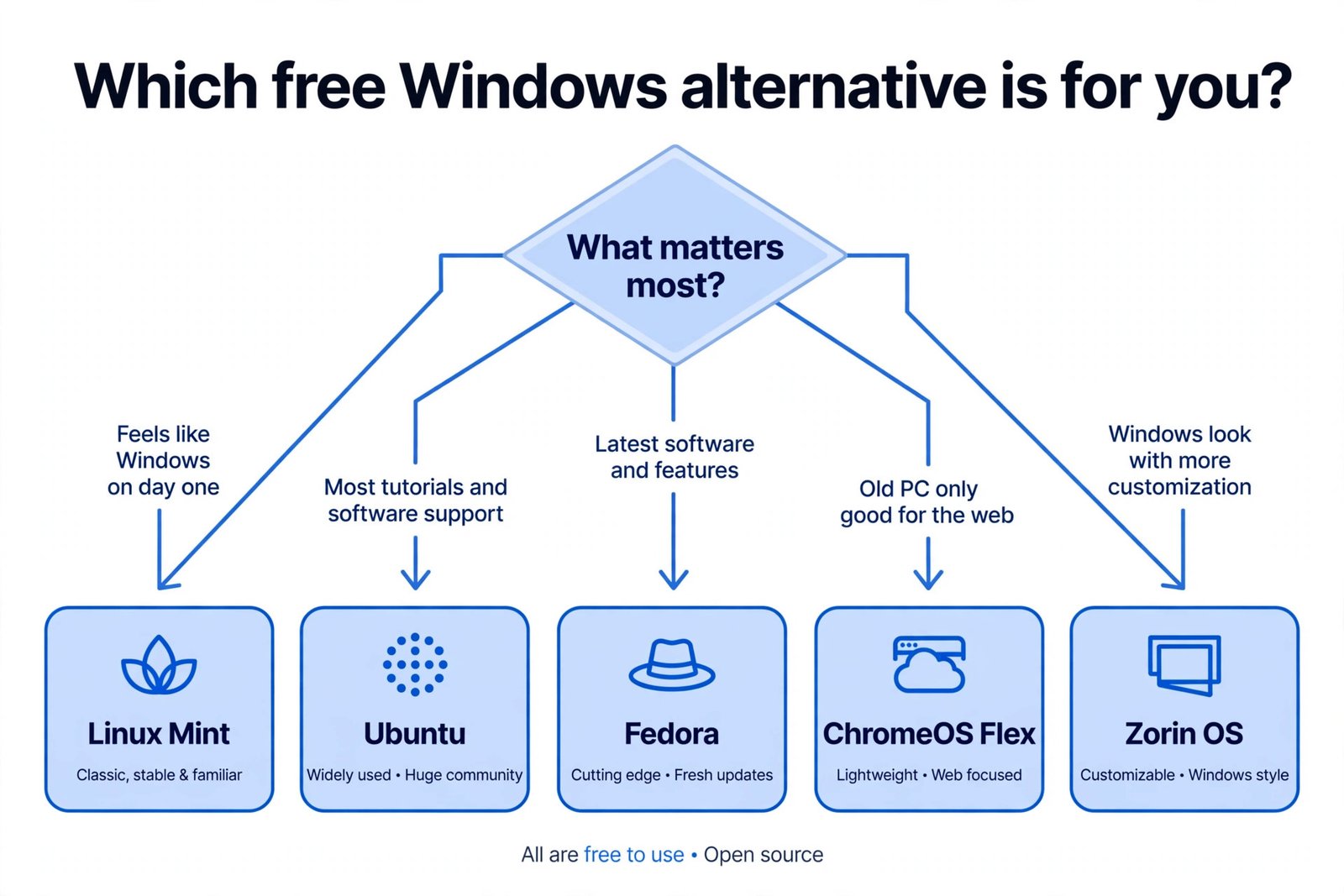
Choosing Between Free OS Alternatives

Your decision depends on your specific situation.

Choose Linux if:

You want complete ownership of your system. You need powerful, free software. You enjoy learning new systems. You want maximum control. Cost matters significantly.

Choose macOS if:

You do creative professional work. You’re willing to buy Apple hardware. Smooth integration with other Apple devices appeals to you. You want simplicity with power.

Choose ChromeOS if:

You primarily use web applications. You want the simplest option possible. You need something that never slows down. Cost is important and you can buy a Chromebook.

See also  Best Windows Live Mail Alternatives: A Practical Guide to Finding Your Next Email Client

Stick with Windows if:

Specific software you need only runs on Windows. You game extensively with Windows-exclusive titles. You’re comfortable with the system already. Your work requires Windows compatibility.

Making the Switch Successfully

Switching operating systems feels risky. Here’s how to make it painless.

Start with a virtual machine:

Install VirtualBox (free, works on Windows). Run Linux inside Windows. Explore for a week. No risk. No permanent changes. If you hate it, delete it and lose nothing.

Try a live USB:

Boot from the USB drive. Use Linux temporarily. Restart to return to Windows. Explore without installing.

Dual boot your computer:

Keep both Windows and Linux. Choose which one to use when you start your computer. Run Linux for a month while Windows remains available.

Complete switch:

When confident, replace Windows entirely with Linux. Your files are backed up. You’ve tried it. You know what to expect.

Get help:

Both Ubuntu and Linux Mint have massive communities. Ask questions on forums. Most people are helpful and patient.

Conclusion: Your Next Steps

Free operating systems work well. Millions of people use them daily. They handle real work, creativity, and entertainment smoothly. They cost nothing. They give you control.

Linux is the strongest choice for most people switching from Windows. It’s powerful, free, and beginner-friendly in modern distributions. Ubuntu and Linux Mint specifically cater to people coming from Windows.

Your next step is simple. Download the ISO file. Create a bootable USB drive. Try it on your current computer. Spend an afternoon exploring. See how it feels.

You might discover you prefer it. You might decide Windows works better for you. Either way, you’ll have real information about your options instead of assumptions.

The barrier to trying free alternatives is now zero. Take advantage of that. Your computer experience might improve. Your wallet will certainly appreciate the savings. And you’ll have learned something valuable about how computers actually work.


Frequently Asked Questions

Can I run Microsoft Office on Linux?

Not directly. However, LibreOffice and OnlyOffice are nearly identical and handle Microsoft Office files. Microsoft Office online versions work in any browser, including on Linux. If you absolutely need Office desktop software, that’s one limitation to consider.

Will Linux work on my old computer?

Likely yes. Linux runs well on older hardware. If your computer struggles with modern Windows, Linux might make it useful again. Lighter distributions like Lubuntu work on very old machines. Test with a live USB before deciding.

How do I get technical support for Linux?

Community forums exist for every distribution. Ubuntu has extensive documentation and community support. Most questions have answers already posted online. Professional support is available commercially if you need it, but free community support is generous and helpful.

Is it secure to switch to Linux?

Linux is genuinely more secure than Windows. Malware is rarer. The system design is more robust. However, security depends on your behavior too. Don’t download suspicious files. Use strong passwords. Keep your system updated. These practices work on any OS.

What if I need to go back to Windows?

You can reinstall Windows anytime. Your files remain unchanged. Dual booting lets you keep both systems. Many people try Linux, discover they prefer it, and never look back. Others return to Windows and feel more informed about their choice.

Pradeep S.
Scroll to Top