
If your iPhone battery has been draining faster than usual since the iOS 27 update, you are not imagining it. Across forums and tech sites this October, owners have been pointing at one setting: Connectivity Assist. It sits at the bottom of the Wi-Fi settings page, it is on by default for many upgraders, and it can quietly use cellular data while you think you are on Wi-Fi. This guide walks you through a sensible diagnostic flow: what the feature does, whether you should turn it off, how to check what it has already cost you in data, the exact steps to disable it, and one big caveat about battery claims that you need to read first.
What Connectivity Assist actually does
Connectivity Assist is the iOS 27 successor to the old Wi-Fi Assist feature. In plain English: when your Wi-Fi connection gets weak, slow, or drops out, your iPhone automatically uses cellular data to keep things loading, so a video does not freeze and a page does not stall when the Wi-Fi wobbles. Apple frames it as a smoother handoff between Wi-Fi and cellular.
That is the official purpose, and it is genuinely useful in places with flaky Wi-Fi. The controversy comes from how aggressively it works. Multiple tech outlets and user reports in October 2026 describe it as more active than the old Wi-Fi Assist, with the cellular radio engaging even while the phone shows a stable Wi-Fi connection. Treat that characterization carefully: it comes from user reports and tech press, not from Apple’s own documentation, which does not describe the feature in that much detail. The one thing we can verify is that the setting exists, it is on by default for many people who had Wi-Fi Assist enabled before updating, and it uses real cellular data while doing its job.
Should you turn it off? A quick decision guide
Not everyone should disable it. The right call depends on your data plan and how you use your phone. Use this as a starting point, then confirm with the data-usage check in the next section.
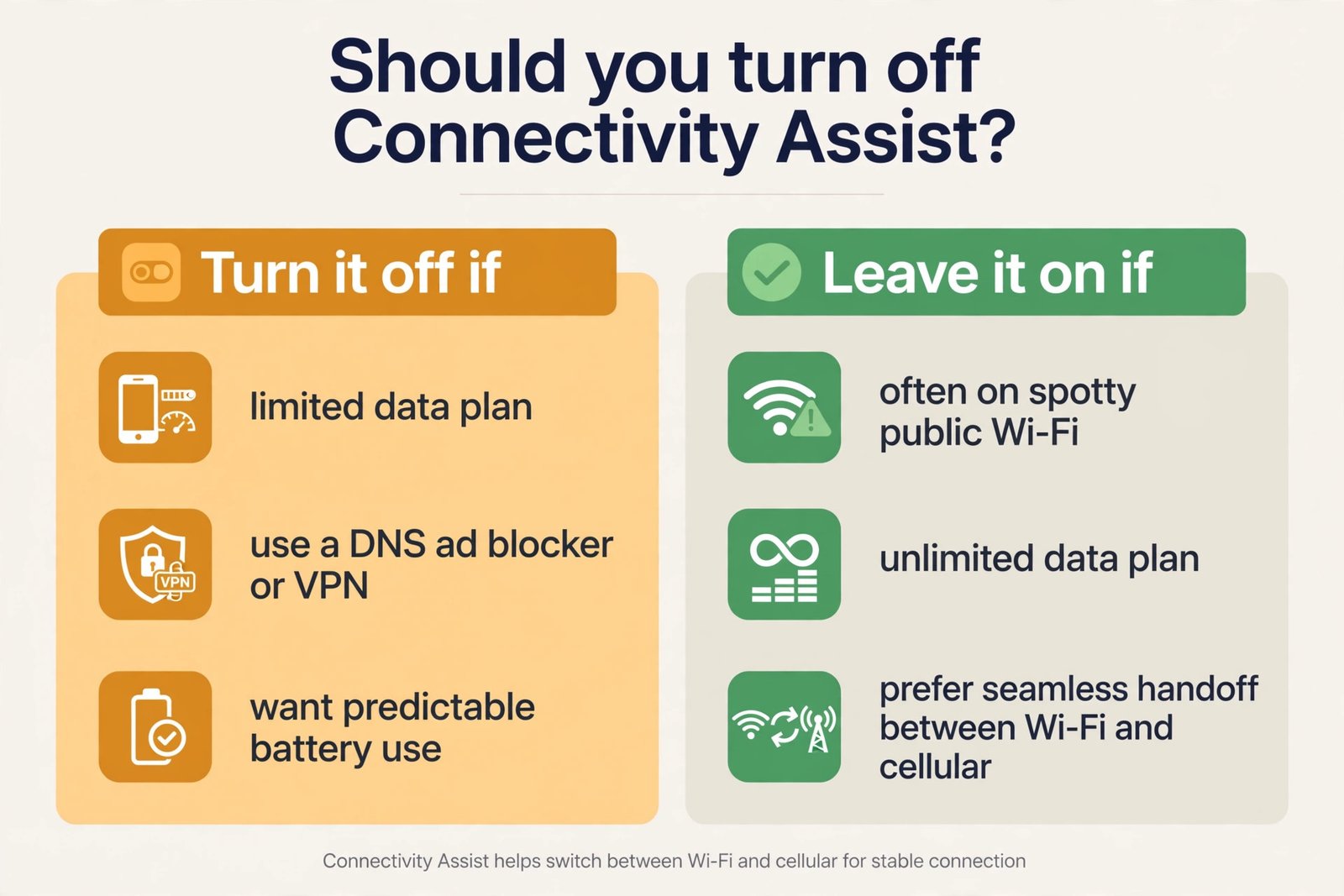
| Turn it off if… | Leave it on if… |
|---|---|
| You are on a limited data plan and want every megabyte accounted for | You have unlimited data and do not worry about background usage |
| You use a DNS-based ad blocker, a VPN, or parental filters and suspect the feature is working around them | You mostly care that streaming and browsing never stutter |
| You spend most of your time on reliable home or office Wi-Fi, where a cellular backup is pure overhead | You regularly move through spotty public Wi-Fi in cafes, airports, or on transit |
First, check how much cellular data it has used
Before changing anything, look at the evidence. iOS shows you exactly how much cellular data Connectivity Assist has consumed on your phone, and that number tells you whether the feature has been working overtime or barely doing anything.
- Open Settings and tap Wi-Fi.
- Scroll all the way to the bottom of the Wi-Fi page.
- Look just under the Connectivity Assist toggle. You will see a line stating how much cellular data the feature has used so far.
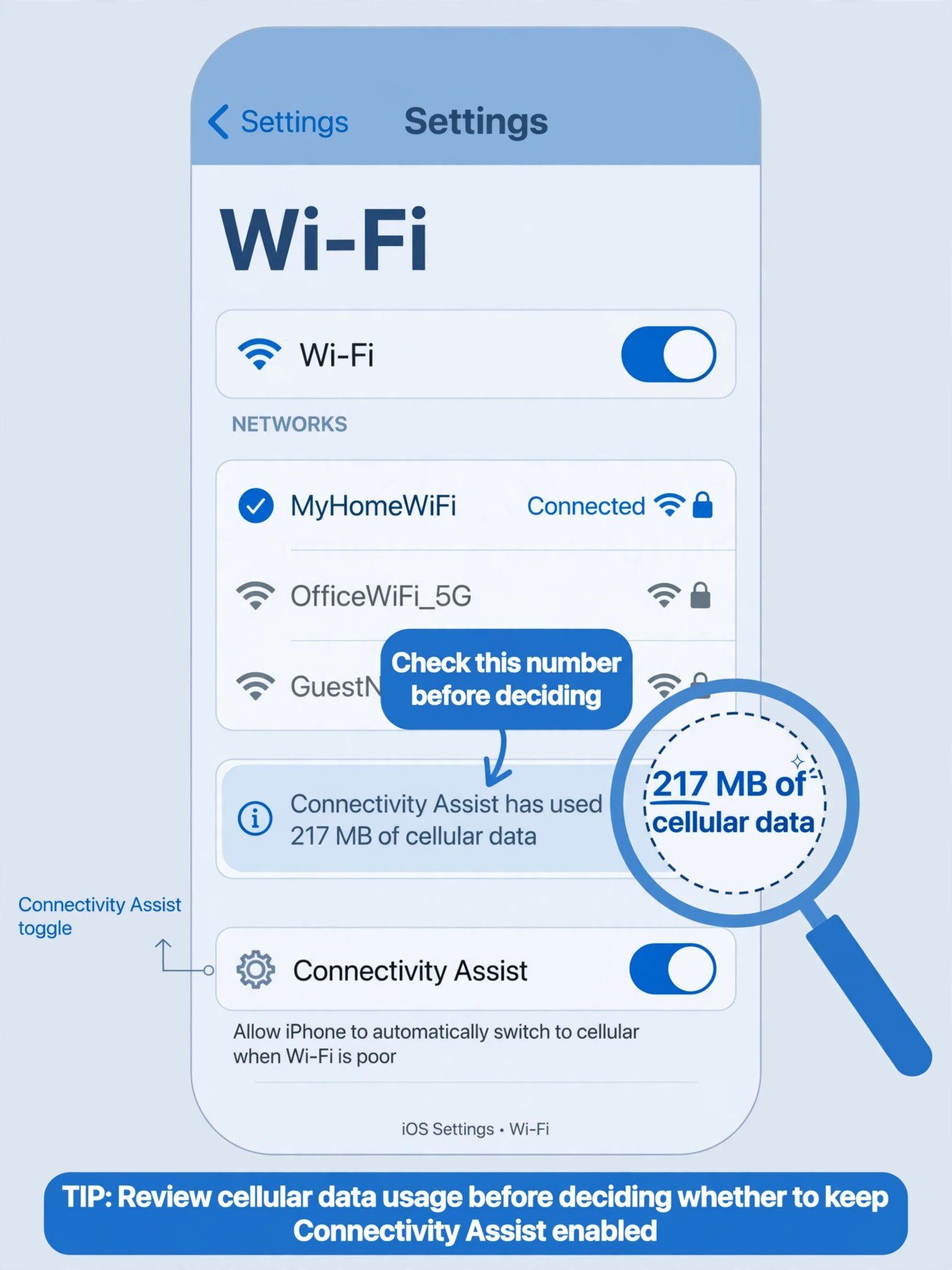
Read this number like a diagnostic. If it shows hundreds of megabytes or more, Connectivity Assist has been pulling real weight in the background, and turning it off will likely cut your background data use. If it is near zero, the feature is not your problem, and your battery or data issue has another cause. Either way, you now have a fact instead of a guess.
How to turn it off: the steps
iOS 27 gives you two levels of control: turn it off for the whole phone, or turn it off only for specific networks. Many people do both for the networks they trust most.
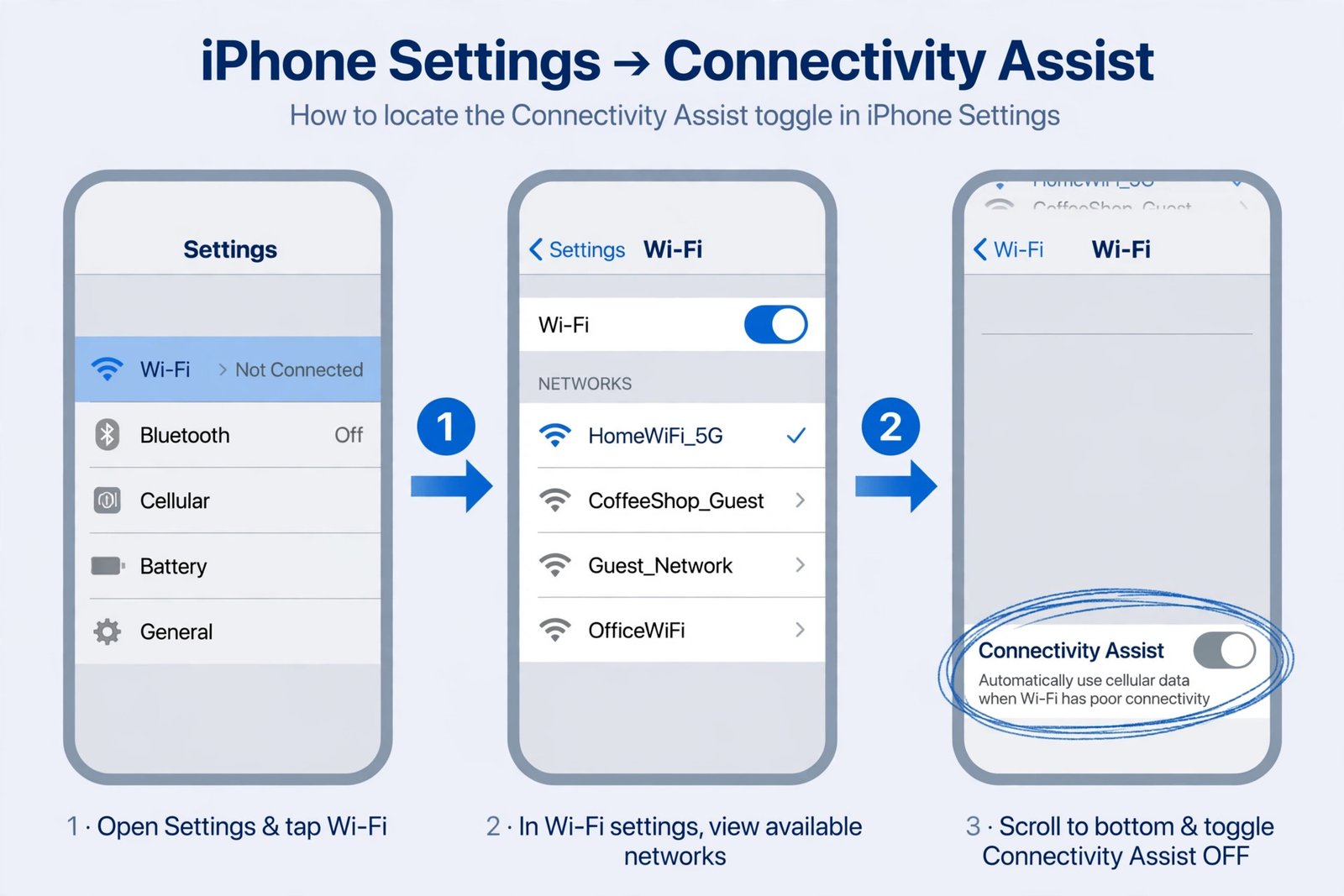
Turn it off everywhere (global switch)
- Open the Settings app on your iPhone.
- Tap Wi-Fi and make sure Wi-Fi is switched on.
- Scroll all the way to the bottom of the page.
- Toggle Connectivity Assist off.
Turn it off for one network only (per-network switch)
This is a useful middle ground: keep the backup active for shaky cafe Wi-Fi while disabling it for your stable home or office network.
- Open Settings and tap Wi-Fi.
- Tap the information icon (i) next to the network name you want to change.
- Turn off Use Connectivity Assist for that network.
One detail worth knowing: some users report that they had to switch it off both globally and per-network before background activity fully stopped. If you disable the global toggle, it is worth opening the details page of your main networks and confirming the per-network switch is off there too. You can reverse any of this at any time by flipping the same toggles back on.
The battery caveat: read this before expecting a fix
Turning off Connectivity Assist may reduce background data use, and user reports link it to better ad-blocker and VPN behavior. But battery drain right after a major iOS update is often temporary, and blaming one setting too early can send you chasing the wrong fix.
Here is the context the viral posts often skip. After any major iOS release, including iOS 27, the phone spends several days doing heavy background work: re-indexing files and photos, optimizing apps for the new system, and downloading updates. That work drains the battery faster than normal, and it has nothing to do with Connectivity Assist. Multiple tech outlets covering the October 2026 reports make this exact point.
So treat the battery claims honestly. The reports of improved battery life after disabling the feature are real user reports, but they are anecdotes, not controlled tests, and some of that improvement may simply be the phone finishing its post-update indexing. A fair approach: give your iPhone three to five days after updating before judging battery life. Then check the data-usage number from the section above. If it is high, Connectivity Assist was genuinely costing you data and radio time, and turning it off is a reasonable step. If it is low, open Settings, then Battery, and look at which apps are actually consuming power, because the real culprit is elsewhere.
What changes after you turn it off
Knowing the trade-offs keeps you from being surprised later.
- No more automatic cellular backup. When Wi-Fi dips or stalls, apps will pause or load slowly instead of quietly switching to cellular. In practice this means the occasional frozen page on weak Wi-Fi.
- Your data usage becomes predictable. Nothing will consume cellular data while the phone shows a Wi-Fi connection. If you are on a capped plan, this is the main win. As a related control, turning on Low Data Mode on iPhone also keeps the phone from using data aggressively, and reports note that Connectivity Assist stays inactive while Low Data Mode is enabled.
- Ad blockers and VPNs may behave more reliably. User reports say the feature can route traffic around DNS-based ad blockers and some VPN or parental filter setups, because the phone treats a blocked request as a failed Wi-Fi connection and retries it over cellular. This is reported behavior, not officially confirmed, but several users say their ad blockers started working properly again after disabling the feature. Apple’s own support material reportedly recommends turning it off on networks where you rely on an ad blocker.
- Handoffs become fully manual. Moving out of Wi-Fi range works exactly as it always has: the phone switches to cellular when Wi-Fi is gone, not while it is merely weak.
- Roaming stays unaffected. The feature is already inactive when you are roaming internationally, so frequent travelers lose nothing by disabling it. If you travel with an eSIM, our guide to activating an eSIM on iPhone covers keeping your data working abroad.
If the battery still drains after turning it off
Connectivity Assist is one suspect among several. If the drain continues a few days after the update and after disabling the feature, work through these in order: check Settings, then Battery, to see which apps top the list; install the latest iOS 27 point update, since Apple shipped 27.0.1 with stability fixes shortly after launch; restart the phone; and look at background-hungry settings like Background App Refresh and location access. A setting-level fix only helps when the setting was actually the cause, and the data-usage readout tells you whether it was.
Frequently asked questions
Did Connectivity Assist turn itself on?
For many upgraders, effectively yes. Reports indicate that if the older Wi-Fi Assist was enabled before you installed iOS 27, Connectivity Assist came on by default. That is why people who never heard of the feature are suddenly seeing its data usage.
Will turning it off break anything?
No. It only removes the automatic cellular backup on weak Wi-Fi. Calls, texts, Wi-Fi, and cellular all work exactly as before. You can turn it back on with the same toggle whenever you like.
Does turning it off save battery for sure?
Not for sure. It will stop the background cellular activity the feature was responsible for, which helps data usage and may help battery in weak-signal areas. But if your drain is caused by post-update indexing or a power-hungry app, this toggle will not fix it. Check the data-usage number and the Battery screen before drawing conclusions.
Does it affect Wi-Fi calling?
No. Connectivity Assist only governs how the phone handles data traffic on weak Wi-Fi. Wi-Fi calling is a separate setting and keeps working normally.
The bottom line: Connectivity Assist is a convenience feature with a real data cost, and for many people the cost is not worth it. Check the usage number, decide based on your plan and your tolerance for weak-Wi-Fi hiccups, and do not expect it to magically fix a battery that is still indexing a fresh iOS 27 install.

- How to Turn Off iOS Connectivity Assist (and When You Should Leave It On) - October 15, 2026
- AirTag vs Tile vs Chipolo: Best Bluetooth Tracker in 2026 (Compared) - October 15, 2026
- Best Smart Water Bottles in 2026 (That Track Hydration) - October 15, 2026