
Notification Cooldown is an Android feature that quietly turns down the volume of repeat alerts when one app fires off several notifications in a row. That means a buzzing group chat no longer rings at full blast twenty times a minute, but it can also mean you miss a message you actually needed. Below is a plain-English explanation of what the feature does, followed by the exact steps to switch it off on a Pixel and on a Samsung Galaxy phone.
What Is Notification Cooldown
Notification Cooldown watches for bursts of notifications coming from the same app and softens each new alert instead of letting every one chime at full volume. The first notification arrives exactly as normal. If a second, third, and fourth follow within a short window, Android plays each one a little quieter and shortens the vibration, until the phone barely makes a sound for the rest of the burst. After a pause of up to about two minutes, the volume resets and the next notification rings normally again.
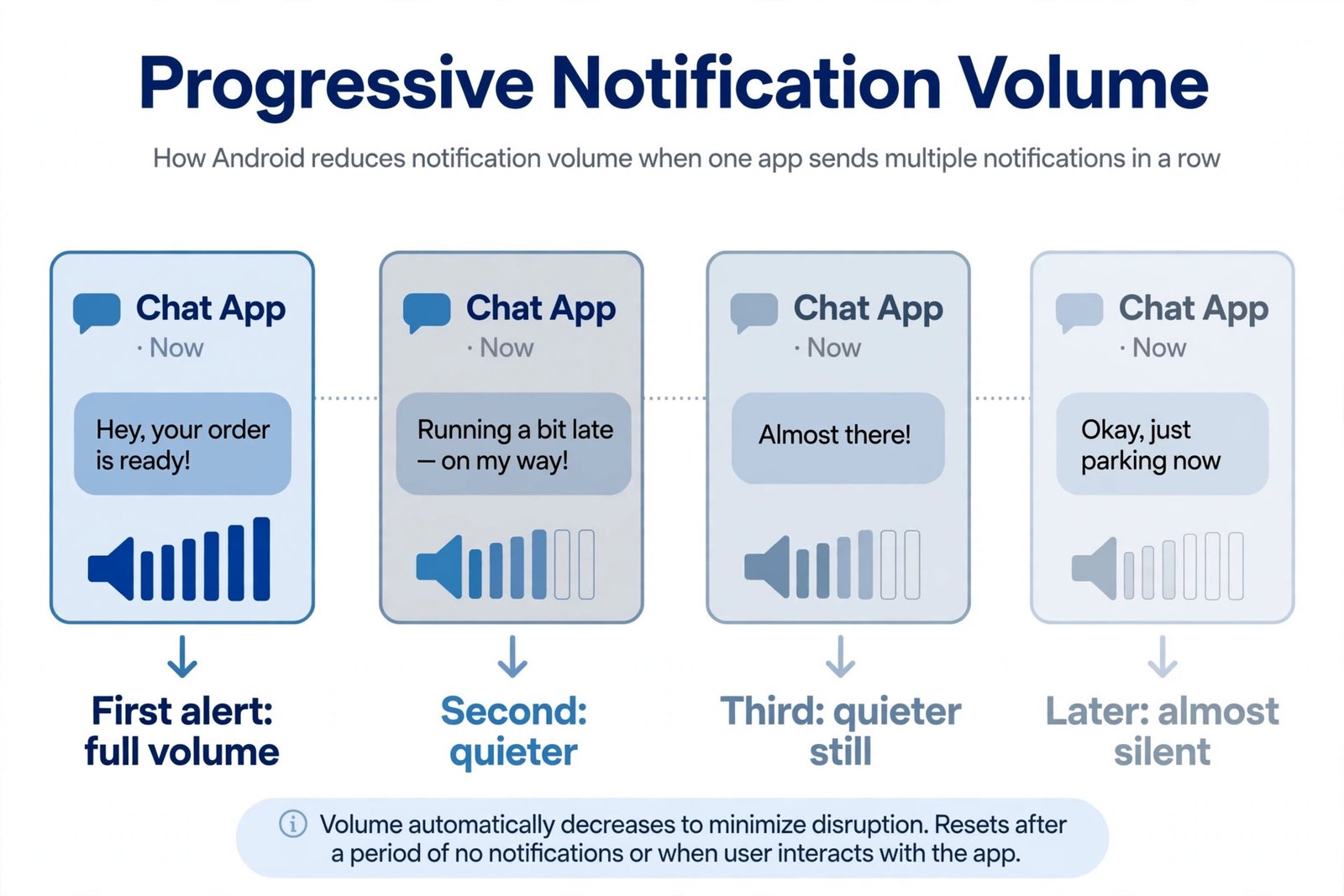
A practical example: you are in a lively family group chat and someone starts sharing trip photos. The first message pings loudly, the next few ping softer, and by message six or seven your phone is nearly silent while the messages keep stacking up in the shade. Nothing is deleted or hidden. Every notification still appears in the notification shade, grouped under the app’s banner, so you can read them all whenever you pick up the phone.
The feature is built into Android 16, the current release at the time of writing. It has an interesting history: it first appeared in Android 15 developer previews with a three-way choice (all notifications, conversations only, or off), 9to5Google covered the early version, then disappeared from the final Android 15 release and returned in Android 16 as a single on-or-off toggle. On Pixel phones it ships turned on by default. If you want to see what else is new in recent Android releases, TechIlu’s roundup of what is new in the newest Android versions covers the latest changes.
It helps to know what the cooldown changes and what it leaves alone:
| What gets quieter | What is never affected |
|---|---|
| Repeat notifications from the same app | Phone calls |
| Alert volume | Alarms and timers |
| Vibration strength | Priority conversations |
| Pop-up alerts on screen | Emergency alerts |
There is no per-app control and no duration slider in the shipped version of the feature. It is one global switch, on or off, and on some builds there is a second switch that extends it to work profile apps.
How sensitive is the trigger? Android starts the cooldown when the same app posts several notifications in quick succession, not when one app posts a few alerts spread across an hour. The system also watches whether you interact with your phone: if you pick up the phone and read the notifications, the burst is no longer a problem to solve, and the ramp-down resets sooner. The roughly two-minute window is a ceiling, not a timer you can set, so there is no way to make the quiet period longer or shorter. On some Pixel builds you will also see an “Apply to work profiles” switch on the same screen, which extends the cooldown to apps inside your work profile.
How to Turn Off Notification Cooldown on Android
The path to the toggle depends on your phone. Follow the section that matches your device.
On a Pixel Phone (Android 16)
- Open the Settings app.
- Tap Notifications.
- Scroll down to Notification cooldown and tap it. It sits in the General section near the bottom. If you cannot spot it, type “cooldown” into the search bar at the top of Settings.
- Turn off the Use notification cooldown switch. Every notification will now play at full volume and vibration from here on.
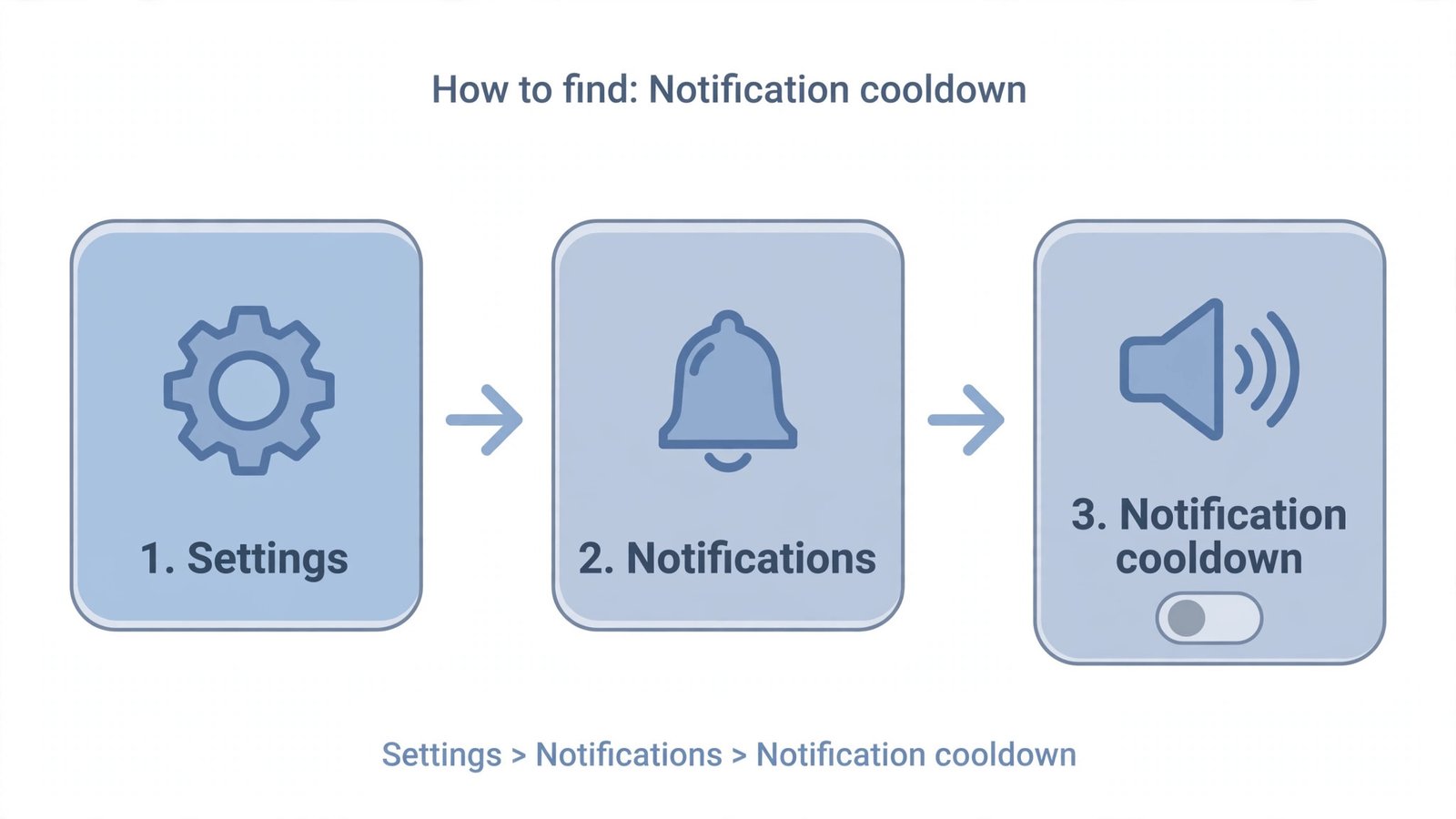
After you switch it off, every notification from every app will sound and vibrate at full strength again, exactly as it did on older Android versions. If a particular app then becomes annoying on its own, the better fix is per-app control rather than turning the cooldown back on: go to Settings > Notifications > App notifications, tap that app, and silence only its noisiest channel.
On a Samsung Galaxy Phone (One UI 8)
Samsung’s handling of this feature is inconsistent, so check before assuming the toggle exists on your phone. The fastest way to check on any Galaxy build is the Settings search bar:
- Open the Settings app and tap the search bar at the top.
- Type “cooldown”.
- If a Notification cooldown result appears, tap it and switch the toggle off. Where it exists in the menu, the path is Settings > Notifications > Notification cooldown; on some builds it sits under Settings > Notifications > Advanced settings instead.
- If no result appears, the feature is not included on your build. You can still quiet a noisy app with per-app settings instead: go to Settings > Notifications > App notifications, tap the app, and adjust its notification channels.
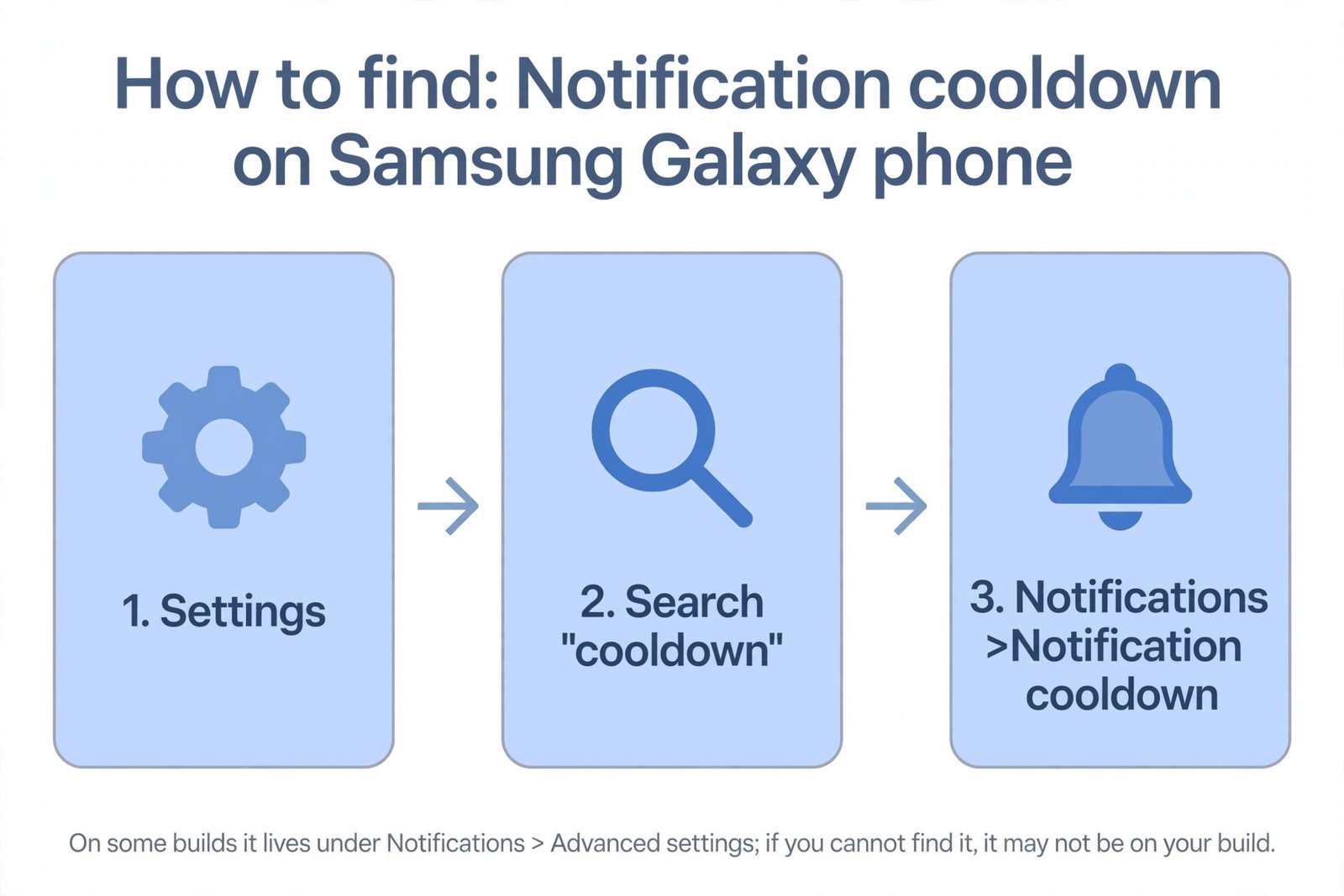
Reports for 2026 are mixed on Samsung. Some Galaxy builds running One UI 7 (Android 15) include the toggle under Notifications, while it has not consistently appeared on One UI 8 (Android 16) builds. That is why the search-bar check is the most reliable method on a Samsung phone.
If your Galaxy phone does not have the toggle, you are not missing a core Android control, just a convenience layer. The closest Samsung equivalents are per-app notification settings (Settings > Notifications > App notifications) for noisy apps, and Modes and Routines if you want quiet alerts on a schedule rather than all day. Both give you more precise control than a single global cooldown switch.
Verdict
Turn it off if you are on call for work, triage chats or email in real time, or have actually missed messages because alerts went quiet. A dispatcher, a support agent, or anyone waiting on time-sensitive pings should not let the phone decide which alerts deserve full volume.
Leave it on if you are like most people: buried in group chats, social apps, and shopping pings. It is one of the few settings that reduces alert fatigue without hiding anything, and the exceptions for calls, alarms, and priority conversations mean your important stuff still gets through. Android Police’s walkthrough of the Android 16 toggle notes the same careful exceptions.
One limitation to weigh: the feature is all or nothing. You cannot keep the cooldown for a chatty social app while exempting your work email, and you cannot change the roughly two-minute window. That is the price of a feature designed to work without any configuration. If what you really want is genuine quiet during focus time rather than gentler chimes, Do Not Disturb mode on Android is the stronger tool for that job.
A final tip: if you turn it off and later regret it, the toggle is in the exact same place, so flipping it back on takes ten seconds. The setting applies immediately, with no restart required, so you can test a day with it off and a day with it on and keep whichever suits your notification load.

- How to Turn Off Notification Cooldown on Android - October 19, 2026
- Best External SSDs for Backup in 2026 - October 18, 2026
- What Is Google Gemini Agent? What It Does and Who Gets It - October 17, 2026