
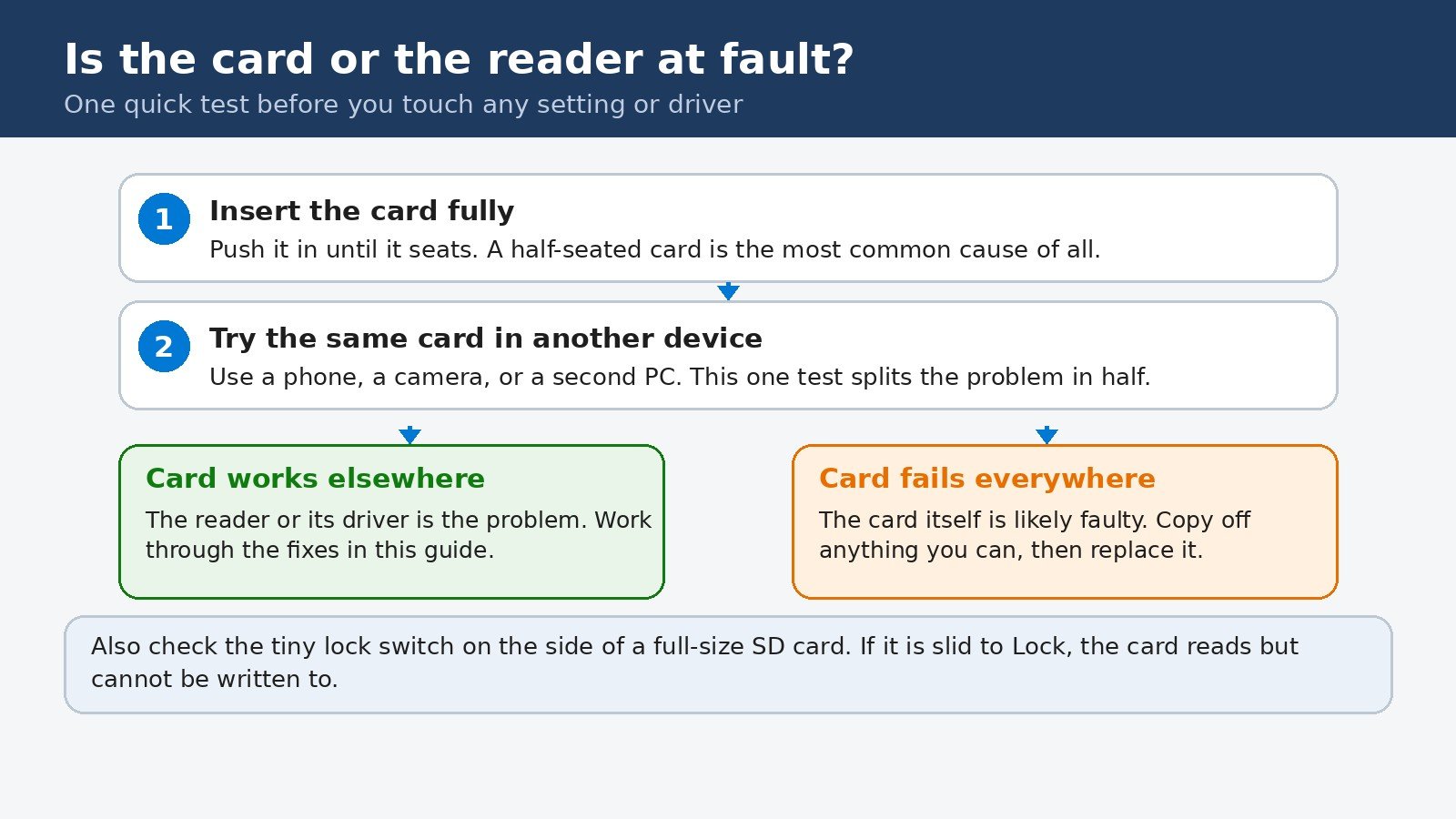
You slide an SD card into your Windows 11 laptop, and nothing happens. No chime, no new drive in File Explorer, no photos to import. Before you assume the card is dead or the laptop is broken, run one quick test: try the same card in another device. That single test tells you whether the card or the reader is at fault, and it decides which half of this guide you actually need.
Most of the time, an SD card that vanishes on Windows 11 comes down to one of four things: the card is not seated properly, the reader driver is hidden, disabled, or out of date, the card has no drive letter, or the card itself has failed. Work through the steps below in order, and stop as soon as the card appears. Each step takes only a few minutes.
Start with the 2 minute test
Do the physical checks first, because no driver fix can help a card that is not making contact.
- Push the card fully into the slot until it seats. On many laptops the card sits flush when it is in properly, and a half-seated card is easy to miss.
- If you use a microSD card in a full-size adapter, check that the microSD card is seated inside the adapter, and try a different adapter if you have one. Adapters fail more often than cards do.
- Check the tiny lock switch on the side of a full-size SD card. If it is slid to Lock, the card can still be read, but nothing can be written to it.
- Try the card in a phone, a camera, or a second PC. If it works there, your card is fine and the problem is the reader or its driver on this laptop. If it fails everywhere, skip ahead to the section on a faulty card.
Show hidden devices in Device Manager
Windows 11 sometimes knows about your card reader but keeps it out of sight. A reader that was disconnected, or whose driver changed during an update, can sit in Device Manager as a hidden device while File Explorer shows nothing at all.
- Press Windows key + X and choose Device Manager.
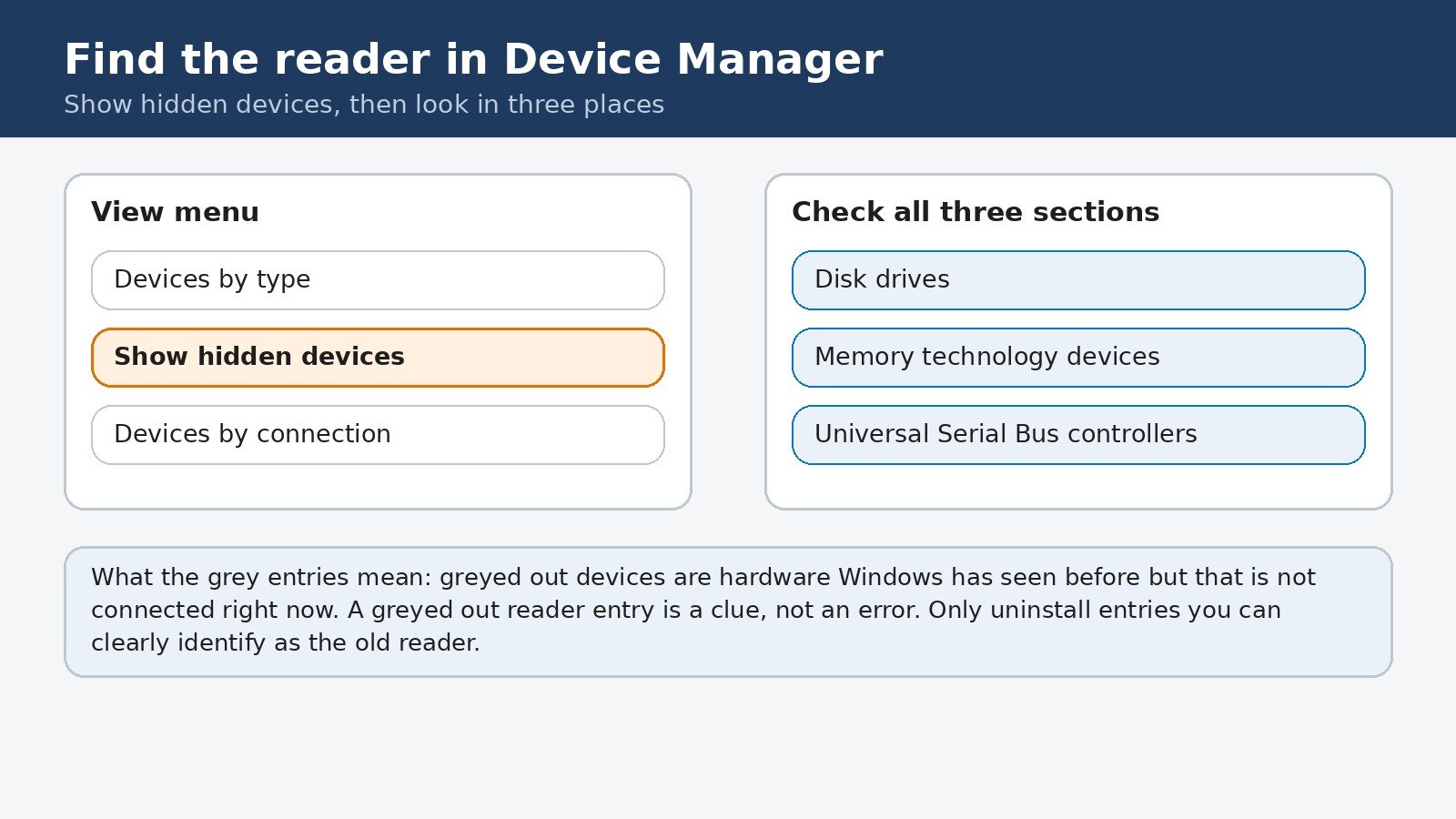
- Click View in the menu bar, then click Show hidden devices.
- Look under Disk drives, Memory technology devices, and Universal Serial Bus controllers. Built-in laptop readers usually appear under Memory technology devices, while USB readers appear under Universal Serial Bus controllers.
- Greyed out entries are hardware Windows has seen before but that is not connected right now. A greyed out reader entry is a clue, not an error, and you should only uninstall entries you can clearly identify as the old reader.
Update or reinstall the reader driver
If the reader appears in Device Manager, with or without a yellow warning icon, the driver is the next thing to fix. Start with the automatic option, then move to a reinstall if that changes nothing.
- Right-click the reader or card entry and choose Update driver, then Search automatically for drivers. If Windows finds a newer driver, let it install, then remove and reinsert the card.
- If updating changes nothing, right-click the entry again and choose Uninstall device. Do not tick any option to delete driver software unless you have a replacement driver ready. Restart the laptop, and Windows will reinstall the default driver during startup. Then reinsert the card.
- If the reader never appears at all, check Windows Update, including optional updates, at Settings, Windows Update. Reader and chipset drivers often arrive there. If that fails too, get the driver from your laptop maker’s support site (Dell, HP, Lenovo, Asus, and others publish chipset and card reader drivers for each model). Download only from the maker’s own site, never from a third-party driver site.
Microsoft’s own support guidance follows the same order: show hidden devices first, look in the three sections above, and fall back to Windows Update or the PC maker’s site for the driver. If you want the official version of these steps, see Microsoft’s Q and A on a Windows 11 SD driver that is not listed in Device Manager.
Assign a drive letter in Disk Management
Here is a confusing case: the card is healthy and Windows can see it, but File Explorer shows nothing because the card has no drive letter. Windows normally assigns a letter automatically, but that assignment can go missing after an update or a partition change. Disk Management shows the truth.
- Press Windows key + X and choose Disk Management.
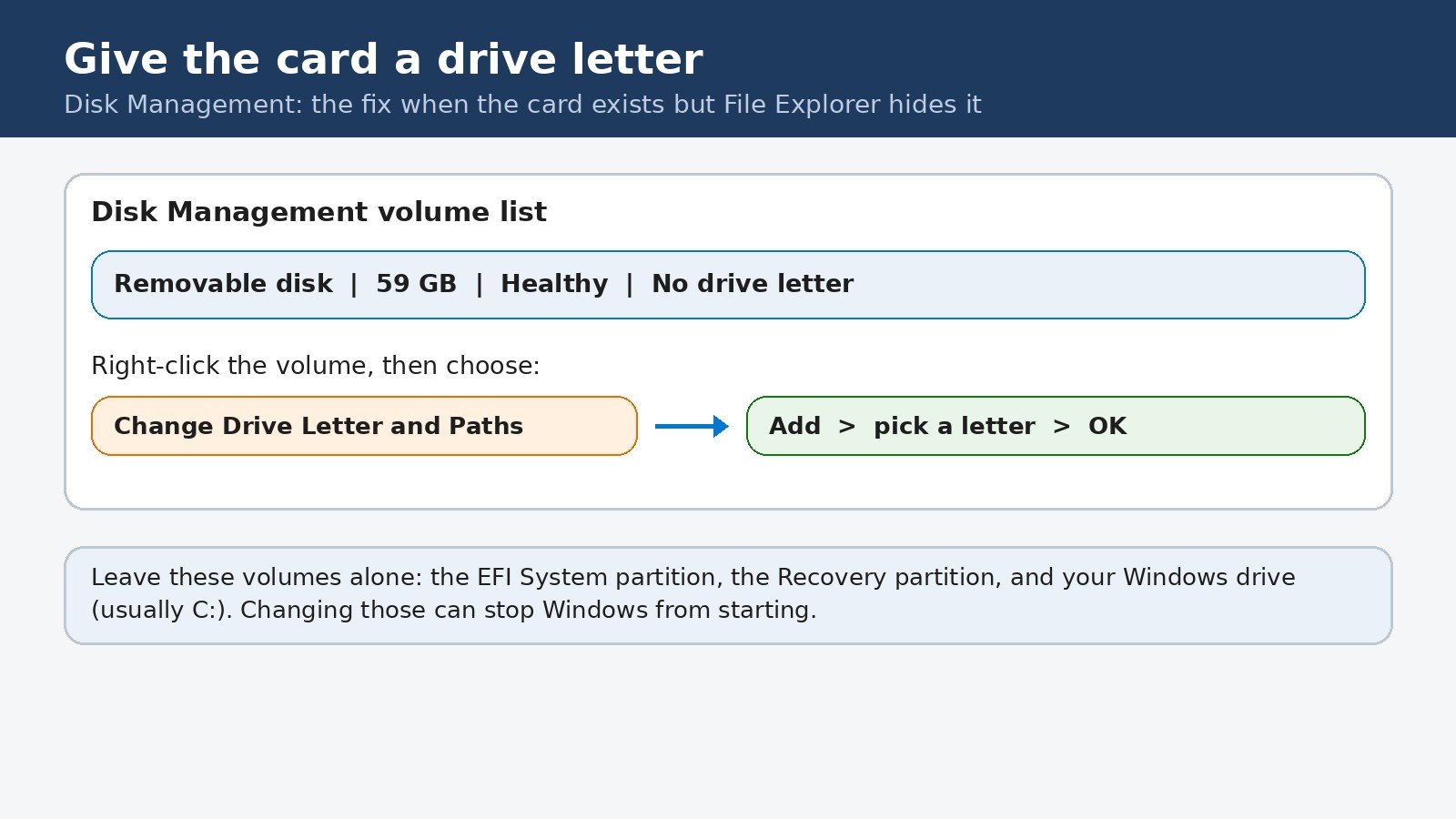
- Find your card in the volume list. Removable cards are marked Removable in the Type column, and the Size column helps if several drives are connected.
- If the card shows a healthy partition but no drive letter, right-click the volume and choose Change Drive Letter and Paths, then click Add, pick an unused letter, and click OK. The card should appear in File Explorer immediately.
- If the card already has a letter but still does not appear, try Change instead of Add and give it a different letter. A letter clash with a mapped network drive can hide a card.
What Disk Management shows also tells you what to do next. Use this table before you change anything else.
| What Disk Management shows | What it means | What to do |
|---|---|---|
| Healthy partition, no drive letter | Windows sees the card but File Explorer cannot show it | Add a drive letter, as above |
| Unallocated space | No partition exists, or the partition table is damaged | Only create a new volume if you accept losing the data, or recover the files first |
| RAW file system | The file system is damaged or unreadable | Do not format yet, recover files first if they matter |
| Card does not appear at all | The reader, its driver, or the card is not being detected | Go back to the Device Manager steps |
One warning belongs here: leave the EFI System partition, the Recovery partition, and your Windows drive (usually C:) completely alone in Disk Management. Changing those can stop Windows from starting, and they have nothing to do with your card.
When the card itself is the problem
If the card fails in every device, no Windows setting will bring it back. Cards do wear out, and a card that has been through many write cycles, or one that was removed during a write, can fail without warning. If the photos or files on it matter, stop using the card right away: every further write lowers the chance of recovery, and a recovery tool or service has the best chance when the card is left untouched.
Formatting is the last resort, and it erases everything on the card. Only format a card you are happy to wipe, and for cards you plan to use in cameras and phones as well as PCs, choose exFAT, which all three read. If a freshly formatted card still fails in every device, replace the card: at that point the hardware is done, not the software.
What to try if nothing above worked
- Try a different USB port for an external reader, and avoid USB hubs for the test. A hub that cannot supply enough power can make a reader vanish.
- Restart the laptop with the card inserted. Some readers only register a card during startup after a driver change.
- Check whether the reader is switched off in your laptop’s BIOS or UEFI settings. A small number of laptops include a card reader toggle there, and a BIOS reset can turn it off.
- Try a cheap external USB card reader. If the external reader works while the built-in one does not, the built-in reader or its internal connection is the fault, and an external reader is a perfectly good permanent workaround.
Most SD card problems on Windows 11 end at one of the early steps: a card pushed fully home, a hidden device revealed, or a missing drive letter restored. The test at the top of this guide is what keeps you from chasing the wrong half of the problem, so if the card ever disappears again, start there, and you will usually have it back within minutes.

- How to Fix an SD Card Not Detected on Windows 11 - October 25, 2026
- How to Fix Windows 11 Search Not Finding Files - October 24, 2026
- How to Fix Windows 11 Clock Showing the Wrong Time - October 23, 2026