
Windows Update normally installs new drivers for your graphics card, sound card, printer, and other hardware without asking. Most of the time that is convenient. Sometimes it is not, because a new driver breaks something that was working fine, changes a setting you had tuned, or replaces a driver from your PC maker with a generic one. If that has happened to you, the fix is to stop Windows 11 from including drivers in its automatic updates, while leaving security and feature updates alone.
The short answer depends on your edition of Windows 11. On Pro, Enterprise, and Education, use Group Policy: open gpedit.msc, go to Computer Configuration, Administrative Templates, Windows Components, Windows Update, Manage updates offered from Windows Update, open Do not include drivers with Windows Updates, and set it to Enabled. On Home, which has no Group Policy Editor, set the matching registry value instead: ExcludeWUDriversInQualityUpdate, under HKEY_LOCAL_MACHINE, SOFTWARE, Policies, Microsoft, Windows, WindowsUpdate, to 1. Either way, restart afterwards, and check your drivers yourself from then on, because Windows will no longer do it for you.
What this change stops, and what it does not stop
This is the part most guides rush past, and it matters, because the name of the setting invites misunderstanding. Turning off driver updates does not turn off Windows Update. Security updates, cumulative updates, and feature updates keep arriving as before. Only driver packages are excluded from the normal update flow. Your existing drivers stay installed, and nothing already on your PC is uninstalled by this change.
There are two limits. First, a driver shipped as part of a security or feature update may still arrive, because the exclusion covers routine driver updates, not every driver Microsoft ever bundles. Second, you take on the job yourself: new hardware may need a driver fetched by hand, and a driver security fix will not reach you until you install it. That trade is worth it when automatic drivers keep breaking your setup, but it is a real trade.
Before you change anything
Do two quick things before touching a setting. First, find out which edition of Windows 11 you have, because it decides which method below applies to you. Open Settings, System, About, and read the Edition line. If it says Home, skip to the registry method. If it says Pro, Enterprise, or Education, use Group Policy.
Second, note the driver version you are happy with, especially for the device that caused the trouble. In Device Manager, right click the device, choose Properties, open the Driver tab, and write down the version and date. If a future driver misbehaves, that note tells you exactly which version to return to. If your PC is managed by a workplace or school, check with IT first, because a managed policy can override your local setting.
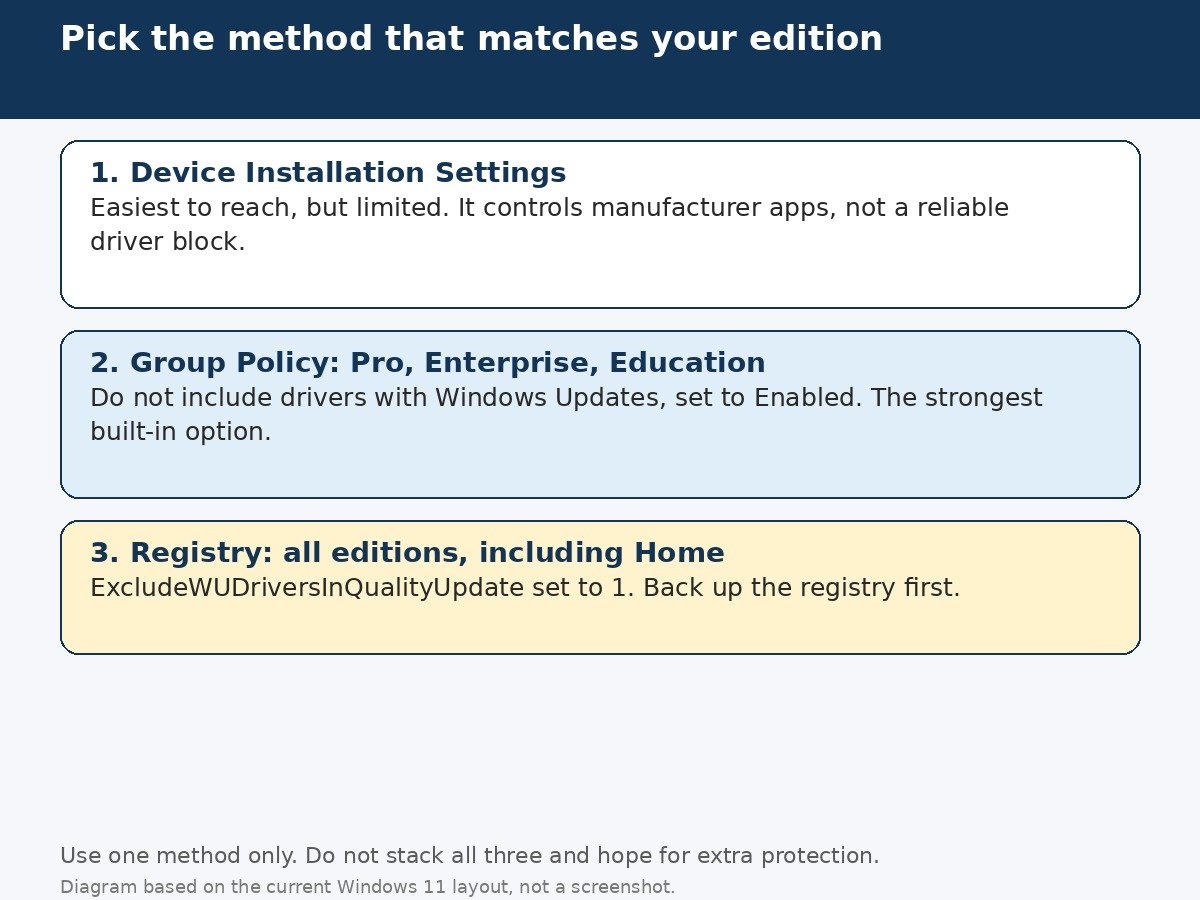
Method 1: Device Installation Settings, and why it is not enough on its own
The easiest setting to find is also the weakest, and that is worth saying plainly, because many guides present it as the whole answer. Open Settings, System, About, then Advanced system settings. In the System Properties window, open the Hardware tab and click Device Installation Settings. You will be asked whether you want to automatically download manufacturers apps and custom icons for your devices. Choose No (your device might not work as expected), then click Save Changes.
This setting governs manufacturer apps and device metadata, the extra software and custom icons that can arrive with a device. It does not reliably block driver updates delivered through Windows Update, and reports from users who rely on it alone show drivers still arriving. Treat it as a companion setting if you also dislike manufacturer add-ons, not as the driver block itself. If your goal is to stop driver updates, use Method 2 or Method 3 below, and consider this one optional.
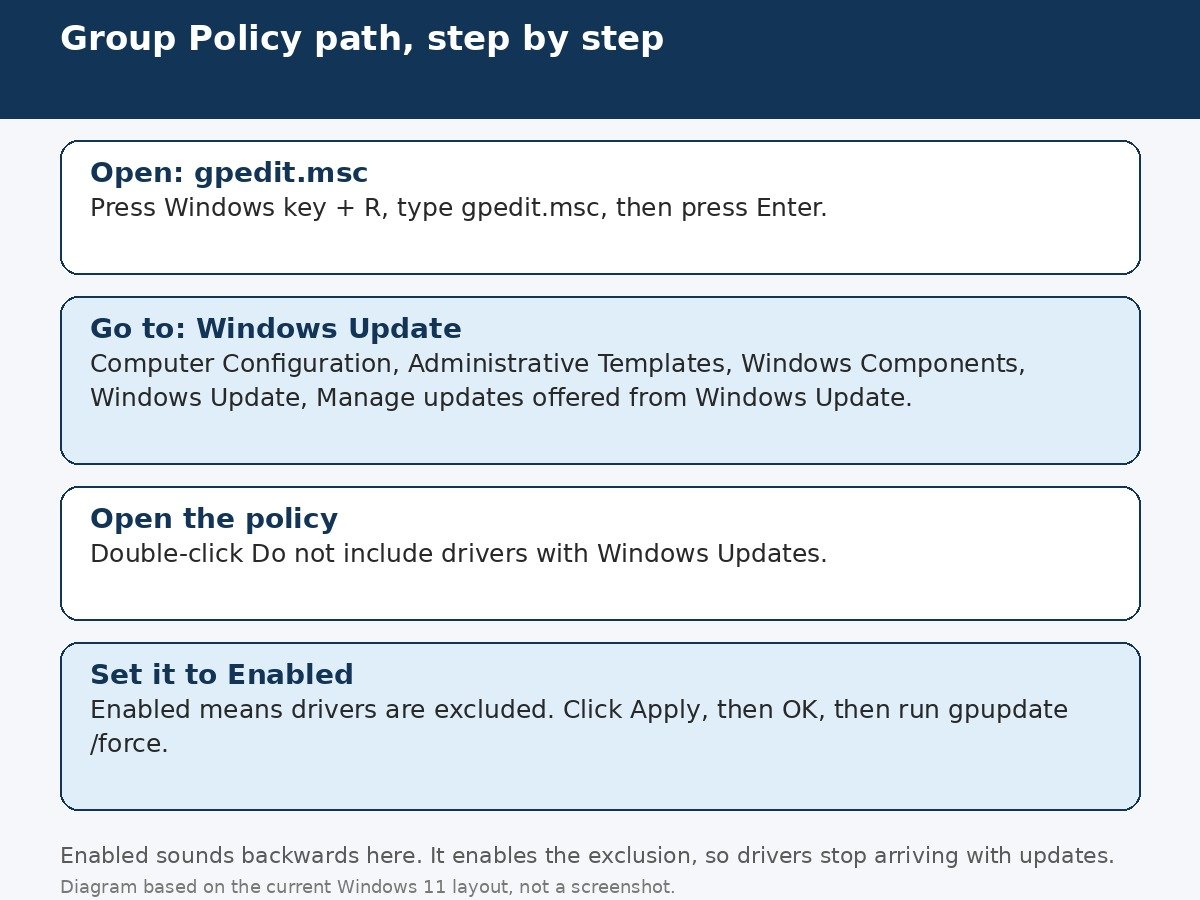
Method 2: Group Policy on Pro, Enterprise, and Education
- Press Windows key + R, type gpedit.msc, and press Enter to open the Local Group Policy Editor. You need an administrator account for this.
- Navigate to Computer Configuration, Administrative Templates, Windows Components, Windows Update, Manage updates offered from Windows Update.
- Double click Do not include drivers with Windows Updates.
- Select Enabled, then click Apply and OK.
- Open Command Prompt as administrator and run gpupdate /force to apply the policy right away, then restart your PC.
The wording trips people up, so read it twice. Setting this policy to Enabled does not enable driver updates. It enables the exclusion, which is why drivers stop arriving. Leaving it at Not Configured or Disabled leaves automatic driver updates on. If you ever want automatic drivers back, return to the same policy and set it to Not Configured, then run gpupdate /force again and restart.
Method 3: The registry on Home, and on any edition
Windows 11 Home has no Local Group Policy Editor, but the same exclusion exists as a registry value, and it works on all editions. This is the method to use on Home, and it is also the method Microsoft support documents for blocking driver updates through Windows Update. Because the registry is involved, back it up first: in Registry Editor, use File, Export, and save a copy before changing anything.
- Press Windows key + R, type regedit, and press Enter. Approve the administrator prompt.
- Navigate to HKEY_LOCAL_MACHINE, SOFTWARE, Policies, Microsoft, Windows, WindowsUpdate. If the WindowsUpdate key does not exist, right click the Windows key, choose New, Key, and name it WindowsUpdate.
- Right click an empty area on the right, choose New, DWORD (32-bit) Value, and name it ExcludeWUDriversInQualityUpdate.
- Double click the new value, set Value data to 1, and click OK.
- Close Registry Editor and restart your PC.
To undo the change later, set the same value to 0, or delete the value entirely, then restart. Change only this one value, and leave everything else in the registry alone. If the key path looks unfamiliar or you are unsure about editing the registry, use the Group Policy method on a Pro edition PC instead, or ask someone experienced to make this one change with you. A wrong registry edit can cause wider problems, which is why the backup step is not optional decoration. Microsoft support describes this same registry value for blocking Windows Update driver updates, which is the authoritative reference for this method.
One naming note: some older guides mention a differently named registry value. The value verified against current Microsoft support material is ExcludeWUDriversInQualityUpdate, under the WindowsUpdate policy key above. Use that exact name. A similar but wrong name will simply do nothing, and you will wrongly conclude the method failed.
Which method fits your PC
| Your situation | Use this method | What to expect |
|---|---|---|
| Windows 11 Pro, Enterprise, or Education | Group Policy, Do not include drivers with Windows Updates, Enabled | Routine driver updates stop; security and feature updates continue |
| Windows 11 Home | Registry, ExcludeWUDriversInQualityUpdate set to 1 | Same exclusion, set by hand; back up the registry first |
| You only dislike manufacturer add-ons | Device Installation Settings, No | Manufacturer apps and icons stop; driver updates may still arrive |
| Work or school PC | Ask IT before changing anything | A managed policy can override your local setting |
How to update drivers manually afterwards
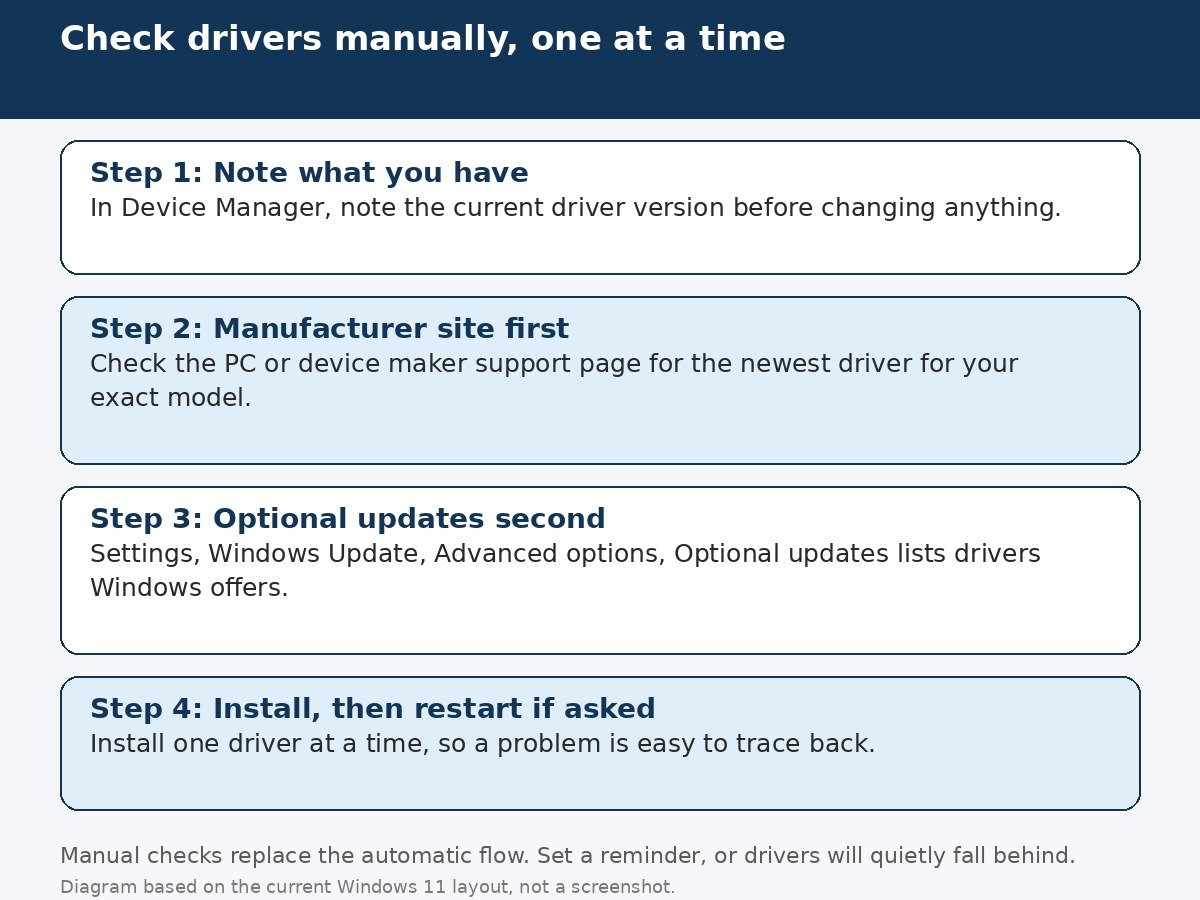
Once automatic drivers are off, you become the update checker. A simple routine keeps it manageable: check drivers after adding new hardware, after a feature update, or when a device starts misbehaving. There is no need to chase every new release the day it appears. If a device works well, leaving its driver alone is reasonable.
- Start with the manufacturer. For a laptop, go to the laptop maker’s support page and search your exact model. For a graphics card, printer, or other part, go to that maker’s support page. Manufacturer drivers are usually the best match for your hardware, and they often include the control software for the device.
- Next, check Windows Update’s optional list. Open Settings, Windows Update, Advanced options, Optional updates, and look under Driver updates. Anything listed there is offered, not forced, so you choose what to install and when.
- Use Device Manager for a single device. Right click the device, choose Update driver, then Search automatically for drivers. This searches Windows Update for that one device, which is useful when only one piece of hardware needs attention.
- Install one driver at a time, and restart if asked. If something breaks, you know exactly which change caused it, and rolling back one driver is far simpler than untangling three changes made at once.
If a new driver causes trouble, roll it back promptly. In Device Manager, open the device Properties, go to the Driver tab, and use Roll Back Driver if it is available. If that button is grayed out, Windows has no previous driver stored, so download the older version from the manufacturer instead. Your note of the good version turns this step from a hunt into a lookup.
If a driver still changes after all this
First, confirm the setting actually took. On Pro editions, reopen gpedit.msc and check that the policy still shows Enabled. On Home, reopen Registry Editor and check that ExcludeWUDriversInQualityUpdate still reads 1. A setting that was never saved, or was reverted by a managed policy, explains most cases where drivers keep arriving. Second, think about what kind of update brought the driver. A feature update can include drivers that the routine exclusion does not cover, so a driver change right after a major Windows version upgrade does not necessarily mean your setting failed.
Third, consider whether only one device is the problem. If everything is fine except, say, your graphics card, blocking all drivers system wide may be more than you need. In that case, turn automatic drivers back on and deal with the single device instead: install the driver you want from the manufacturer. For a broader reference, see the Microsoft support discussion of disabling driver updates, which confirms both methods and the registry value used here.
To return to automatic drivers, reverse exactly the method you used: set the Group Policy back to Not Configured, or set the registry value to 0, then restart. Any driver you installed by hand stays until Windows offers a newer one. Nothing here is permanent, and the way back is the same path you came in by.
A calmer update routine
Automatic driver updates suit most people, which is why they are the default. They stop suiting you the moment they repeatedly replace a working driver with a worse one, and then manual control is the sensible move. Pick the method that matches your edition, note the driver version you trust, and set a simple habit of checking for drivers when hardware changes or misbehaves. Your security updates keep flowing, your feature updates keep flowing, and your drivers change only when you decide they should.

- How to Disable Automatic Driver Updates on Windows 11 - October 30, 2026
- How to Stop OneDrive From Syncing Your Desktop on Windows 11 - October 29, 2026
- How to Turn Off Xbox Game Bar on Windows 11 - October 28, 2026