
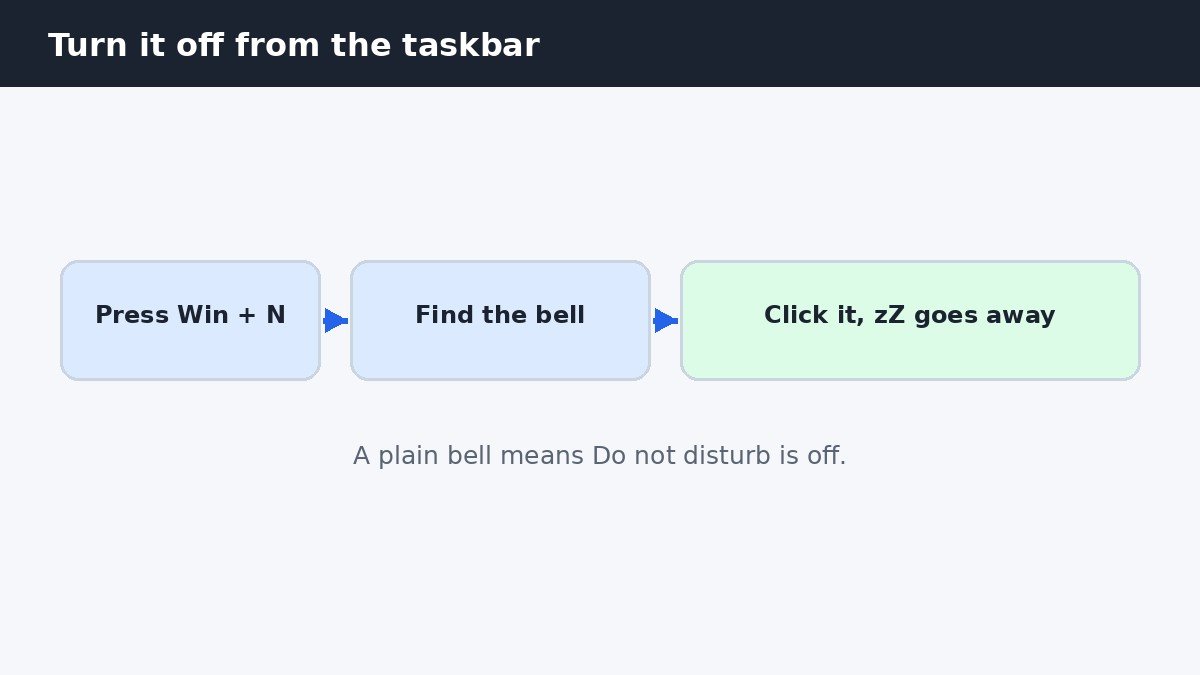
If your Windows 11 PC keeps missing notifications, Do not disturb is almost certainly switched on. The quickest way to turn it off is to press Win+N to open Notification Center and click the bell icon marked with zZ. That works in seconds, but it is only half the job: automatic rules can switch Do not disturb back on by themselves, so if yours keeps coming back, the rules are the cause and the fix is further down.
Turn it off in seconds from the bell icon
The bell icon sits at the far right of the taskbar, next to the clock. Press Win+N, or click the clock and date, to open Notification Center, where the bell sits at the top of the panel. When Do not disturb is on, the bell shows a small zZ symbol and looks highlighted. Click it once and the highlight disappears, which means Do not disturb is off and notifications will come through again.
This is also the fastest way to check the state at a glance. A plain bell means Do not disturb is off, and a bell with zZ means it is on, even if you never switched it on yourself. If clicking the bell changes nothing, use the Settings method below, which shows the same switch in a clearer place.
Turn it off in Settings
Press Win+I to open Settings, then choose System on the left and Notifications on the right. At the top of the page, turn the Do not disturb switch Off. The bell on the taskbar should change to a plain bell at the same time.
Ignore any guide that sends you to Settings, System, Focus assist. That path is from older versions of Windows 11, and the setting has moved. On current builds the switch lives under System, Notifications. If you cannot find it, check that Windows is up to date, because very old builds still used the old name. Microsoft explains the current Do not disturb and Focus controls on its support site, including how the two features work together.
Stop the automatic rules that switch it back on
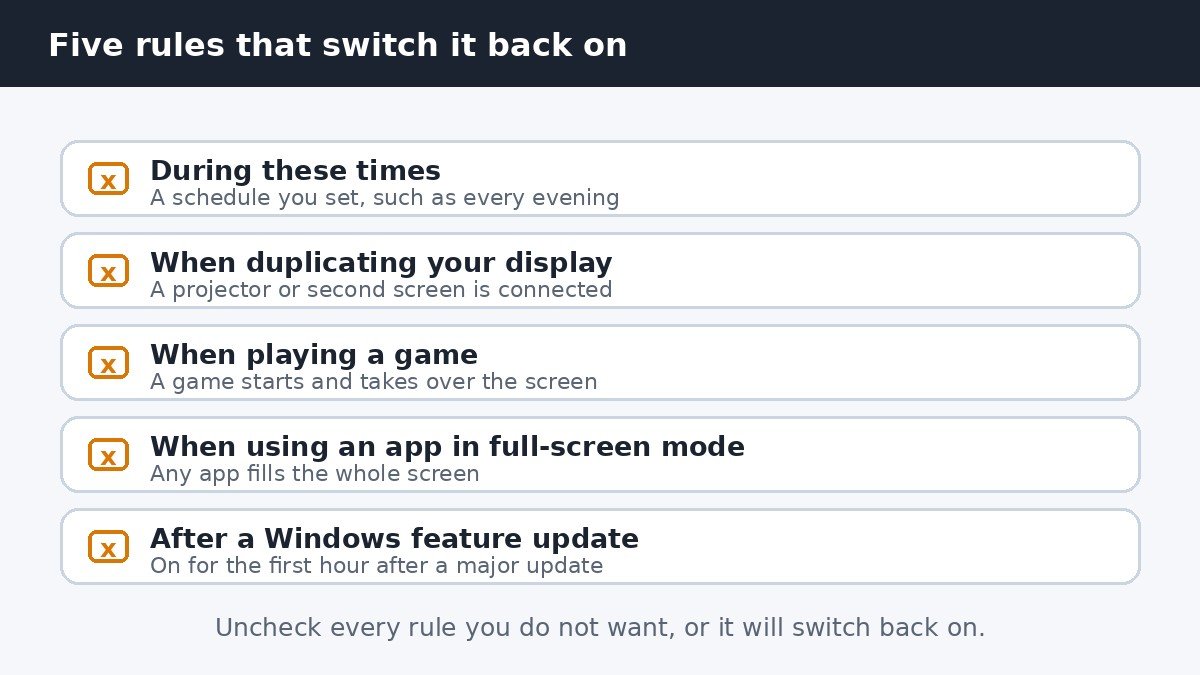
This is the part most people miss. Turning the switch off once does not stop Windows from turning it back on. Under the switch there is a section called Turn on do not disturb automatically. Expand it to see five rules, each with its own checkbox. Any checked rule can switch Do not disturb back on the next time its condition happens.
To stop it for good, uncheck every rule you do not want, and leave a rule checked only if you actually want Do not disturb in that situation, for example while gaming. There is no single off switch for the section, so work through the list one rule at a time.
| Automatic rule | What it does |
|---|---|
| During these times | Turns it on and off on a schedule you set, such as overnight |
| When duplicating your display | Switches it on when you connect a projector or second screen |
| When playing a game | Switches it on when a game starts |
| When using an app in full-screen mode | Switches it on when an app fills the whole screen |
| For the first hour after a Windows feature update | Switches it on for an hour after a major update installs |
The schedule rule catches most people. It is easy to set up once and forget, and then Do not disturb comes on every evening at the same time. If yours switches on at a regular time each day, open the During these times rule and turn it off.
End a Focus session that is keeping it on
Do not disturb and Focus are two different things, and mixing them up is a common cause of this problem. Focus is a timed session in the Clock app. While a session runs, Windows turns Do not disturb on for you, and the bell toggle will not override it while the timer is still running.
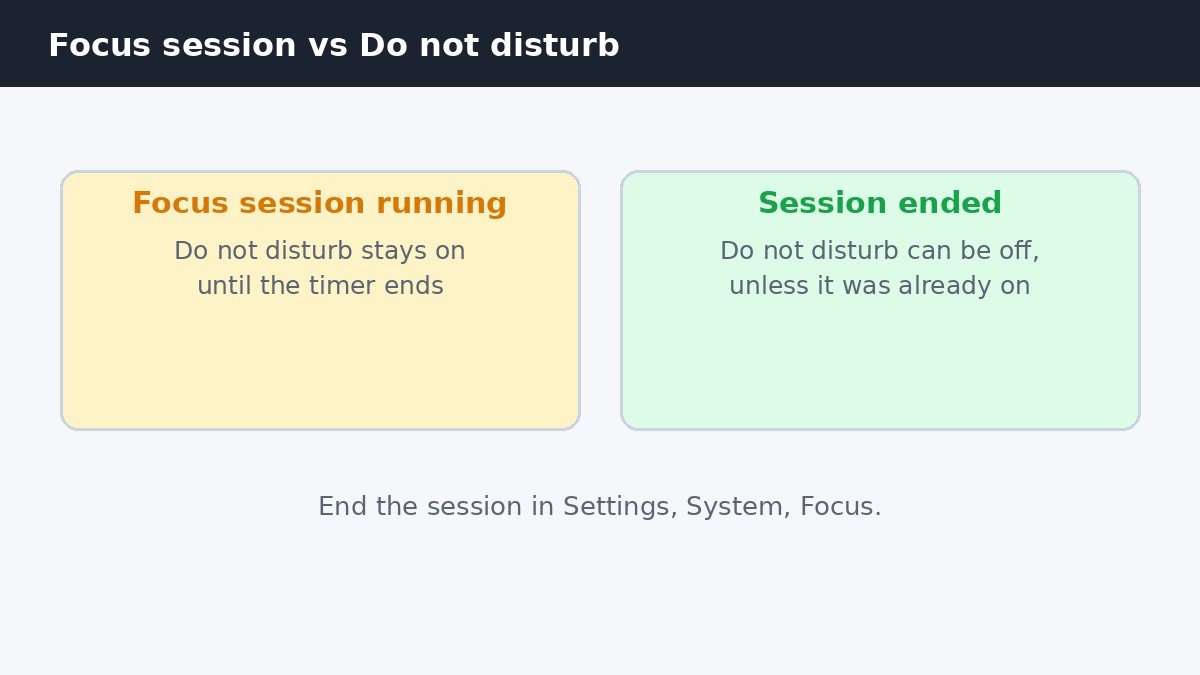
Open Settings, System, Focus and click Stop focus session. One detail matters: ending a session does not necessarily turn Do not disturb off. If it was already on before the session started, Windows leaves it on, so check the bell icon afterwards and switch it off if the zZ is still showing.
If you use Focus often, check the options on the same page. One, Turn on do not disturb, controls whether a session switches it on at all. Turning it off means future sessions hide taskbar badges and flashing without silencing your notifications.
What Do not disturb silences, and what it does not
While Do not disturb is on, banners stop appearing and sounds are muted. Nothing is deleted, though. Every notification still lands in Notification Center, so open it with Win+N and read what you missed. Before you panic about a missed message, check the list: it is almost certainly sitting there.
Do not disturb is not the same as turning notification sounds off altogether. It silences banners and sounds only while it is on, and everything returns to normal when you switch it off. If you want the banners but not the sounds, that is a different setting, and this guide to turning off notification sounds in Windows 11 explains it step by step.
Some notifications can still break through. In Settings, System, Notifications, choose Set priority notifications and pick the apps, calls, and reminders allowed through. Alarms are another exception: a timer or alarm you set will still sound.
If it still will not stay off
If you have switched the main toggle off, unchecked every rule, and ended any Focus session, yet it keeps coming back, the cause is usually outside your own settings. On a work or school PC, an IT policy can force it on, and no setting on your side will override it. Ask your IT team whether the policy can be changed for your device.
On a personal PC, run through the checks once more in order: the bell icon, the switch in Settings, the five automatic rules, and the Focus page. One missed checkbox is the usual answer, and the schedule rule is the one to double check, because it only acts at set times.
Do not disturb is useful when you choose it, and a nuisance when it chooses itself. The bell toggle gives you quiet in seconds, the automatic rules decide whether the quiet lasts, and a Focus session can hold the switch on until its timer ends. Work through all three and the setting will finally stay where you put it.

- How to Turn Off Do Not Disturb in Windows 11 - November 11, 2026
- How to Turn Off Google Assistant on Samsung Galaxy - November 10, 2026
- How to Turn Off Fast Startup in Windows 11 - November 9, 2026