
To turn off AirPlay Receiver on Mac, open System Settings, click General in the sidebar, click AirDrop and Continuity, then switch AirPlay Receiver off. That one switch stops nearby iPhones, iPads and other Macs from streaming to your Mac, and your Mac stops appearing as a casting target.
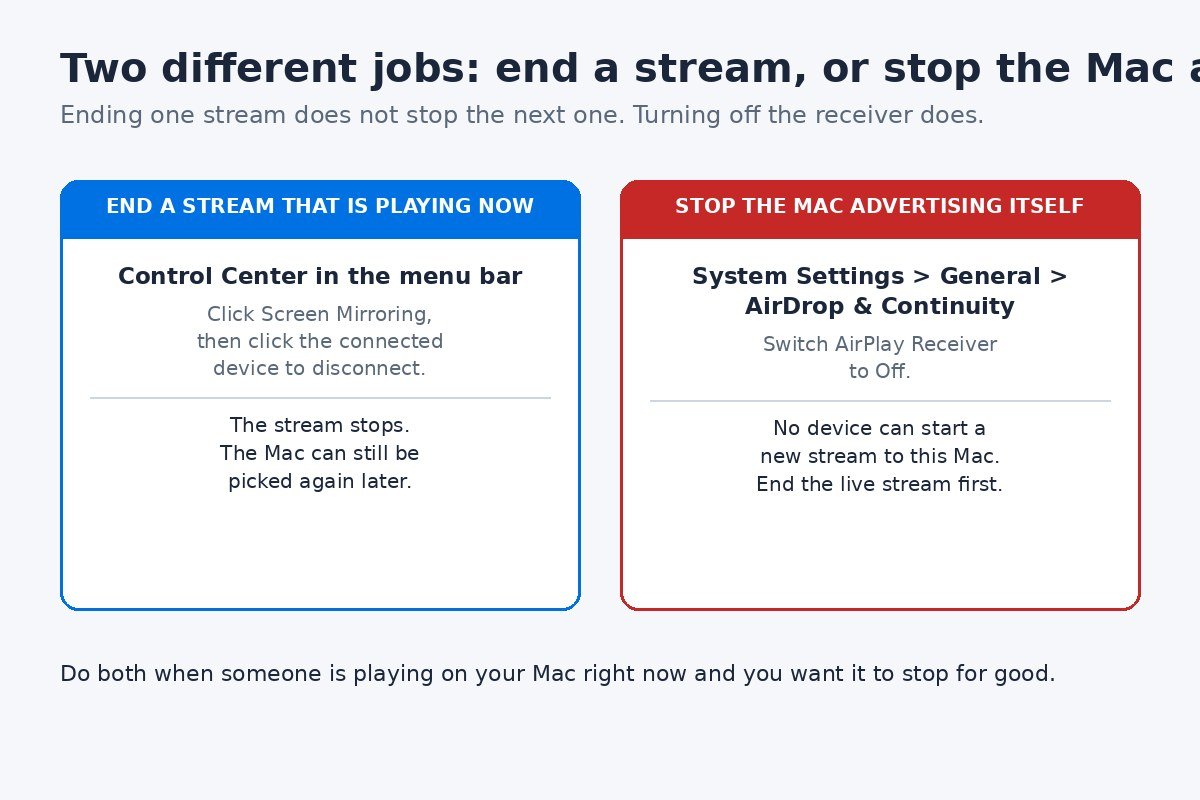
If a phone is playing on your Mac right now, turn the receiver off and end the live stream as well. Ending a stream and stopping the Mac from advertising itself are two different jobs, and this guide covers both.
What AirPlay Receiver does on your Mac
AirPlay Receiver is the setting that lets your Mac act as a destination for AirPlay. When it is on, a nearby iPhone, iPad or other Mac can send video, audio or a mirrored screen to your Mac, and your Mac shows up in the AirPlay list on those devices.
The feature arrived with macOS Monterey 12, and it only works on supported Macs: the iMac Pro, the Mac mini from 2020 or later, and all other Mac models from 2018 or later. If your Mac is older, the AirPlay Receiver option may not appear at all, even after a macOS update. The hardware simply does not support receiving AirPlay.
It helps to know what the switch does not do. Turning off AirPlay Receiver does not stop your Mac from sending its own screen or sound somewhere else. If your Mac is mirroring to an Apple TV, that is the Mac acting as a sender, and it is controlled from Control Center, not from this setting. It also does not turn off AirDrop or Handoff, which live in the same settings pane and keep working exactly as before.
Most people reach for this switch for one of three reasons. The Mac keeps appearing in the AirPlay list on a family member or colleague’s phone, and someone taps it by accident. A phone starts playing on the Mac in a shared room. Or the Mac sits on an office or shared network and the owner would rather it was not offered as a target to everyone on that network.
How to turn off AirPlay Receiver on Mac
These steps are for macOS Ventura 13 and later, including the current macOS 27 Golden Gate. Apple calls the settings pane AirDrop and Continuity on current versions. On some earlier versions the same pane is called AirDrop and Handoff, so if you see that name instead, you are in the right place.
- Click the Apple menu in the top left corner of the screen, then choose System Settings.
- Click General in the sidebar.
- Click AirDrop and Continuity, scrolling down the General pane if needed.
- Find AirPlay Receiver and switch it off.
- Close System Settings. The change takes effect right away.
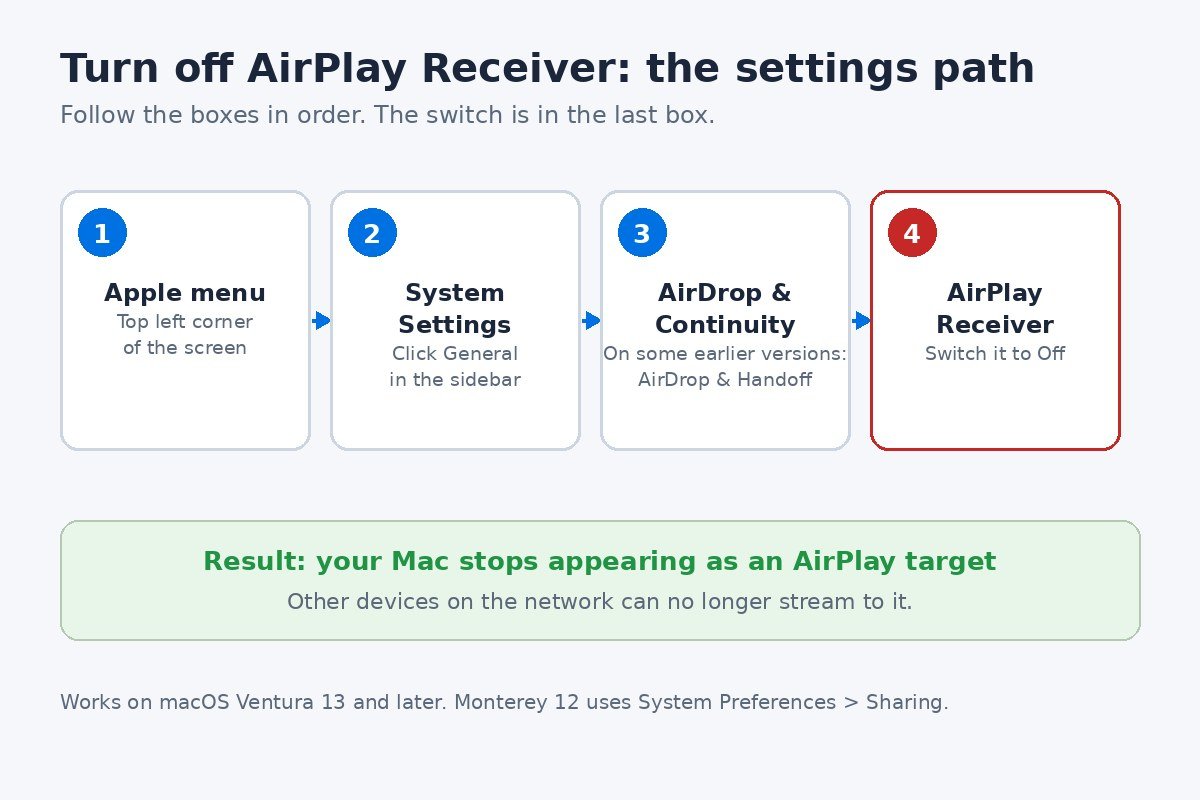
Once the switch is off, your Mac stops advertising itself as an AirPlay destination and should disappear from the AirPlay lists on nearby devices. If it is still listed a minute later, the sender device may be showing a stale entry, so try the checks in the troubleshooting section near the end of this guide.
Nothing else changes. Your Mac still connects to Wi-Fi as normal, Bluetooth still works, and AirDrop and Handoff are untouched. To use the Mac as a receiver again, switch AirPlay Receiver back on in the same pane.
Keep it on but lock it down instead
Turning the receiver off completely is the right call when you never cast to the Mac. But many readers do cast to it sometimes, from their own iPhone, and only want other people on the network kept out. For that, Apple gives you two controls in the same pane.
The first control is called Allow AirPlay for. It decides whose devices can see and use your Mac as a receiver. Current User limits AirPlay to devices signed in to your Apple Account, which in practice means your own iPhone, iPad and Mac. Anyone on the Same Network opens it to any nearby Apple device on the same network. Everyone opens it to any nearby Apple device at all. If your problem is a colleague or family member casting by accident, Current User fixes it while keeping the feature working for you.
| Allow AirPlay for | Who can stream to your Mac | Best for |
|---|---|---|
| Current User | Only devices signed in to your Apple Account | A personal Mac you sometimes cast to yourself |
| Anyone on the Same Network | Any nearby Apple device on the same network | A trusted home network where family devices share the Mac |
| Everyone | Any nearby Apple device | Rarely the right choice on a shared or public network |
The second control is Require password. Turn it on, click Set, type a password, then click OK. From then on, anyone who tries to stream to your Mac has to type that password on their device first. A password suits a shared Mac, for example a family computer in a living room, but it is not the same as turning the receiver off. The Mac still appears as a target, and anyone who knows the password can still connect.
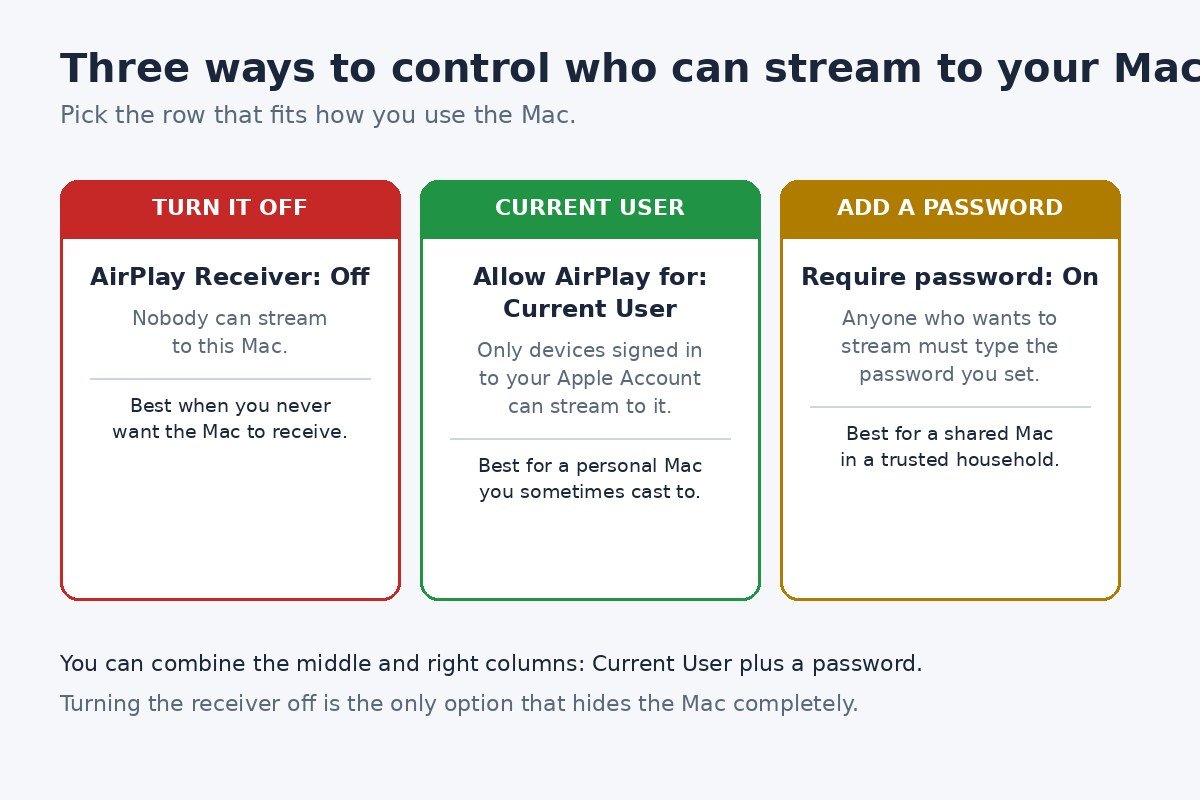
You can combine the two controls. Current User plus a password is the strictest setup that still lets your own devices cast, and it suits a Mac in a shared space that still gets used as a second screen now and then.
End a stream now, or stop the Mac advertising itself
This is the point where most guides blur two different problems into one, so it is worth separating them. A stream that is already playing is a live connection. The AirPlay Receiver switch controls whether new connections can start. If someone is playing on your Mac right now, you need both steps.
To end a stream that is playing on your Mac right now, deal with the sending device first. On an iPhone, open Control Center, tap the AirPlay or Screen Mirroring control, and stop the stream from there. The person whose phone it is can also simply close the app or video that is playing. If your own Mac is sending its screen to a TV, open Control Center in the menu bar, click Screen Mirroring, then click the connected display to disconnect it.
Then turn AirPlay Receiver off, using the steps above, so the same thing cannot start again a minute later. This order matters. If you only end the stream, the Mac is still listed as a target and someone can tap it again by accident. Apple does not document the toggle as a way to kill a live session, so end the session first and treat the toggle as the lock on the door, not the hand that stops the music.
There is one more mix-up worth clearing up. AirPlay is not the same as iPhone Mirroring, even though both can put an iPhone on a Mac screen. AirPlay streams or mirrors content from the phone. iPhone Mirroring lets you view and control the iPhone from the Mac, with its own notifications and requirements. Turning off AirPlay Receiver does not stop iPhone Mirroring notifications from appearing.
If notification pop-ups from your iPhone keep appearing on your Mac, see our guide on how to stop iPhone Mirroring notifications on Mac. It covers the settings that control those alerts, which live apart from AirPlay Receiver.
The older path, and which Macs can receive AirPlay at all
Not every Mac runs the current version of macOS, and the setting moved when Apple redesigned System Preferences into System Settings. If your Mac runs macOS Monterey 12, click the Apple menu, choose System Preferences, click Sharing, then select AirPlay Receiver in the sidebar and turn it off. The Allow AirPlay for choice and the password option sit in the same Sharing pane, so the middle ground described above works there too.
| Your macOS version | Where the switch lives |
|---|---|
| macOS 27 Golden Gate (current) | System Settings, General, AirDrop and Continuity |
| macOS Ventura 13 to Tahoe 26 | System Settings, General, AirDrop and Continuity, or AirDrop and Handoff |
| macOS Monterey 12 | System Preferences, Sharing, AirPlay Receiver |
Before Monterey, there is no AirPlay Receiver to turn off, because the feature did not exist yet. A Mac on macOS Big Sur or earlier cannot act as an AirPlay receiver at all, so if someone is streaming to it, they are using a third party app, and the fix is in that app.
The same Wi-Fi rule applies on every version. Apple says devices using AirPlay should be on the same Wi-Fi network, and the Anyone on the Same Network option only makes sense in that context. If the sending device is on a guest network or a mobile hotspot while the Mac is on the home network, the Mac may not appear at all. That is also why a Mac on a work network can suddenly become visible to many more people than its owner expects. You can read the full list of supported models in Apple’s Continuity features and requirements, and the current settings pane is described in Apple’s AirDrop and Continuity settings guide.
If your Mac still shows up after you turned it off
Turning the switch off normally removes the Mac from nearby AirPlay lists straight away. When it seems to linger, work through these checks in order.
- Check the switch again. Open System Settings, General, AirDrop and Continuity, and confirm AirPlay Receiver is still off. It is easy to open the pane and close it without moving the toggle, or to change the setting in a different user account on a shared Mac.
- Check you changed the right Mac. In a house or office with more than one Mac, the one in the AirPlay list may be a different machine with a similar name. Open the same pane on each Mac until you find the one with the receiver still on.
- Restart the sending device. AirPlay lists can hold a stale entry for a while after the receiver disappears. Restarting the iPhone or iPad, or turning its Wi-Fi off and on, forces a fresh list.
- Restart the Mac as well. A restart clears any cached advertising state. After the restart, check the pane once more before testing again.
- Check whether the Mac is managed. Apple notes that AirPlay Receiver may be unavailable on a Mac enrolled in a mobile device management system, which is common for work or school computers. If the switch is greyed out or missing, the organisation that manages the Mac controls it.
- Make sure you are not confusing AirPlay with Handoff. Handoff lives in the same settings pane, and it lets you start something on one device and finish it on another. It has its own toggle, Allow Handoff between this Mac and your iCloud devices, and turning off AirPlay Receiver leaves it running. If app windows and web pages keep hopping between your devices, that is Handoff, not AirPlay.
Handoff is the feature most often mixed up with AirPlay Receiver, because both live in the same pane and both move things between Apple devices. If you want to switch that off too, see our guide on how to turn off Handoff on Mac, which covers its own toggle and what stops working when you turn it off.
AirPlay Receiver is a handy feature when you want it and a quiet nuisance when you do not, and the fix is a single switch. Turn it off and your Mac disappears from the AirPlay lists on the network. Keep it on with Current User selected if you still cast from your own devices, and add a password if the Mac is shared.

- How to Turn Off AirPlay Receiver on Mac - November 19, 2026
- How to Turn Off Check In on iPhone - November 18, 2026
- How to Factory Reset Windows 11 - November 17, 2026