
Seeing “This site can’t be reached” with ERR_NAME_NOT_RESOLVED on your Android phone? It means your phone could not turn a website’s name into the address it needs to load the page. The good news: on Android this is almost always a settings problem, not a broken phone. Work through the fixes below in order, easiest first, and stop as soon as pages load again.
Why Does Android Show ERR_NAME_NOT_RESOLVED?
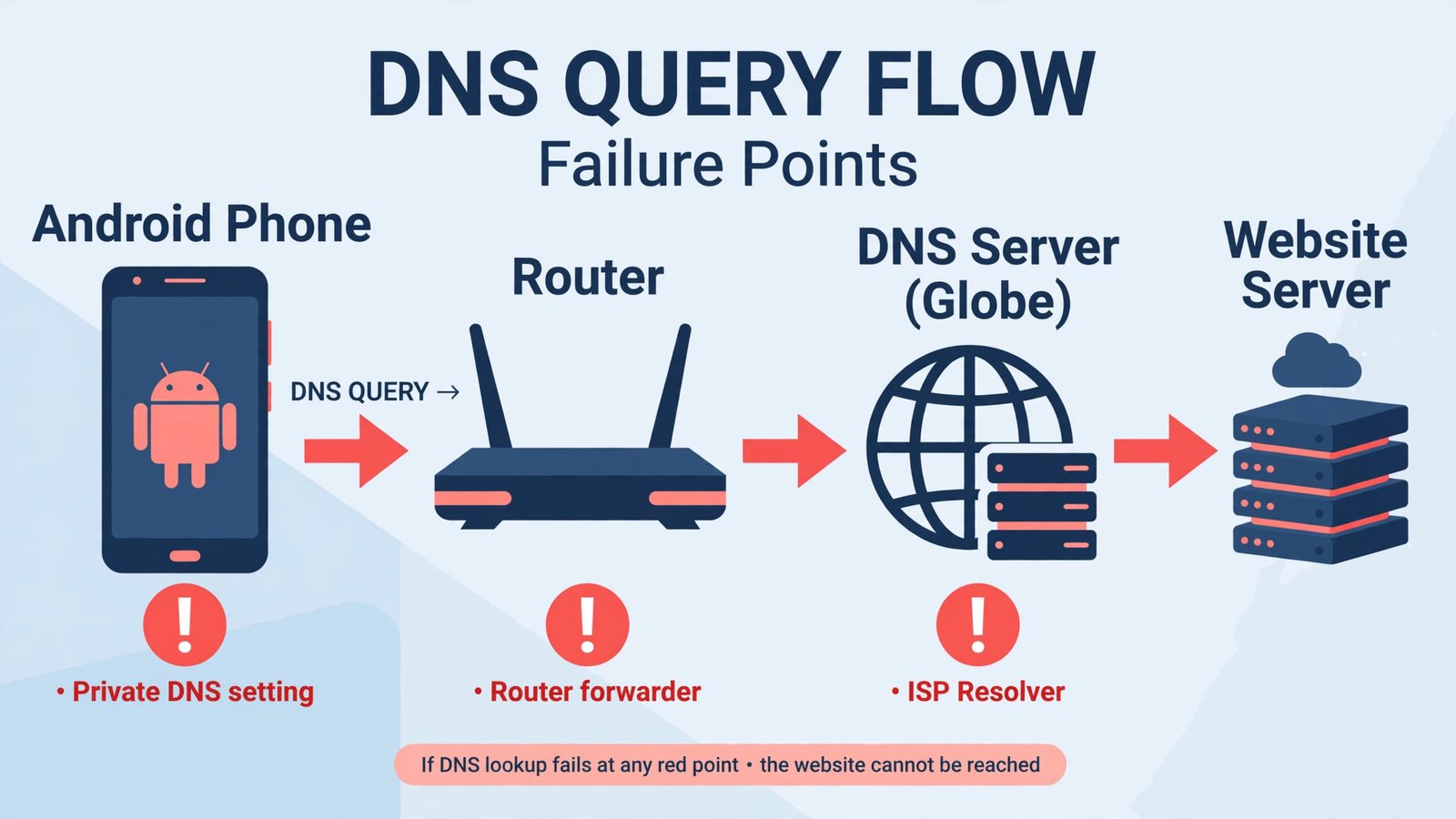
When you tap a link, your phone asks a DNS server to translate the site’s name (like example.com) into a numbered address. ERR_NAME_NOT_RESOLVED means that translation failed. The usual suspects on Android are:
- A Private DNS setting pointing at a hostname that is mistyped or unreachable
- A temporary hiccup in your Wi-Fi router or mobile connection
- Stale data in Chrome’s cache
- A VPN or ad-blocker app interfering with DNS
- Your ISP’s DNS servers having a bad day
Fix 1: Check the Address and Toggle Airplane Mode
Start with the thirty-second checks. First, look at the address bar for a typo; one wrong letter produces exactly this error. Then swipe down from the top of the screen, turn Airplane mode on, wait ten seconds, and turn it off again. This forces your phone to drop the old connection and request fresh DNS settings from the network. If the page loads now, you are done.
Fix 2: Restart Your Phone and Your Router
If the error appears on every website, restart your phone first. If other devices on the same Wi-Fi show the same error, the router’s DNS forwarder is the likely culprit: unplug the router for thirty seconds, plug it back in, and wait for it to reconnect. This one fix resolves a surprising share of cases, especially when everything worked yesterday.
Fix 3: Clear Chrome’s Cache
Chrome keeps its own DNS records, and a stale one can outlive a fixed connection. Go to Settings, then Apps, then Chrome, then Storage, and tap Clear cache. Do not tap Clear storage or Clear data: that signs you out of every site and wipes your saved logins.
For a deeper flush, open Chrome and type chrome://net-internals/#dns in the address bar, then tap Clear host cache. Reload the page and see whether the error is gone.
Fix 4: Check the Private DNS Setting
This is the single most common cause of ERR_NAME_NOT_RESOLVED on Android. Private DNS routes all your lookups through an encrypted server you choose, and if the hostname is mistyped or the server is down, nothing resolves. On most phones the path is Settings, then Network and internet, then Private DNS. On Samsung phones it is Settings, then Connections, then More connection settings, then Private DNS. If you cannot find it, search Settings for “Private DNS”.
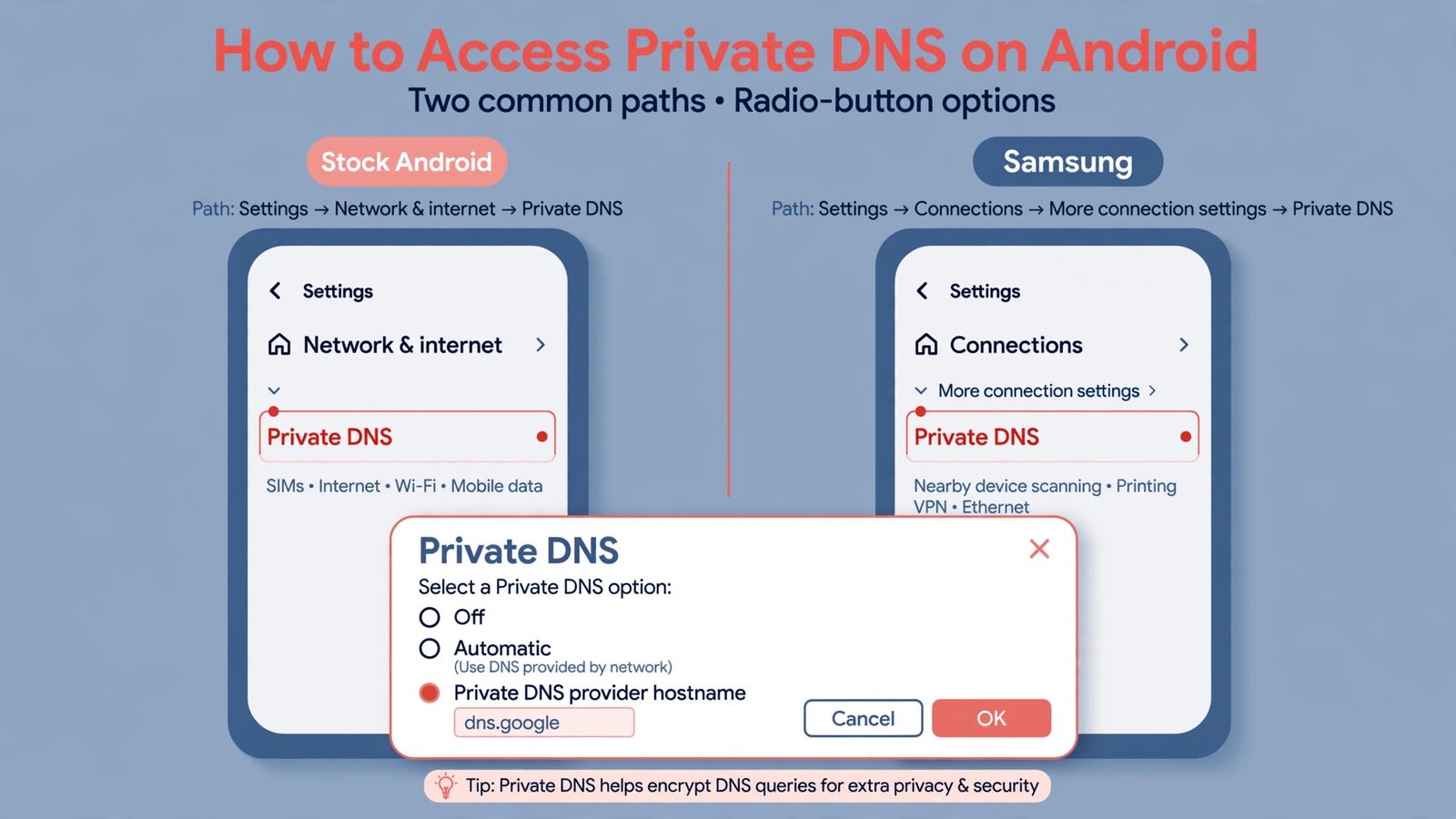
You will see three options: Off, Automatic, and Private DNS provider hostname. If a custom hostname is set, switch it to Automatic and retry the page. If the error persists, try setting it to Off temporarily. And if you want a reliable public resolver instead of your ISP’s, choose the provider hostname option and enter exactly dns.google or one.one.one.one, then tap Save. One character wrong here breaks all browsing, so type carefully.
Fix 5: Turn Off VPN and Ad-Blocker Apps
VPN apps and DNS-based ad blockers reroute your lookups, and when they glitch, every site fails at once. Temporarily disable your VPN or ad-blocker and reload the page. If browsing works again, the app was the problem: update it, or switch its own DNS setting to a public resolver. Re-enable it afterward if you want the protection back.
Fix 6: Forget the Wi-Fi Network and Rejoin
Your phone may be clinging to bad DNS settings handed out by the router. Go to Settings, then Network and internet, then Internet, long-press your Wi-Fi network, and tap Forget. Reconnect by entering the password again; the phone will pull fresh DNS settings. Also try loading the site on mobile data with Wi-Fi off. If it works on mobile data but not Wi-Fi, the problem lives in your router or ISP, not your phone.
Fix 7: Reset Network Settings
This is the last rung on the ladder because it wipes all saved Wi-Fi networks, Bluetooth pairings, and mobile settings back to factory defaults. Your photos, apps, and files are untouched. Go to Settings, then System, then Reset options, and tap Reset Wi-Fi, mobile and Bluetooth. Confirm with your PIN. After the reset, reconnect to your Wi-Fi and test the page again.
When It Is Not Your Phone
Two patterns point away from your device. If every device on your home network shows the error, the fault is your router or your ISP’s DNS: restart the router, and if that fails, set a public DNS (1.1.1.1 or 8.8.8.8) on the router itself. If only one specific website fails while everything else loads, the site’s own DNS records are broken; there is nothing to fix on your end, and trying again in a few hours is the honest answer. And if pages load but feel sluggish once DNS is working again, check that Low Data Mode is not throttling your connection, or look at our guide to fixing a slow web browser for the next layer of speedups.

- How to Stop iPhone Apps Asking for Ratings and Reviews - October 23, 2026
- How to Turn Off HDR in Windows 11 When Colors Look Washed Out - October 22, 2026
- What Is Samsung Free and How to Stop It Opening on Your Home Screen - October 21, 2026