
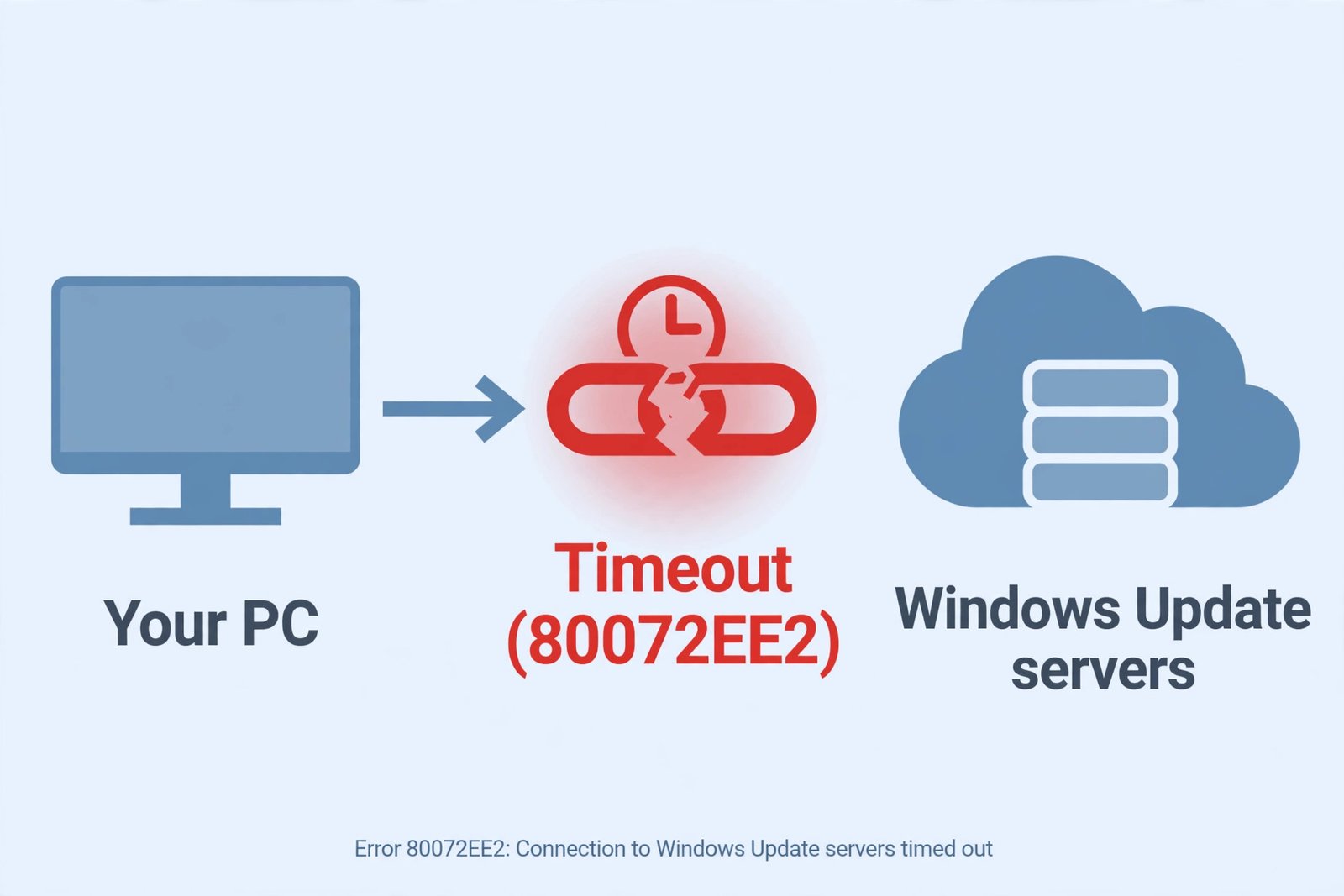
Windows Update error 80072EE2 means your PC tried to reach the update servers and gave up waiting. Updates stop downloading, and Windows keeps showing the same code every time you check. The good news is that the cause is almost always on your side of the connection, and the fixes below are ordered from most to least likely.
What error 80072EE2 actually means
Microsoft’s own error reference lists 80072EE2 as WININET_E_TIMEOUT, which means the operation timed out. In plain terms, Windows Update started a connection to Microsoft’s update servers, your company’s WSUS server, or Configuration Manager, and got no answer in time. This is a connectivity problem, not a broken Windows installation, so the fixes focus on the network path between your PC and the update servers. You can confirm this definition in Microsoft’s list of common Windows Update errors.
Why Windows Update shows error 80072EE2
These are the causes in the order you are most likely to run into them:
- A proxy server or VPN is routing or blocking the update traffic.
- Your firewall or antivirus software is blocking Windows Update.
- DNS problems are stopping your PC from resolving the update server addresses.
- The Background Intelligent Transfer Service (BITS) or the Windows Update service has stalled.
- The update cache in the SoftwareDistribution folder is corrupted.
- Your PC still has old company settings pointing it at a WSUS server that no longer exists (leftover WUServer registry keys).
- The hosts file has been edited to redirect Microsoft servers, which sometimes happens after a malware infection.
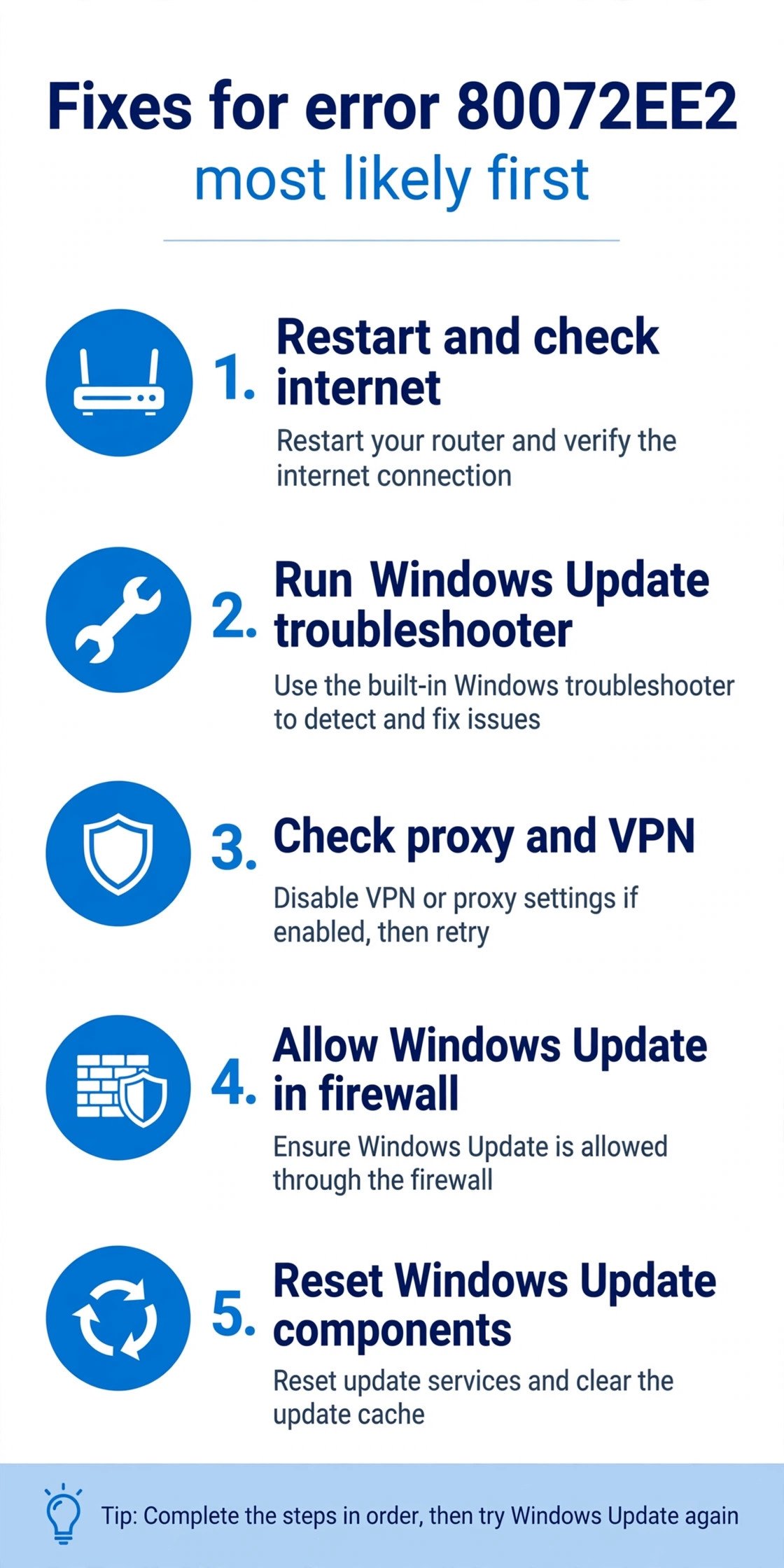
Fix 1: Restart and check your internet connection
Start simple, because a flaky connection is the most common trigger.
- Restart your PC, then open a browser and confirm you can reach a few websites.
- Restart your router and modem, then try Windows Update again.
- If you can, try a different network, such as your phone’s hotspot. If updates work there, the problem is your home network, not Windows.
Fix 2: Run the Windows Update troubleshooter
Windows includes a troubleshooter that resets common update problems automatically. On Windows 11, open Settings, go to System, then Troubleshoot, then Other troubleshooters, and click Run next to Windows Update. On Windows 10, open Settings, go to Update and Security, then Troubleshoot, then Additional troubleshooters, and run Windows Update. Let it finish, restart your PC, and check for updates again.
Fix 3: Turn off your VPN and check proxy settings
VPNs and proxies sit directly in the path to the update servers, which makes them prime suspects for a timeout error.
- Disconnect your VPN temporarily and try checking for updates.
- Open Settings, go to Network and internet, then Proxy. Turn off “Use a proxy server” unless your workplace requires one. If your workplace does require it, confirm the proxy address is correct with your IT team.
Fix 4: Let Windows Update through your firewall and antivirus
Security software can block the update service without showing an obvious warning.
- If you use third-party antivirus, open its firewall or network protection settings and make sure Windows Update is allowed. You can also pause protection for a few minutes and retry the update to see if the antivirus is the cause.
- Open Windows Security, go to Firewall and network protection, and confirm the firewall is not blocking the Windows Update service.
Fix 5: Reset the Windows Update components
If the update cache is corrupted, clearing it forces Windows to rebuild it from scratch. Open Command Prompt as an administrator and run these commands one at a time:
net stop wuauserv
net stop bits
ren %systemroot%\SoftwareDistribution SoftwareDistribution.old
net start wuauserv
net start bits
Then check for updates again. One more thing for PCs that were once on a company network: open the Registry Editor, go to HKEY_LOCAL_MACHINE\SOFTWARE\Policies\Microsoft\Windows\WindowsUpdate, and delete the WUServer and WUStatusServer values if they exist. These leftovers point your PC at a company update server that is no longer there, and removing them sends it back to Microsoft’s servers.
Fix 6: Repair system files with SFC and DISM
Damaged system files can break the update machinery itself. In an administrator Command Prompt, run:
sfc /scannowWhen that finishes, run:
DISM /Online /Cleanup-Image /RestoreHealthRestart your PC after both complete, then try Windows Update again.
Our take: what to do if 80072EE2 keeps coming back
For most people, the error clears at Fix 3 or Fix 5: a VPN, proxy, or stale update cache is behind the timeout. If it survives all six fixes, install the latest cumulative update manually from the Microsoft Update Catalog, or run an in-place repair install of Windows. On a work PC, ask your IT team to confirm the device can reach the Windows Update endpoints on the company network. If Windows throws other cryptic codes at you, our guides to fixing the RPC server unavailable error and fixing the system thread exception error follow the same diagnose-first approach.

- How to Fix Windows 11 Clock Showing the Wrong Time - October 23, 2026
- How to Fix File Explorer Slow to Open in Windows 11 - October 22, 2026
- How to Fix a Printer Showing Offline in Windows 11 - October 21, 2026