
That laptop in your drawer, the one that takes ten minutes to boot and sounds like a hair dryer, isn’t dead. It’s just suffocating under an operating system that outgrew it. This guide walks you through reviving it in order, from the easiest ten-minute cleanup to the last-resort hardware call, and it works whether the machine is five years old or fifteen.
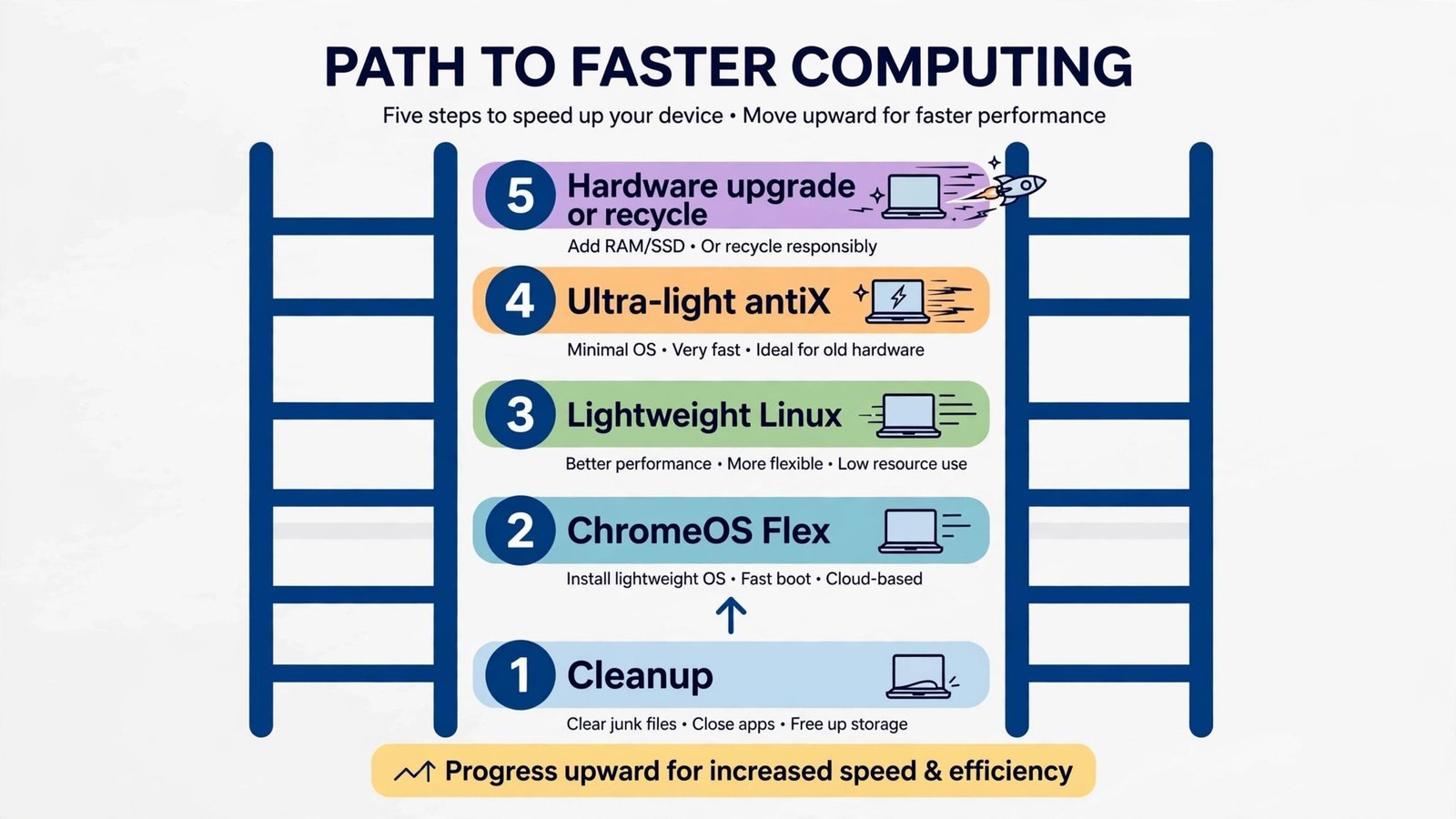
Follow the rungs in order. Each one is a little more effort than the last, and you stop as soon as your laptop feels usable again. Most machines never need to go past rung three.
Why Is My Old Laptop So Slow?
Before fixing anything, it helps to know what’s usually wrong. In my experience it’s almost always one (or more) of these:
- A spinning hard drive, mechanical drives get dramatically slower with age, and modern operating systems punish them for it.
- Too little RAM, 4 GB or less means the system is constantly swapping data to that slow hard drive.
- Background bloat, startup programs, updaters, and preinstalled apps you never asked for, all fighting for the same weak CPU.
- Dust and aging thermal paste, a clogged fan makes the CPU overheat and throttle itself to stay alive, which feels exactly like “being slow.”
- A weak CPU doing modern work, today’s websites and apps assume far more processing power than a 2012 processor offers.
You can’t fix a weak CPU with software. But you can fix nearly everything else, and the fixes below are ordered so the easy ones come first.
Rung 1: Clean up the system you already have (10 minutes)
Don’t reinstall anything yet. A shocking number of “dead” laptops just need the clutter cleared out.
- Remove the bloatware. Uninstall every preinstalled app you don’t use. On Windows 11, that’s Settings Apps Installed apps, be ruthless with trial antivirus, game launchers, and manufacturer utilities. (Our bloatware removal guide walks through it.)
- Kill the startup crowd. Open Task Manager (Ctrl+Shift+Esc), go to the Startup apps tab, and disable everything you don’t need the second you log in. Chat apps, cloud sync, updaters, they can all launch when you actually open them.
- Clear the cruft. Run Disk Cleanup or Storage Sense to dump temporary files, old update caches, and the contents of your Downloads folder’s graveyard. See our cache-clearing guide if you want the full routine.
- Check the vents. If the laptop roars the moment you open a browser, blast the vents with compressed air. A dust-choked fan is free performance waiting to be reclaimed.
You’ll know this worked when: boot time drops noticeably and the fan settles down during light use. If the machine still crawls with a browser open, move on, the OS itself is the problem, not the clutter.
Rung 2: Try ChromeOS Flex, the gentlest reinstall (30 minutes)
If cleanup didn’t cut it, don’t wipe the machine yet. Google’s ChromeOS Flex is a free, official operating system built specifically to turn aging PCs and Macs into Chromebook-like machines. You make a USB installer with Google’s Chromebook Recovery Utility, boot from it, and, this is the key part, you can try it live from the USB first, without touching your existing files.
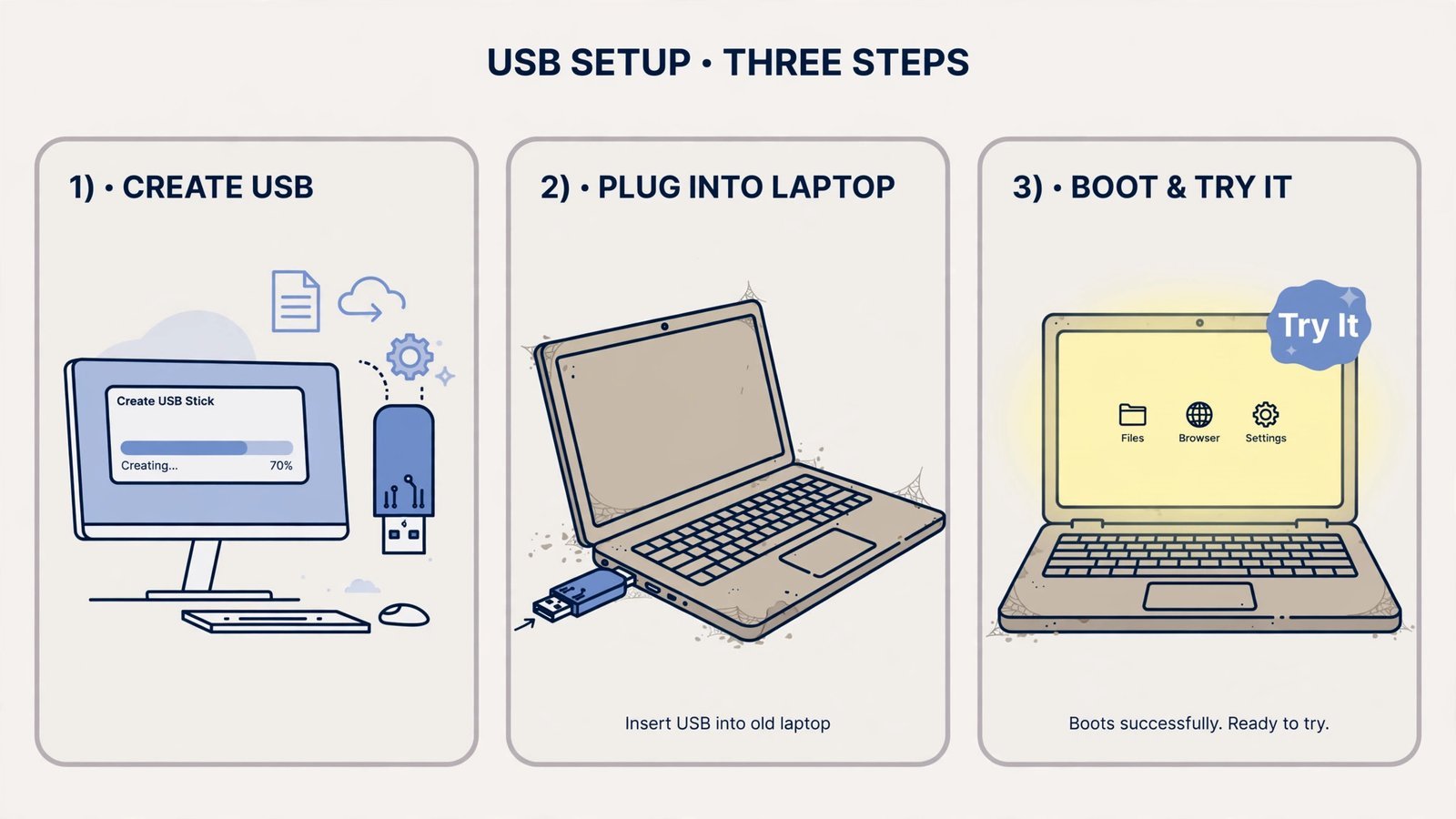
ChromeOS Flex is the right call when the laptop’s job is browsing, email, documents, and video calls. It’s light, updates itself silently, and shrugs off malware the way Chromebooks do. Google claims it runs on machines up to 13 years old, and the installer even checks your specific model against a certified list.
Note: ChromeOS Flex is browser-first. There’s no Google Play Store, so no Android apps, and offline use is limited to what works in Chrome. If you need desktop software like Photoshop or full Microsoft Office, skip to rung 3.
You’ll know this worked when: the live USB boots in under a minute and YouTube plays smoothly. If it does, install it permanently (which does erase the disk, back up first). If the live session still stutters, your hardware needs something even lighter.
Rung 3: Install a lightweight Linux distro (about an hour)
This is the rung that saves the most laptops. A lightweight Linux distribution replaces the heavy OS entirely with one designed for modest hardware, same laptop, fraction of the resource hunger. If you’ve never touched Linux, don’t worry: the beginner-friendly options below install with a graphical wizard and look familiar from the first boot.
Your two best options in 2026:
- Lubuntu 26.04 LTS, the lightest official Ubuntu flavor, with the LXQt desktop. Comfortable on 2 GB of RAM, usable on 1 GB. Supported until 2029.
- Linux Lite 8.0, built for Windows switchers, with a Welcome app that holds your hand through drivers and updates. Wants about 4 GB of RAM to shine. Also supported for years on its Ubuntu 26.04 base.
The full installation routine, backing up, making the USB, booting, installing, is the same shape for both. And if you want to split hairs between the two before committing, our Linux Lite vs Lubuntu spec duel compares them dimension by dimension.
You’ll know this worked when: the system idles under 1 GB of RAM, apps open in a couple of seconds, and the fan stays quiet during normal use. At this point most 2008–2015 laptops feel like perfectly good daily drivers again.
Rung 4: Go ultra-light for truly ancient hardware
Some machines are old enough that even Lubuntu feels heavy, think single-core processors, 512 MB to 1 GB of RAM, or 32-bit CPUs that modern distros abandoned years ago. For these, antiX is the answer. It’s a Debian-based distro that skips the heavy systemd service manager, uses featherweight window managers instead of a full desktop, and still supports 32-bit processors. It runs on as little as 256 MB of RAM.
Warning: antiX is powerful but not beginner-friendly, the interface is sparse and you’ll lean on forums more. Only come here if rung 3 genuinely failed on your hardware. If you’re new to Linux, our beginner’s distro guide explains what you’re getting into.
You’ll know this worked when: a machine from 2005 browses the web and plays video without freezing. If even antiX can’t make it usable, the hardware, not the software, is the limit, and it’s time for the last rung.
Rung 5: The last resort, upgrade the hardware or retire it responsibly
If you’ve climbed this far and the laptop still isn’t usable, no software will save it. Two honest options remain.
Option A: max out the hardware. For laptops from roughly 2010–2016, two upgrades transform the experience: an SSD to replace the spinning hard drive (a 240 GB SSD costs around $25–45 and is the single biggest speedup available), and a RAM bump to 8 GB if the motherboard allows it. Check your exact model’s manual or a teardown video first, some ultrabooks have soldered RAM that can’t be upgraded, and that’s worth knowing before you buy parts.
Option B: retire it responsibly. A machine that can’t run a modern browser safely, no security updates, no supported OS, shouldn’t be your daily driver, but it shouldn’t go in the trash either. Wipe the drive first (a full format, or the manufacturer’s secure-erase tool), then donate it to a refurbisher, a school, or an e-waste recycling program. Usable parts, RAM, the SSD you almost bought, the power brick, can live on in another machine.
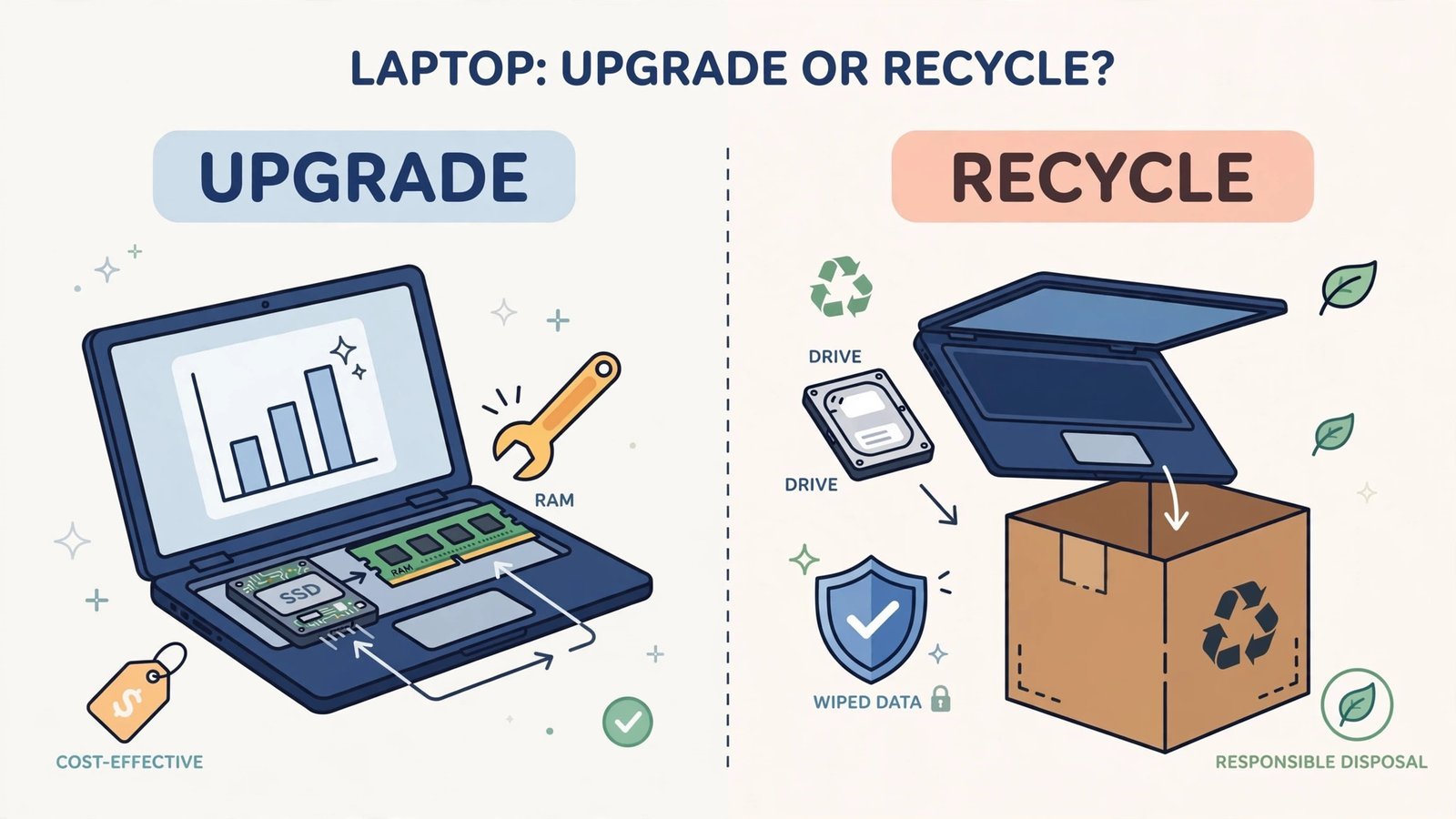
Warning: Before recycling or donating, remove the drive and either wipe it thoroughly or keep it. “Deleted” files are recoverable, and a stranger’s data-recovery software doesn’t care that you meant to erase things.
Your revival plan for this weekend
Start at rung 1 tonight, it takes ten minutes and costs nothing. If the laptop perks up, you’re done. If not, make a ChromeOS Flex USB tomorrow morning and test-drive it over coffee. The Linux reinstall is a Saturday-afternoon project, and the hardware question only matters if everything else failed. Somewhere on this ladder, that drawer laptop becomes a spare machine, a kid’s homework computer, or a kitchen media player, which is a much better fate than a landfill.
Read next: is the drive itself failing? Here’s how to check and what software can actually fix.

- How to Stop Android Auto-Connecting to Open Wi-Fi Networks - October 24, 2026
- How to Stop iPhone Apps Asking for Ratings and Reviews - October 23, 2026
- How to Turn Off HDR in Windows 11 When Colors Look Washed Out - October 22, 2026