
Every year Windows 11 gets one bigger update, and the 2026 edition is called 26H2. It is not a dramatic redesign, so do not expect your PC to look brand new. Think of it as Microsoft flipping the switch on features that have been quietly arriving all year, while resetting your support clock so the PC keeps getting security updates through 2028. Here is a plain-English tour of what is new, what is fixed, and how to get it.
Should you care?
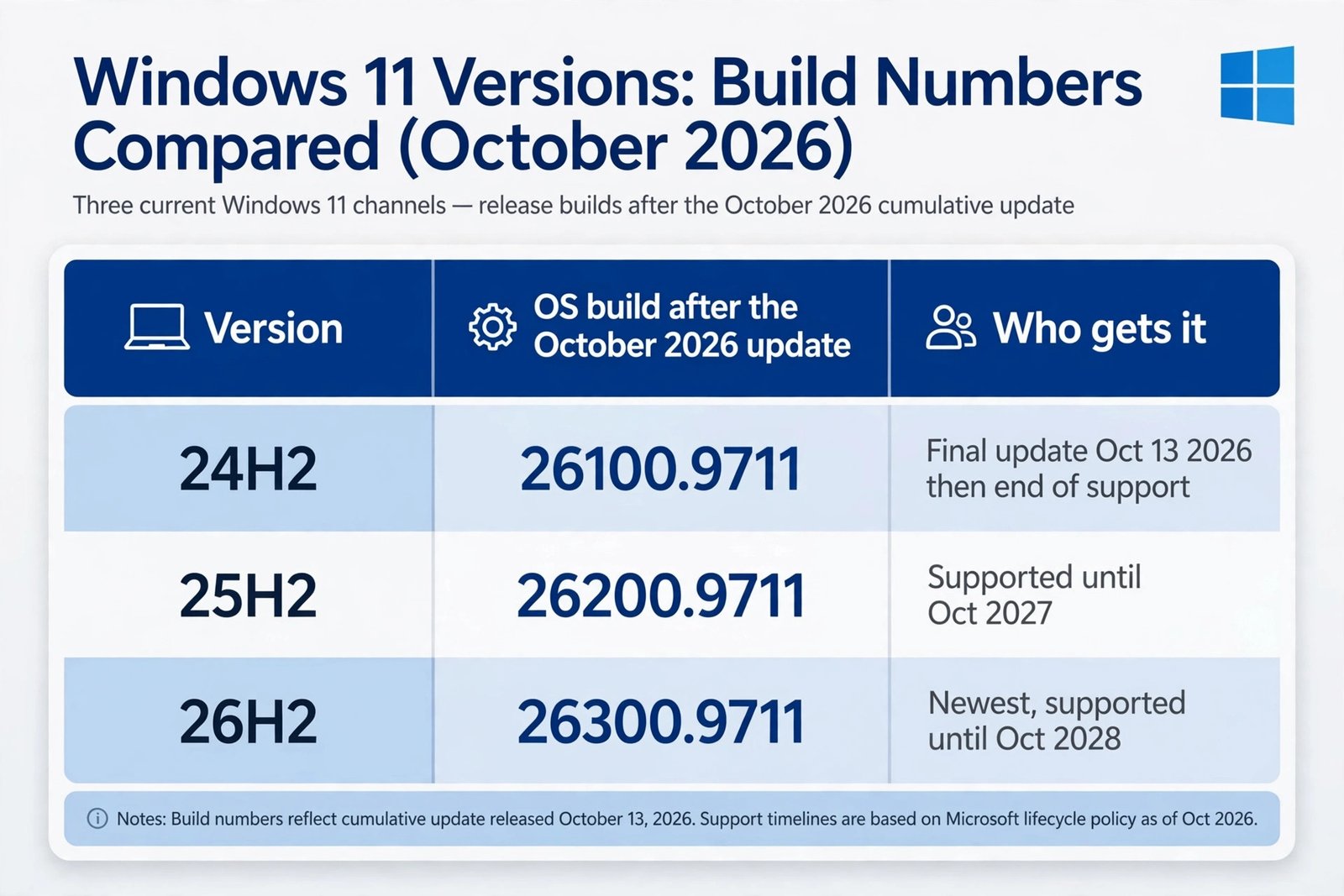
If you like your PC to keep getting security updates with the least fuss, yes. 26H2 gives you two more years of updates (through October 2028), plus security upgrades and recovery tools you will notice mainly when something goes wrong. If you are on 24H2, the answer is an emphatic yes, because 24H2 stopped getting updates on October 13, 2026.
The headline features
Here is what 26H2 turns on. A few of these may already look familiar, because Microsoft shipped many of them during the year through monthly updates and 26H2 simply enables them by default. The rollout is gradual, so a neighbor on the same version might see a feature a few days before you do.
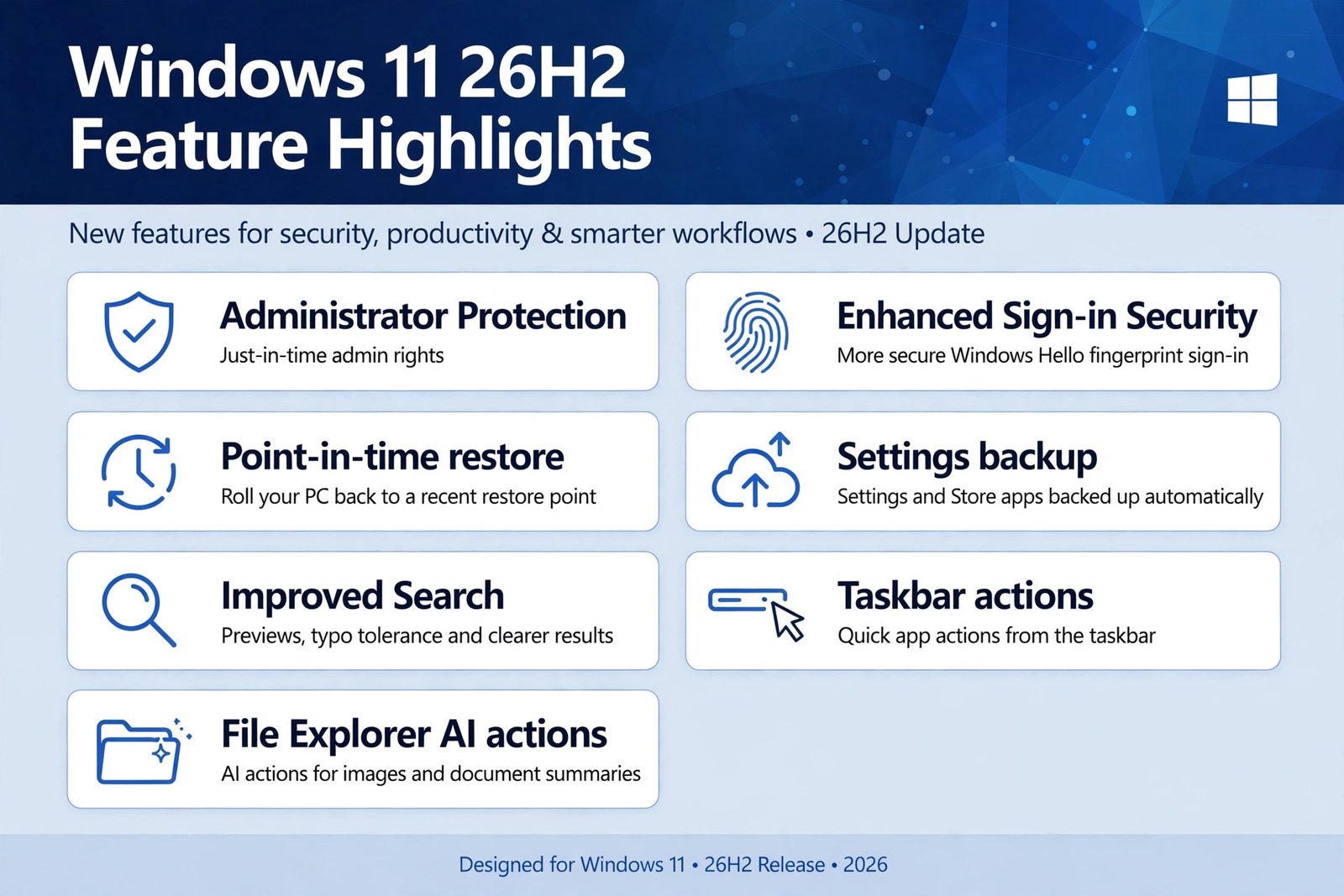
Administrator Protection
Right now, if your account has admin rights, it has them all the time. Administrator Protection changes that deal: your account runs as a standard user, and admin privileges are granted just for the moment you approve something, then taken away again. Your admin profile is also kept separate, so malware that slips into your session has a harder time making system-wide changes. This one is off by default and is switched on by IT departments through Intune or Group Policy, so it matters most for work PCs, or for anyone security-minded enough to ask their admin about it.
Enhanced Sign-in Security for Windows Hello
Enhanced Sign-in Security is the stricter, more tamper-resistant mode behind Windows Hello fingerprint sign-in. 26H2 extends it to compatible third-party and external fingerprint sensors, so more PCs, including desktops and Copilot+ PCs, can use the stronger sign-in protection. If you already sign in with your fingerprint, this makes that sign-in harder to spoof on a wider range of hardware.
Point-in-time restore
This new recovery option can roll your PC back to a recent automatic restore point, including your apps, settings, and personal files. Think of it as an undo button for a PC that has gone wrong after a bad install or a misbehaving app. It is one step beyond the older System Restore, which historically focused more on system files. Note that this is for rolling back a damaged setup; if you need to get back specific deleted files, our guide to recovering permanently deleted files in Windows covers that separately.
Settings backup
Windows settings backup is now switched on by default on managed PCs, meaning computers run by a company or school. It saves your supported Windows settings and your list of Microsoft Store apps, so signing in on a new or rebuilt PC can restore them on first sign-in. Microsoft also extended first sign-in restore to hybrid-joined devices, Cloud PCs, and multi-user setups, which makes device refreshes and moves much less painful.
Improved Windows Search
Search gets a round of polish: it shows previews without opening the item, shrugs off typos and partial app names, labels each result so you can tell an app from a setting, file, web result, or Store suggestion, and lets you turn off web and Store suggestions entirely. Frequently used folders also get indexed automatically, which should make everyday file searches noticeably faster.
Taskbar actions
Two taskbar upgrades arrive together. First, app-specific actions appear directly from taskbar entries, so you can jump to a common task without opening the app first. This one is enabled by default on managed PCs. Second, the taskbar itself gets long-requested flexibility: it can sit at the top, left, or right of the screen instead of only the bottom, and a smaller taskbar option trims icon size and bar height.
AI actions in File Explorer
File Explorer gains AI actions for supported images, right from the right-click menu, plus the ability to get Copilot summaries of OneDrive and SharePoint documents without opening them. That second one needs Microsoft 365 with a Copilot license. The same update brings a faster Explorer Home and support for a few more archive formats. These are convenience features; nothing you rely on moves or changes.
Under the hood: fixes that matter
Alongside 26H2, Microsoft released the October 13, 2026 cumulative update, KB5127648, for 26H2, 25H2, and 24H2, taking them to builds 26300.9711, 26200.9711, and 26100.9711 respectively. For 26H2 it was the first monthly update; for 24H2 Home and Pro it was the last one ever. Here are the fixes everyday users are most likely to feel.
| Problem | What is fixed in KB5127648 |
|---|---|
| Mouse stutter in some games | Mouse input that could stutter in some games should behave normally again. |
| Dolby and AC-3 audio crashes | Apps playing AC-3 audio no longer crash during decoding. |
| Always On VPN stuck on “Connecting” | A protocol fallback failure is fixed, so VPN connections complete instead of hanging. |
| Fingerprint sign-in after a cold boot | Windows Hello fingerprint problems that appeared after a cold boot are resolved. |
| Downloaded files not previewing | File Explorer’s preview pane shows downloaded files, including PDFs, again. |
| Black screen after sign-in on some setups | Explorer crashes and black screens after sign-in on Azure Virtual Desktop and FSLogix hosts are resolved. |
| Printing with basic drivers | Print failures with RAW or Generic Text Only drivers are fixed. |
For the complete changelog, Microsoft’s official release notes for KB5127648 cover every fix in detail.
How to get 26H2
26H2 installs like a normal monthly update, not a big upgrade. For PCs already on 24H2 or 25H2 it is a small download delivered as an enablement package, plus a single restart, and there are no new hardware requirements. The update rolls out gradually, so it may not be offered to you on day one.
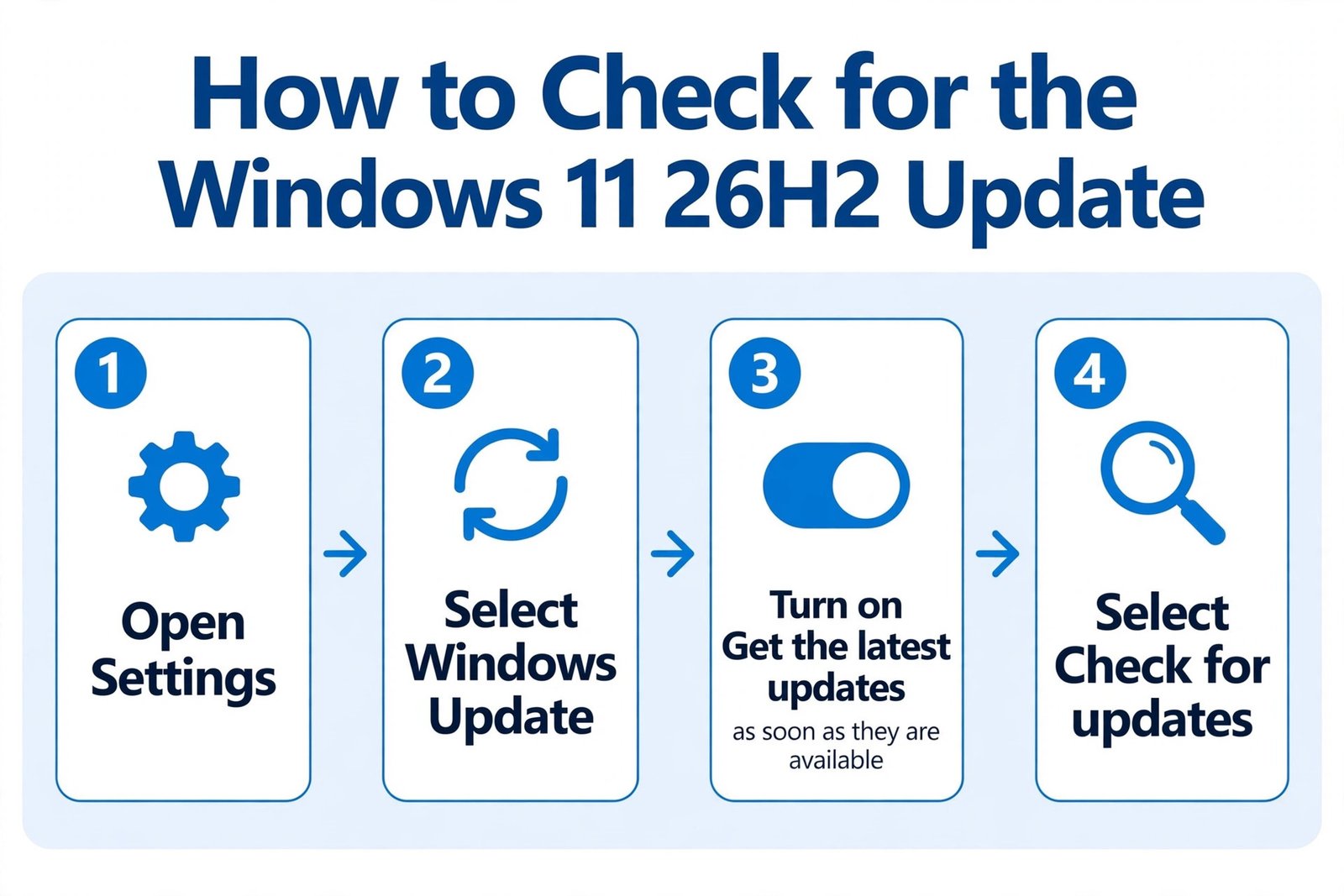
- Open Settings.
- Select Windows Update.
- Turn on Get the latest updates as soon as they’re available if you want to be offered new features earlier.
- Select Check for updates.
- When “Windows 11, version 26H2” appears, select Download and install, then restart when prompted.
If 26H2 never shows up, your PC is probably in a later rollout wave or under a temporary safeguard hold. Wait a few days and check again. One restart completes the move; if your PC behaves oddly around restarts after updates, our guide to Fast Startup in Windows explains what that setting actually does.
A note if you are still on 24H2
Windows 11 24H2 Home and Pro received their final update on October 13, 2026, which means no more monthly security updates from here on. Running an unsupported version leaves you exposed to newly discovered threats, so this is the moment to move to 25H2 or 26H2. Installing 26H2 is also a good excuse for a quick cleanup: our guide to removing bloatware from Windows 11 walks through clearing out preinstalled apps you never use.
Frequently asked questions
Do I need to install 26H2 right away?
Not urgently if you are on 25H2, which stays supported into 2027. But if you are on 24H2 Home or Pro, yes, move soon: that version is now done with updates.
Is 26H2 a big download?
No. For 24H2 and 25H2 PCs it arrives as a small enablement package: a short download and one restart. No fresh install, no new hardware requirements.
Will my programs and files still be there?
Yes. 26H2 shares the same core as 24H2 and 25H2, so your programs, files, and settings come along. Still, a backup before any system update is never a bad idea.
What if Windows Update does not offer me 26H2?
It rolls out gradually. Turn on the “Get the latest updates as soon as they’re available” toggle and check again in a few days; temporary safeguard holds can also delay the offer.
Was anything removed in 26H2?
One old-timer: WMIC, the command-line management tool, is fully removed and no longer available as a feature on demand. If you have scripts that call it, rewrite them in PowerShell.

- Windows 11 26H2: What Is New in the 2026 Feature Update - October 15, 2026
- 6 Best Portable Chargers for Travelers in 2026 (Gift Guide) - October 15, 2026
- Best LED Strip Lights for Cozy Rooms in 2026 (Under $30) - October 15, 2026