
Pre-orders for the iPhone Duo opened this morning at 5 a.m. Pacific, demand crushed supply, and within about half an hour every configuration slipped to January 25, 2027. Only the fastest buyers will see their Duo on the October 23 launch day.
Whenever your Duo arrives, the setup work is the same, and doing it now saves you a stressful evening later. This guide covers the full move: prepping your old phone, transferring everything from iPhone or Android, activating Duo’s eSIM-only cellular service, installing the day-one iOS 27.1 update, and the checks to run before you wipe your old device.
First, the delivery reality check
Pre-orders for Apple’s first foldable iPhone opened today, October 16, at 5 a.m. Pacific (8 a.m. Eastern), and demand massively outstripped supply. In-store pickup reservations are paused until October 24; Apple Stores may have walk-in stock on October 23, but supply is expected to be tight. Carriers like AT&T and Verizon may hold separate allocations, so check their stores and websites too. If your delivery slipped to December or January, your prep does not change: backups made today stay valid, so keep using your old phone normally and run one fresh iCloud or computer backup the night before delivery day. Trying for a walk-in purchase on October 23? Bring your old phone and your carrier account login so store staff can complete the eSIM transfer on the spot.
Step 1: Prep your old phone before delivery day
A little housekeeping now makes transfer day smooth. This applies whether you are coming from an iPhone or an Android phone.
- Update your old phone to the latest iOS or Android. Transfer tools are pickiest about version mismatches.
- Back up everything. On iPhone: Settings, your name, iCloud, iCloud Backup, Back Up Now. Or plug into a computer and use Finder or the Apple Devices app. On Android: Settings, System, Backup.
- Check that your data fits. The Duo starts at 256GB and goes up to 2TB, so compare your old phone’s used storage with the capacity you ordered, and delete unused apps and old downloads if you are tight.
- Know your Apple Account email and password. You will sign in several times during setup.
- Charge both phones and have your Wi-Fi password handy.
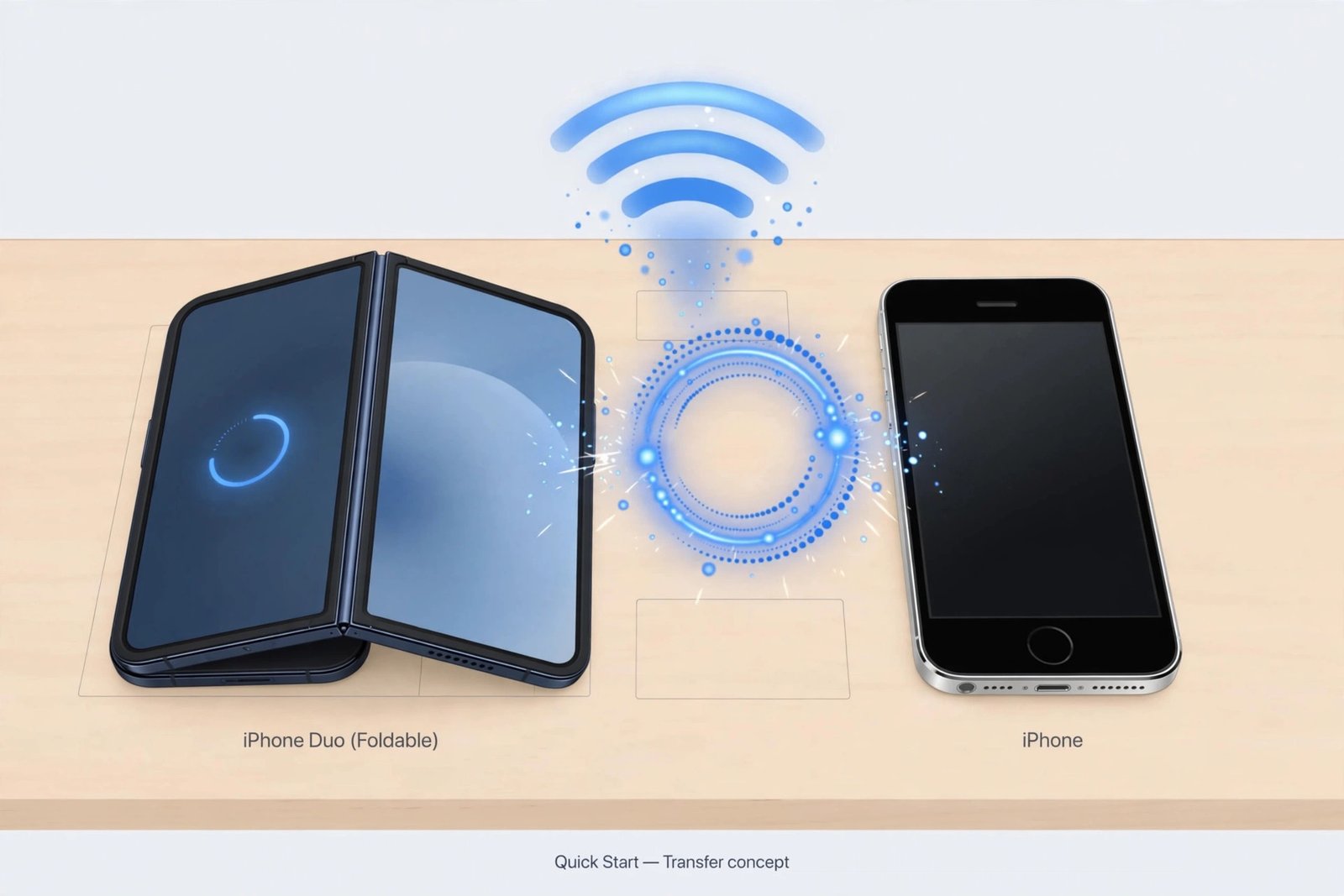
Step 2: Transfer from an old iPhone to Duo
Moving iPhone to iPhone is the smoothest path. Pick the option that fits your situation.
Option A: Quick Start proximity transfer
This is the fastest option when both phones are in the same room. Turn on your new Duo, place it near your old iPhone, and follow the prompts.
- Connect your old iPhone to Wi-Fi and turn on Bluetooth.
- Turn on the Duo and hold it next to your old iPhone. A Quick Start prompt appears on the old phone.
- Tap Continue, then hold your old iPhone over the Duo to scan the blue pairing animation.
- Enter your old iPhone’s passcode, set up Face ID on the Duo, and choose Transfer from iPhone.
- Keep both phones close and plugged in until the transfer finishes.
Apple’s official Quick Start guide has the latest step-by-screen details.
Option B: Restore from an iCloud backup
Use this when your old iPhone is not nearby. During Duo setup, choose Restore from iCloud Backup, sign in, and pick the most recent backup. Keep the Duo on Wi-Fi and power while everything downloads; watch for Apple’s temporary iCloud storage offer if you are short on space.
Option C: Wired transfer with a cable
For slow Wi-Fi or huge photo libraries, connect the two phones with a USB-C cable during setup and choose the wired option. It is faster and more reliable for big transfers.
Step 3: Move from Android to Duo
Coming from Android? Install Apple’s free Move to iOS app from the Google Play Store before you start, and keep both phones plugged in and on Wi-Fi throughout.
- On the Duo’s Transfer Your Apps and Data screen, tap Move Data from Android.
- Open Move to iOS on the Android phone, tap Continue, and agree to the terms.
- The Duo shows a one-time code. Enter it on the Android phone to pair the two devices.
- Join the private Wi-Fi network the Duo creates, or connect the phones with a USB-C cable for a faster transfer.
- Select the content you want to move, tap Continue, and wait. Do not touch either phone until the loading bar on the Duo finishes, even if the Android says it is done.
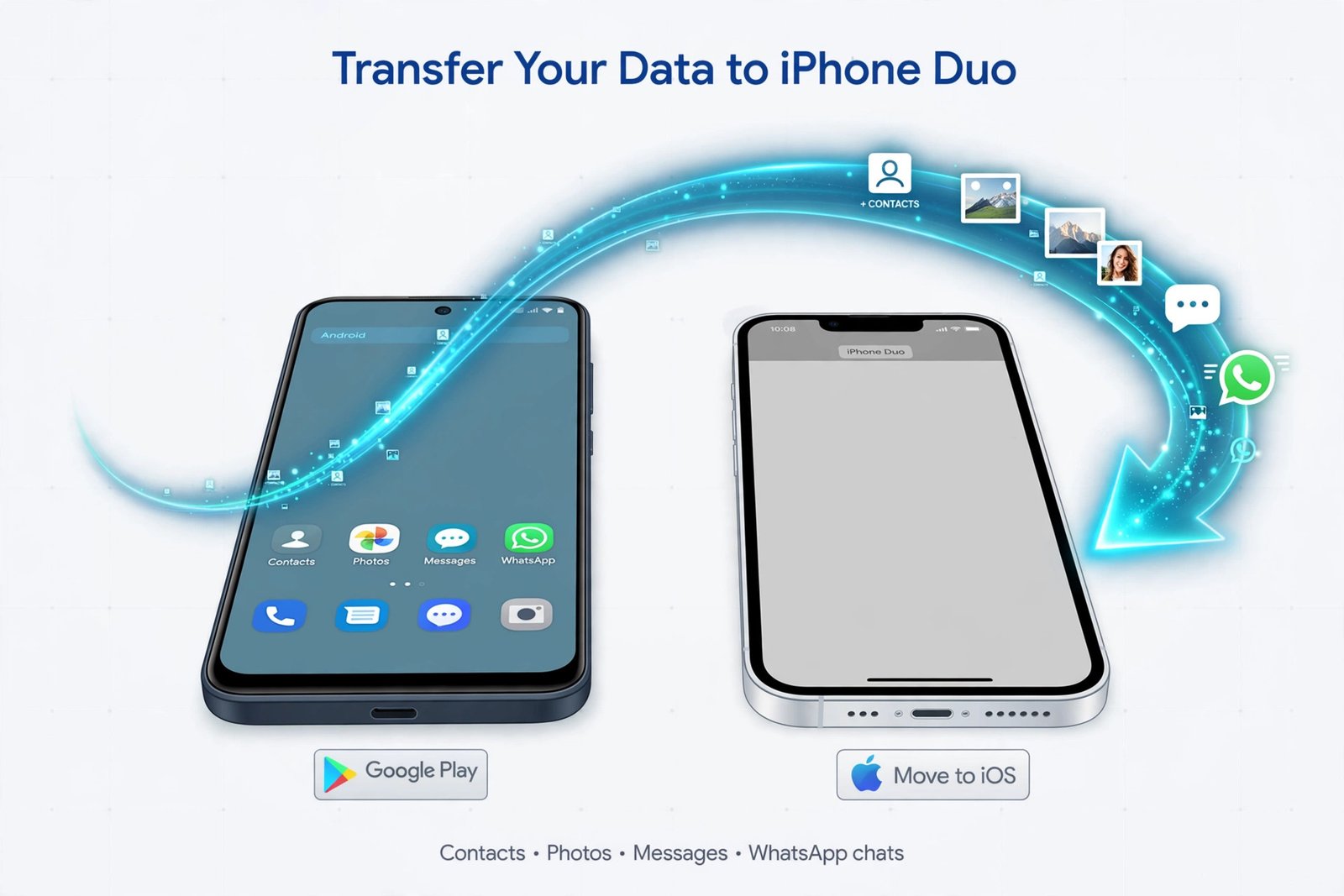
One catch: Move to iOS only works during first-time setup. Finish setup first and you will need to erase the Duo and start over, or move content manually. When in doubt, check Apple’s official support page for the latest steps.
Apple’s official Move from Android guide lists everything the app can carry over.
What moves and what does not
| Transfers to Duo | Does not transfer |
|---|---|
| Contacts, message history, SMS | Your Android apps themselves |
| Camera photos, videos, photo albums | Music not in your library (move it via computer) |
| Mail accounts, calendars, bookmarks | Some app data and login states |
| WhatsApp messages and media | Paid apps (re-download from the App Store) |
| Call history, Voice Memos, files and folders | Books and PDFs (move them manually) |
| Free apps available on both stores, matched for download | Content protected by DRM |
After the transfer, open the App Store to re-download your apps; free apps on both stores will be suggested for download.
Step 4: Activate your number (Duo is eSIM only)
The Duo has no SIM tray, so your number must move to an eSIM. During setup the Duo may offer an automatic transfer, and eSIM Quick Transfer from a nearby iPhone works if your carrier supports it.
- Use your carrier’s app or website: AT&T, T-Mobile, and Verizon each offer eSIM activation, usually with a QR code or in-app transfer.
- Call your carrier if self-serve fails. Business lines and older account types often need a human.
- Buying in store? Bring your old phone and carrier account login so staff can complete the transfer on the spot.
Do not cancel your old line until the Duo is fully active and you have tested calls, texts, and mobile data. Losing your number mid-transfer turns a 20-minute setup into a support call.
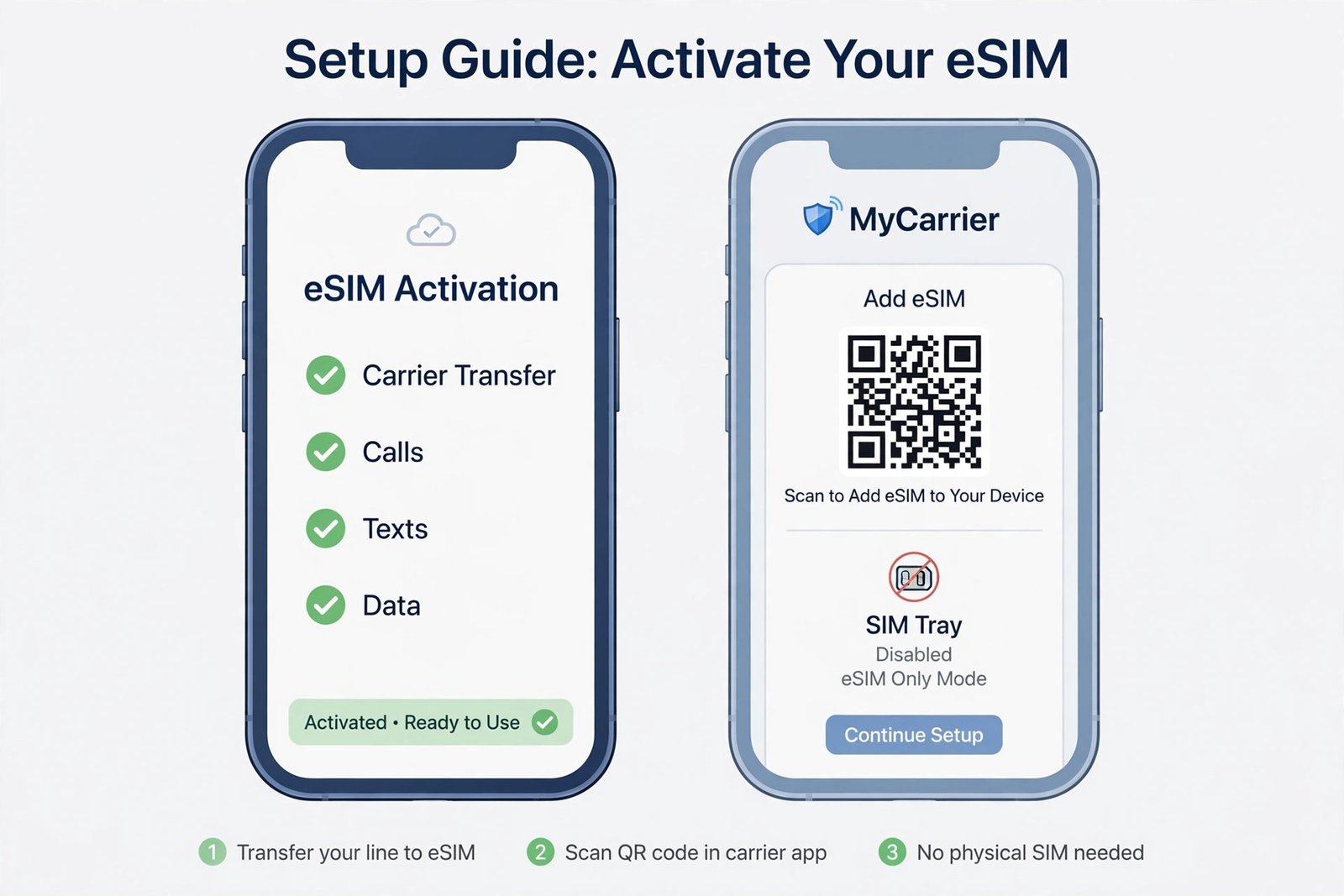
For the full carrier-by-carrier walkthrough, see our guide on how to activate eSIM on iPhone.
Step 5: Install the day-one iOS 27.1 update
The Duo ships with iOS 27.1 build 24A94232, but a newer build, 24A94425, was released on October 12, so expect an update prompt during setup.
- On the Duo, open Settings, then General, then Software Update.
- If a newer iOS 27.1 build is listed, tap Update Now and follow the prompts.
- Stay on Wi-Fi and keep the phone plugged in while it installs.
Apple could release another build before your Duo arrives, so install whatever Software Update offers. After updating, our iOS 27 settings guide covers which settings to change first.
Step 6: Run these checks before wiping your old phone
Do not erase your old phone until every item below works on the Duo. Give this checklist ten honest minutes.
| Check | How to confirm |
|---|---|
| Calls, texts, and mobile data | Call, text, and load a page with Wi-Fi off |
| iMessage and FaceTime | Sign out and back in, then send a test message |
| Photos and videos | Open Photos and confirm your library is complete |
| Banking and payment apps | Sign in again; most require device re-registration |
| Authenticator apps | Move 2FA tokens before wiping; wiping first can lock you out |
| Apple Pay | Re-add your cards in Wallet; cards do not transfer automatically |
If anything is missing from your photo library, our guide to transferring photos from an Android phone to a PC has manual steps for pulling stray files off the old device.
If something goes wrong
- Transfer stalls: keep both phones awake and close together, turn off the Android’s mobile data, and make sure neither phone gets a call mid-transfer.
- Quick Start prompt disappears: restart both iPhones and try again. This fixes it most of the time.
- Ran out of space: erase the Duo, redo the transfer with fewer items selected, or move photos to a computer first.
- eSIM will not activate: contact your carrier with the Duo’s IMEI (Settings, General, About).
That is the whole playbook: prep now, pick your transfer method before the box arrives, keep your old line active until the Duo proves itself, and run the post-transfer checklist. However long the wait, your Duo will feel like home within an hour of unboxing.

- How to Transfer Everything to iPhone Duo from iPhone or Android - October 16, 2026
- Windows 10 ESU Extended to 2027: What to Do Now - October 15, 2026
- How to Turn Off Google AI Mode and AI Overviews: 3 Workarounds That Still Work - October 15, 2026