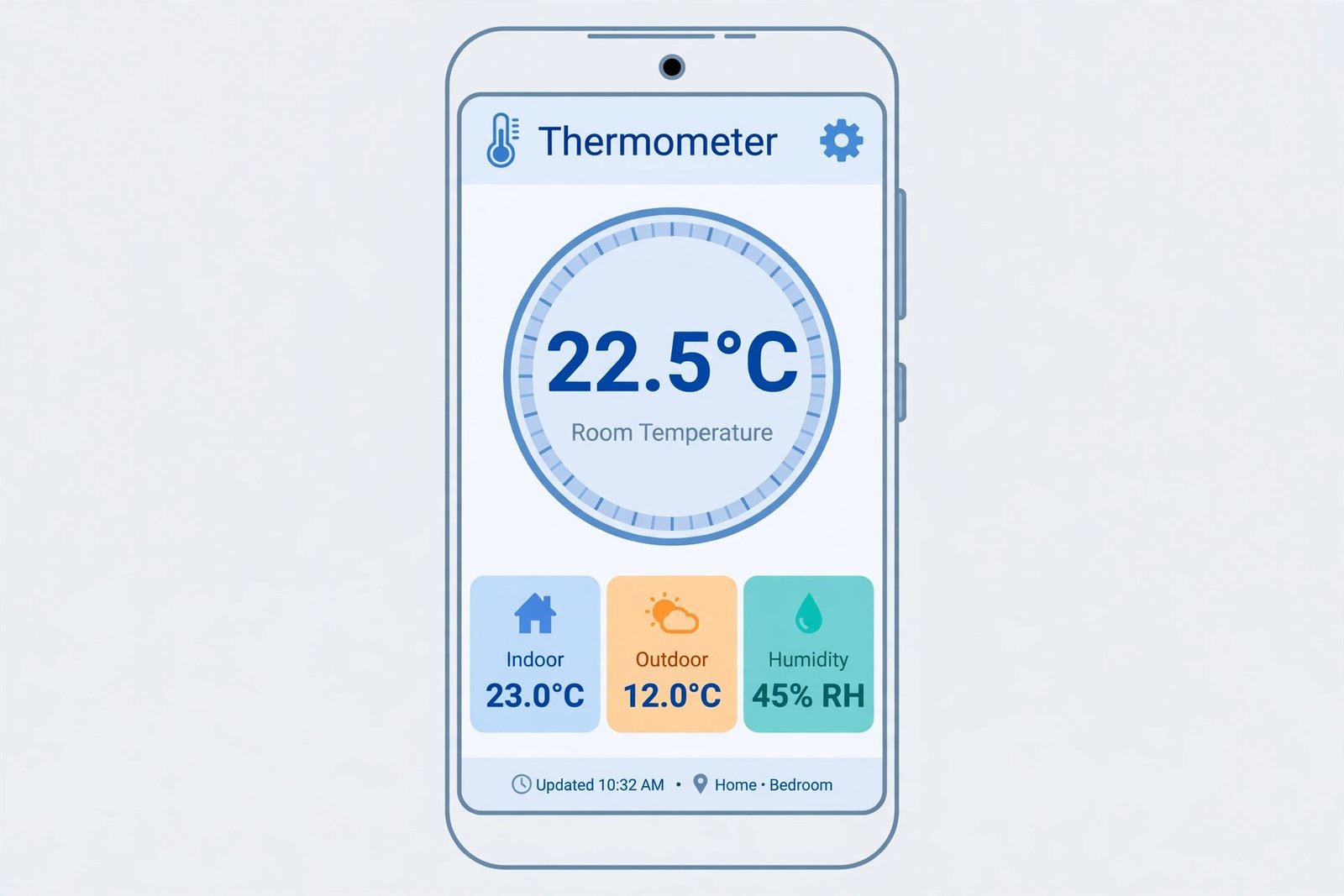
If you want to monitor room temperature on your Android phone, your best options depend on what you actually need. Some apps work with smart thermostats you already own. Others measure temperature using your phone’s built-in sensors. A few connect to cheap wireless thermometers. The right choice depends on your setup, budget, and how accurate you need the readings to be.
This guide cuts through the noise. You’ll learn which apps actually work, what they do well, and what their real limitations are.
Why You Might Need a Room Temperature App
Before picking an app, understand why you’d want one in the first place.
Temperature monitoring helps you:
- Track if your home stays at a comfortable temperature while you’re away
- Spot heating or cooling problems before they become expensive
- Monitor temperature in specific rooms that feel too hot or cold
- Keep records of temperature changes over time
- Adjust settings remotely without a smart thermostat
Not everyone needs this. If you have a basic thermostat with no smart features, most apps won’t help you much. But if you have smart home devices or wireless sensors, an app becomes genuinely useful.
How Room Temperature Apps Actually Work
Understanding the technology helps you pick the right app.
Phone Sensor Temperature Reading
Some apps use sensors built into your Android phone. Your phone has processors that generate heat. It also has temperature sensors to prevent damage from overheating.
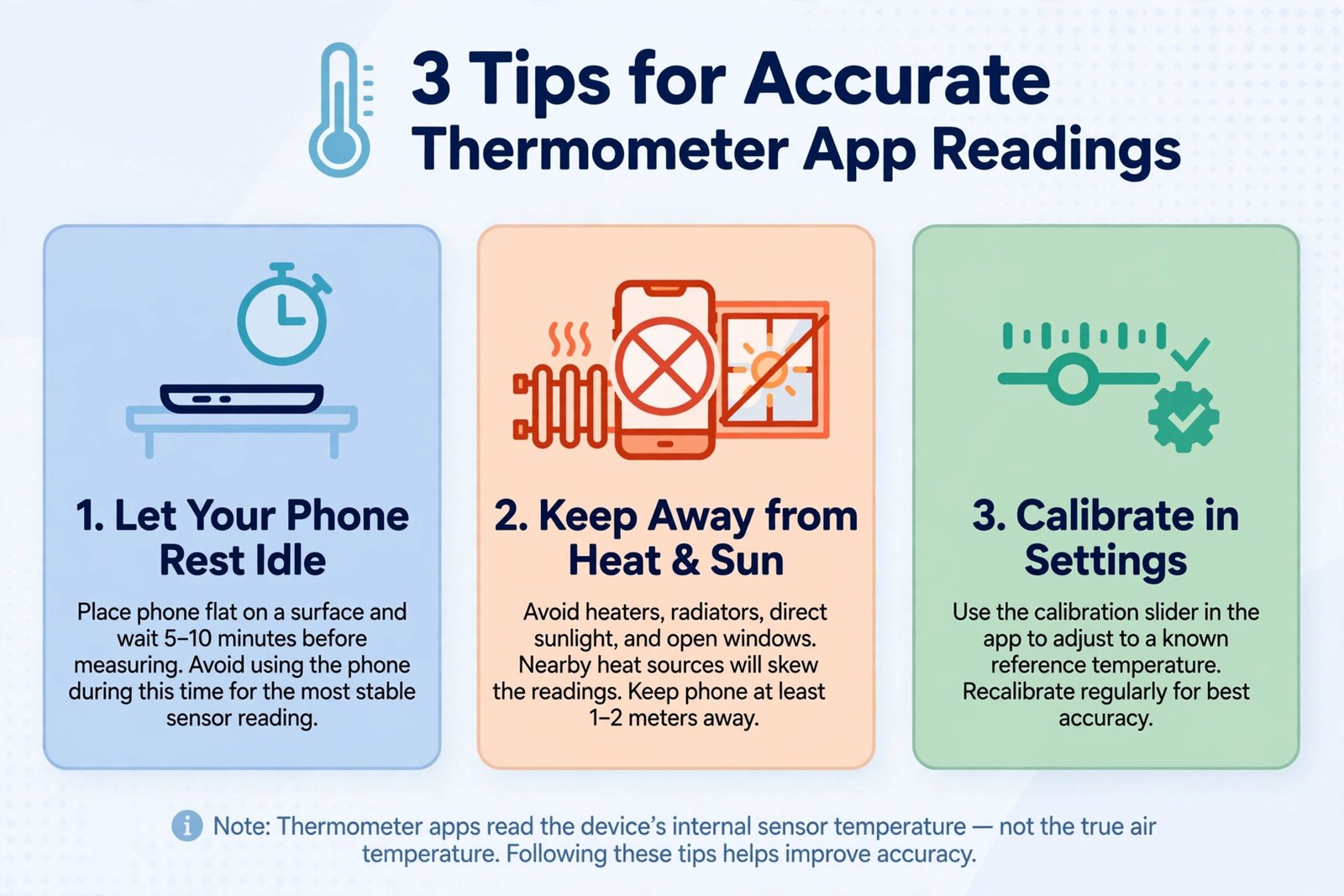
The problem: These sensors measure phone temperature, not room temperature. They’re not reliable for measuring air temperature in your home. The phone sits in your pocket or on a desk. It gets warmed by sunlight, your hands, or the charging cable. The readings won’t reflect what’s actually happening in your room.
This approach is essentially useless for real room temperature monitoring.
Connected Smart Thermostat Apps
If you own a smart thermostat like Nest, Ecobee, or Honeywell Home, you already have temperature sensors in your system.
These apps connect to your thermostat through WiFi. They show you the real temperature measured by the thermostat’s sensors. You get accurate data directly from the device doing the actual heating or cooling in your home.
This is the most practical approach for most people.
Wireless Thermometer Apps
Some apps pair with Bluetooth or WiFi wireless thermometers you buy separately. These are small devices with actual temperature sensors. You place them in different rooms. The app reads data from each sensor and displays it on your phone.
This gives you room-by-room temperature monitoring. It costs money upfront for the sensors, but the data is accurate.
Best Room Temperature Apps for Android
Nest App (for Google Nest Thermostat)
What it does: Controls Google Nest thermostats and displays real-time temperature data from your thermostat.
The reality: If you own a Nest thermostat, this is your go-to app. The temperature readings come directly from Nest’s sensor. They’re accurate and update frequently.
You get:
- Current temperature in your home
- Temperature history over days and weeks
- Remote control of your thermostat
- Integration with Google Home
- Energy reports showing how heating and cooling affect your bill
Cost: Free with Nest thermostat ownership. Nest devices range from around 250 to 400 dollars depending on the model.
Limitations: You need a Nest thermostat. The app won’t work with other brands. The free version has fewer features than the premium version, though temperature monitoring works the same way.
Ecobee Home App
What it does: Controls Ecobee smart thermostats and shows temperature from multiple rooms if you have Ecobee smart sensors.
The reality: Ecobee is solid for multi-room temperature monitoring. The system includes a thermostat plus optional room sensors you can place around your home.
You get:
- Main thermostat temperature readings
- Individual room temperatures from sensors you add
- Remote adjustments
- Voice control through Alexa
- Scheduling and automation
Cost: Ecobee thermostat starts around 250 dollars. Additional room sensors cost roughly 40 dollars each.
Limitations: Initial investment is higher if you want multiple rooms monitored. Setup requires some technical comfort, though it’s not complicated.
Honeywell Home App
What it does: Connects to Honeywell smart thermostats and home security systems.
The reality: Honeywell serves both residential and commercial customers. Their app is reliable but less polished than competitors.
You get:
- Thermostat temperature readings
- Remote control
- Integration with security systems
- Energy tracking
Cost: Honeywell thermostats range from 150 to 400 dollars.
Limitations: The user interface isn’t as intuitive as Nest or Ecobee. The app sometimes has slight delays updating temperature data.
Tado App
What it does: Smart climate control system with location awareness. The app shows temperature and adjusts heating based on whether you’re home.
The reality: Tado focuses on heating efficiency. It learns your patterns and adjusts temperature automatically.
You get:
- Real-time temperature monitoring
- Location based heating adjustment
- Weather integration
- Energy savings reports
- Room-by-room control with additional sensors
Cost: Starter kit around 200 dollars. Works with most existing boilers and heating systems.
Limitations: Designed primarily for heating, less useful if you rely heavily on air conditioning. Setup requires understanding your heating system.
Govee Home App
What it does: Works with affordable Govee wireless temperature and humidity sensors.
The reality: If you want budget-friendly room temperature monitoring without buying an expensive smart thermostat, Govee is worth considering.
The sensors are small, wireless, and cheap. You stick them in different rooms. The app displays temperature and humidity from each sensor on your phone.
You get:
- Real-time temperature and humidity readings
- Data from multiple rooms
- Simple app interface
- Affordable hardware (sensors cost around 15 to 30 dollars each)
- Integration with smart home systems
Cost: Sensors are inexpensive. The app is free.
Limitations: You need to buy sensors separately. The wireless range isn’t unlimited (usually works well within 100 feet). Battery life on sensors needs monitoring.
Wyze App
What it does: Works with Wyze smart home devices including inexpensive temperature sensors.
The reality: Wyze offers budget temperature monitoring similar to Govee. The sensors are affordable and reliable.
You get:
- Temperature and humidity readings
- Multiple room monitoring
- Cloud storage of data
- Integration with Alexa and Google Home
- Affordable sensors under 20 dollars
Cost: Free app. Sensors cost roughly 15 to 20 dollars each.
Limitations: Requires separate purchase of sensors. The company has had security concerns in the past. Customer support is basic.
Comparing Android Room Temperature Apps
| App Name | Best For | Cost | Accuracy | Setup Difficulty |
|---|---|---|---|---|
| Nest App | Google Nest owners | Free (thermostat 250+) | Excellent | Easy |
| Ecobee Home | Multi-room monitoring | Free (thermostat 250+) | Excellent | Moderate |
| Honeywell Home | Existing Honeywell users | Free (thermostat 150+) | Good | Moderate |
| Tado | Heating efficiency | Free (starter kit 200+) | Good | Moderate |
| Govee Home | Budget monitoring | Free (sensors 15-30) | Good | Very Easy |
| Wyze App | Budget multi-room | Free (sensors 15-20) | Good | Very Easy |
How to Choose the Right App
Ask yourself these questions:
Do you already own a smart thermostat?
If yes, download the companion app from your thermostat’s manufacturer. Google Nest, Ecobee, Honeywell, and Tado all have apps that work with their devices.
If no, decide between expensive smart thermostats or affordable wireless sensors.
Do you need to monitor multiple rooms?
Smart thermostats show the temperature where the thermostat sits. If you want to know temperature in your bedroom, kitchen, and living room separately, you need either a smart thermostat with additional room sensors or separate wireless sensors.
Govee and Wyze let you add sensors to individual rooms cheaply.
What’s your budget?
Smart thermostats cost 150 to 400 dollars upfront. They’re an investment but include climate control, not just monitoring.
Wireless sensors like Govee or Wyze cost 15 to 30 dollars each. You can start with one room and add more later.
How important is accuracy?
All the apps mentioned above provide reasonably accurate readings. The difference is small. Professional thermometers are more precise, but these apps are fine for home comfort monitoring.
How much effort do you want to put into setup?
Smart thermostats require installation. Some people need a professional. Wireless sensors just need to be placed in a room and connected to WiFi through the app. Much easier.
Setting Up Your First Room Temperature App
If you’re starting from scratch with Govee or Wyze, here’s what to do:
Step 1: Download the app
Go to Google Play Store. Search for Govee Home or Wyze app. Install it on your Android phone.
Step 2: Create an account
Open the app. Sign up with your email. Confirm your email address.
Step 3: Add a sensor
Buy a temperature sensor compatible with the app. In the app, tap the plus button or “Add Device” option.
Step 4: Put sensor in pairing mode
Follow the specific instructions for your sensor model. Usually involves holding a button for a few seconds.
Step 5: Connect sensor to WiFi
The app will find your sensor. Select your home WiFi network. Enter your WiFi password.
Step 6: Place sensor in your room
Once connected, place the sensor in the room you want to monitor. Leave it away from direct sunlight, heating vents, or air conditioners. These affect readings.
Step 7: Check the app
After a minute or two, you’ll see temperature data in the app.
That’s it. The process is straightforward for wireless sensors.
Smart thermostat setup is more complex. You may need to turn off power to your current thermostat, remove it from the wall, and install the new one. Some people hire HVAC professionals. Follow your specific thermostat’s installation guide carefully.
Real-World Tips for Accurate Temperature Monitoring
Even good apps give poor data if you place sensors wrong.
Sensor placement matters:
- Keep sensors away from direct sunlight. Sunlight heats the sensor itself, not the room air.
- Don’t place them next to heating vents or air conditioners. They’ll read the temperature of the air coming from those sources, not the room’s actual temperature.
- Avoid placing sensors on exterior walls. Outside temperature affects the wall, which affects the sensor.
- Keep sensors at least a foot away from walls when possible. Air circulation around the sensor improves accuracy.
- Place sensors in central locations in the room, roughly at average body height (4 to 5 feet off the ground).
Wireless sensor tips:
- Check battery levels regularly. Low batteries make readings unreliable and eventually fail.
- Keep sensors within the WiFi range specified by the manufacturer.
- Don’t block WiFi signals with metal objects or large mirrors.
- Replace batteries at least once a year or when the app warns you.
Smart thermostat tips:
- Keep the thermostat away from heat sources like lamps, televisions, or fireplaces.
- Don’t place it in direct sunlight.
- Make sure air can circulate around it.
- Follow the manufacturer’s placement guidelines from the installation manual.
Limitations You Should Know About
No room temperature app is perfect. Understanding the limits helps you have realistic expectations.
Phone sensor apps don’t work: Apps that claim to read room temperature using your phone’s built-in sensors are misleading. Your phone measures its own temperature, not the room’s air temperature. Don’t rely on these.
Wireless sensors have limited range: Budget sensors like Govee sometimes struggle with WiFi signals far from your router. Thick walls between the sensor and router cause problems. If your home is large or has a weak WiFi signal, sensors in distant rooms may disconnect.
Smart thermostats only monitor one location: Unless you add room sensors, your smart thermostat only shows temperature where the thermostat itself is installed. This is usually your main living area or hallway.
Updates and compatibility matter: Apps need regular updates to work with Android updates. Older apps sometimes break after you update your phone’s operating system. Check that the app you choose is actively maintained by the company.
Data privacy concerns: These apps send your temperature data to company servers. If privacy is a serious concern, research what data each company collects and how they use it. Some apps offer local control that doesn’t send data to the cloud.
Internet outages cause problems: If your WiFi goes down, you can’t access temperature data remotely. You can still see data on a device connected directly to your home network, but remote access stops.
Troubleshooting Common Problems
App shows no data or wrong temperature:
First, check that your device (thermostat or sensor) is connected to WiFi. Look at the app’s connection status. If it says disconnected, try toggling WiFi off and on on the device. Wait a minute for it to reconnect.
If that doesn’t work, check your WiFi signal strength at the sensor’s location. Move the sensor closer to your router temporarily to test. If that fixes it, you need a WiFi extender or a different router location.
Sensor readings are wildly inaccurate:
Move the sensor away from heat sources, sunlight, and vents. Wait 15 minutes. Check again. Sensors need time to stabilize after being moved.
If readings still seem wrong, check if the sensor battery is low. Replace the battery. An old battery can cause sensor failures.
App crashes or freezes:
Update the app to the latest version. Open Google Play Store, search for the app, and tap Update.
If it still crashes, try uninstalling and reinstalling the app. This fixes minor bugs that updates don’t catch.
Clear the app’s cached data. Go to Settings > Apps > [App Name] > Storage > Clear Cache. This removes temporary files that sometimes cause problems.
If nothing works, contact the app’s support team. Include details about your phone model, Android version, and what happens when the app crashes.
Can’t connect sensor to WiFi:
Make sure you’re using a 2.4 GHz network. Many modern routers broadcast both 2.4 GHz and 5 GHz. Smart home devices sometimes only work on 2.4 GHz. Check your router settings.
Forget the network from your phone’s WiFi settings. Then try reconnecting the sensor through the app again.
If your WiFi password has special characters, try changing it to simple letters and numbers temporarily. Some sensors struggle with complex passwords.
Temperature data hasn’t updated in hours:
Check that the device has internet access. Restart your WiFi router by unplugging it for 30 seconds and plugging it back in.
Restart the app. Close it completely and open it again.
If the device still won’t sync, restart the device itself. This varies by device type. Usually involves holding a button or toggling power off and on.
Practical Uses Beyond Comfort
Room temperature monitoring does more than tell you if your home feels too hot or cold.
Protecting your home:
Temperature changes can indicate problems. A sudden temperature drop in winter might mean a pipe burst or a furnace failure. A humidity spike detected by temperature sensors might indicate a water leak. Catching these early saves money.
Energy savings:
Apps that track temperature history show how your heating and cooling patterns affect your energy bills. You can see the impact of adjusting the thermostat by a few degrees or changing your schedule. This data helps you make informed decisions about energy use.
Health monitoring:
Some health conditions are affected by temperature. Elderly people, young children, and those with certain illnesses need more stable temperatures. Monitoring temperature helps you maintain optimal conditions for health.
Vacation and seasonal monitoring:
When you’re away, temperature monitoring alerts you to problems. If your heat fails in winter, you’ll know before pipes freeze. If your air conditioner breaks in summer, you can address it quickly.
Remote property management:
If you own a rental property, vacation home, or office, remote temperature monitoring helps you ensure proper conditions when you’re not there.
Conclusion
The best room temperature app for Android depends on what you already own and what you’re willing to spend.
If you have a smart thermostat: Download the official app from your thermostat manufacturer. Google Nest, Ecobee, Honeywell, and Tado all offer reliable temperature monitoring through their apps.
If you want affordable room monitoring without a smart thermostat: Govee or Wyze give you good temperature data for less money upfront. Buy a few sensors and place them around your home.
If you’re considering a new thermostat: Ecobee offers the best multi-room monitoring. Nest offers the most polished app experience. Both are solid investments for long-term climate control.
Apps that claim to measure room temperature using only your phone’s sensors don’t work. Don’t waste time on these.
Set up sensors carefully. Placement affects accuracy more than the app or sensor quality. Keep sensors in central room locations, away from vents, windows, and heat sources.
Check your WiFi signal strength. Poor WiFi causes connection problems. If sensors won’t connect, your router might be the issue, not the app.
Temperature monitoring is useful but not necessary for everyone. If you adjust your thermostat once a season and never think about it otherwise, you probably don’t need an app. If you care about comfort, energy savings, or monitoring your home remotely, one of these apps will genuinely help.
Start simple. Buy one inexpensive sensor from Govee or Wyze if you’re unsure. See if you actually use it. Add more sensors and features later if it proves helpful. This approach lets you discover what you actually need without a large upfront investment.
Frequently Asked Questions
What Android phone do I need to use a room temperature app?
Most apps work on Android 6.0 and newer. Check the app’s requirements on Google Play Store. Almost any phone made in the last five years will work fine. Older phones might have compatibility issues.
Can I use a free app to measure room temperature without buying anything?
Yes, but the data won’t be reliable. Apps using only your phone’s sensors give inaccurate readings. If you already own a smart thermostat, the free official app from the manufacturer gives you accurate readings at no extra cost.
How often do room temperature apps update the data?
Smart thermostat apps usually update every few minutes. Wireless sensor apps vary but typically update every one to five minutes. This is fast enough for home comfort monitoring.
Do these apps work without internet?
Depends on the app. Most require internet to sync data to the cloud and show temperature remotely. Some apps let you view current temperature on a local device without internet, but the app on your phone won’t update without a connection.
Which app uses the least battery on my Android phone?
All reputable apps use minimal battery. The biggest drain is keeping WiFi connected, not the app itself. Battery usage is so small you
- How to Reset Your Spotify Password: Guide for 2026 - January 9, 2026
- Fix Roblox Error Code 523: Guide to Solving Connection Problems - January 9, 2026
- How to Delete Your Google Account Permanently - January 9, 2026