How to Turn Off Low Data Mode on iPhone and Android

Low Data Mode is a battery-saving feature that limits background data usage on your phone. When it’s enabled, apps refresh less often, videos stream at lower quality, and automatic updates pause. Sometimes you need to turn it off to use your phone normally.

This guide shows you exactly how to disable Low Data Mode on both iPhone and Android devices, plus when and why you might want to do it.

Why You’d Want to Turn Off Low Data Mode

Low Data Mode helps you save data when you’re on a limited plan. But it also restricts your phone’s performance. You might want to turn it off for several reasons:

Your data plan has unlimited or high limits and you don’t need to restrict usage. You want apps to update automatically and sync in real time. You’re streaming video or downloading large files and need full speed. You want background refresh enabled for certain apps. Your phone battery is good and you don’t need the battery savings anymore.

Understanding when Low Data Mode helps versus when it hurts is the first step to managing it properly.

How to Turn Off Low Data Mode on iPhone

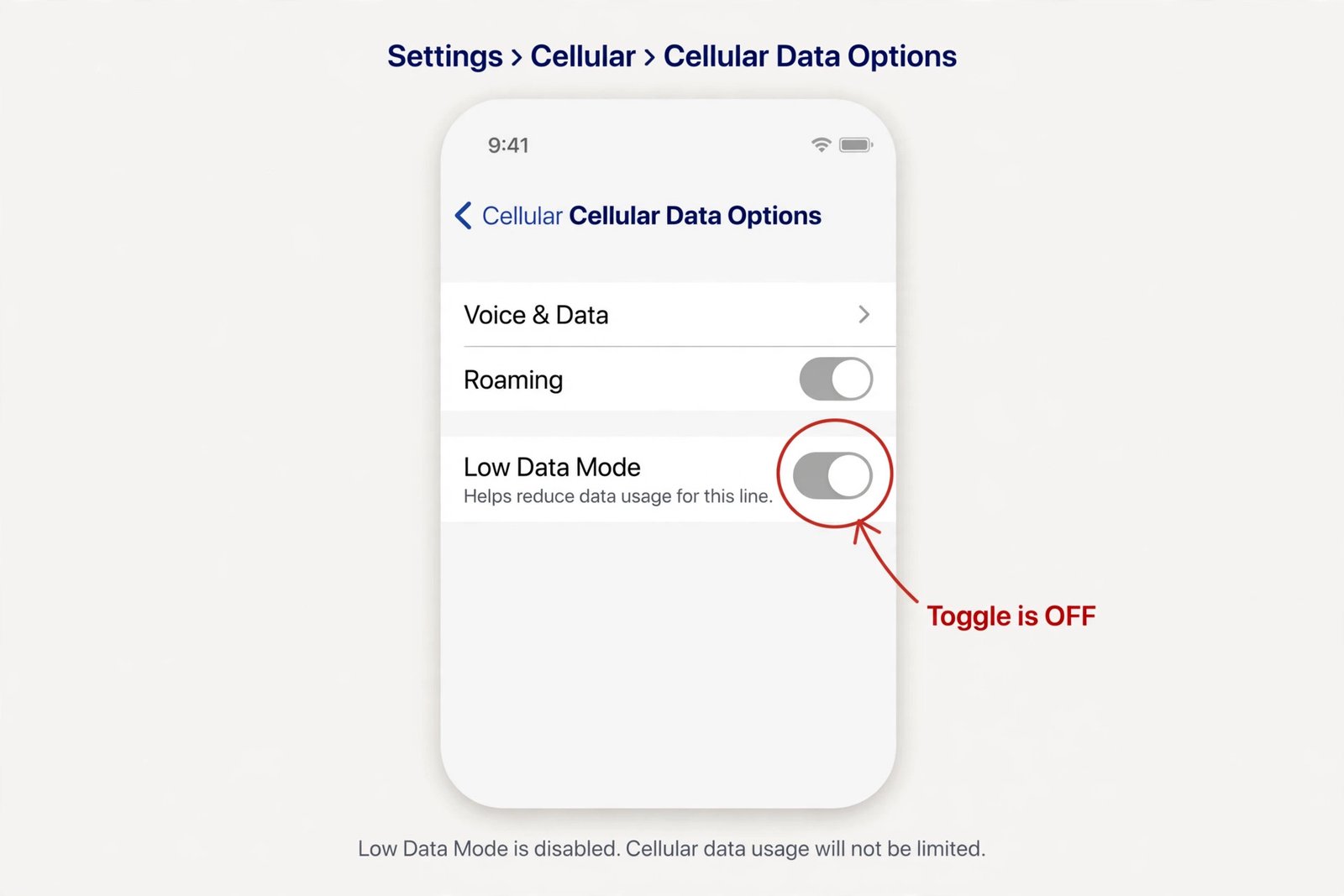
iPhone Settings Location

Low Data Mode on iPhone lives in your Settings app under Cellular. Here’s where to find it.

Step-by-step instructions for iPhone:

  1. Open the Settings app on your home screen
  2. Scroll down and tap Cellular (or Mobile Data)
  3. Look for Cellular Data Options and tap it
  4. Find Low Data Mode
  5. If it’s toggled on (green switch), tap it to turn it off

That’s it. Your iPhone will now use full data speeds immediately.

How to Turn Off Low Data Mode on iPhone and Android

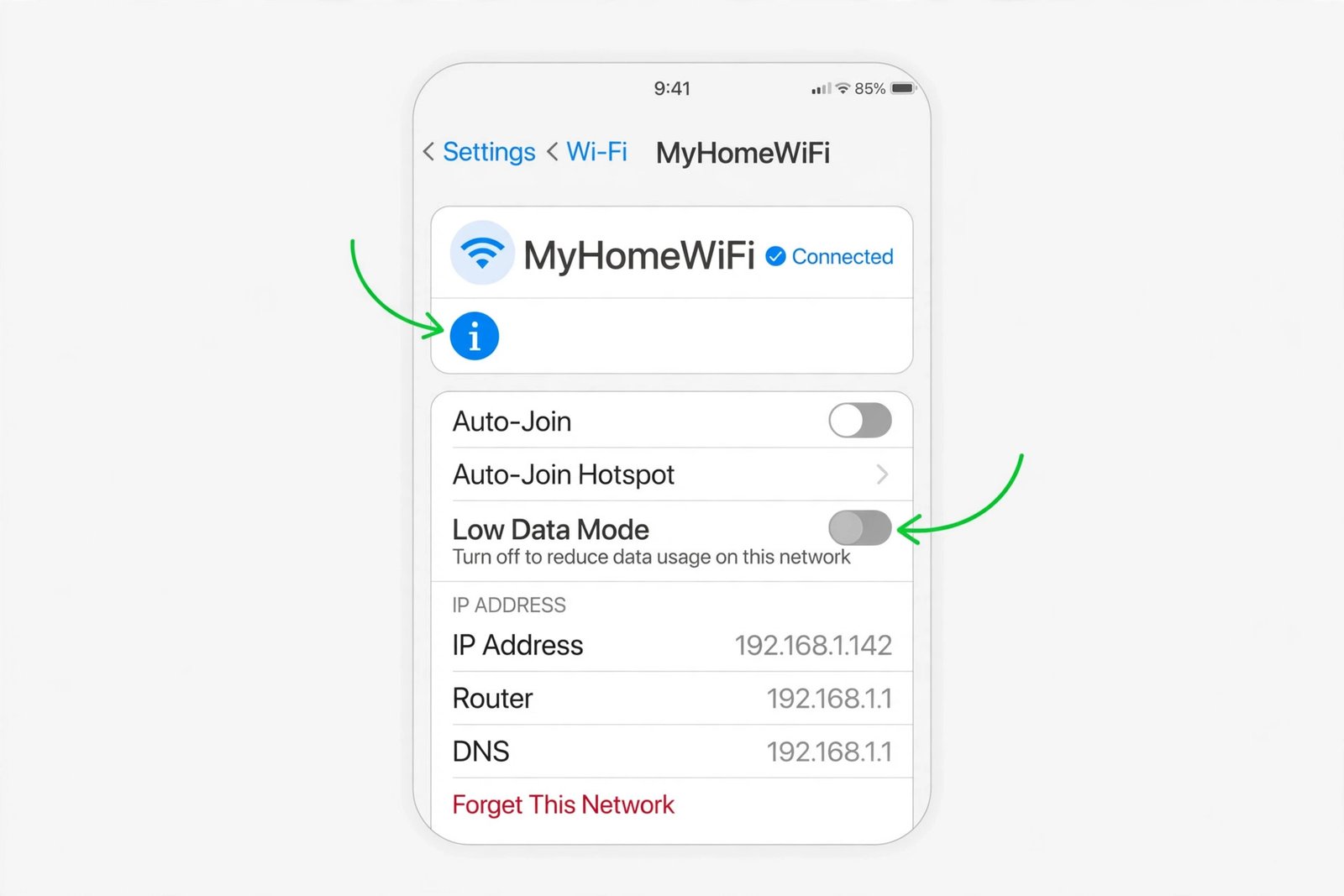
Alternative Method Through WiFi Settings

If you’re on WiFi instead of cellular, Low Data Mode works there too.

To turn off Low Data Mode on WiFi:

  1. Open Settings
  2. Tap WiFi
  3. Select the network you’re connected to
  4. Scroll down to find Low Data Mode
  5. Toggle it off if it’s enabled

Some networks don’t show this option. That’s normal. It means Low Data Mode isn’t active on that connection.

Understanding iPhone Low Data Mode Indicators

Your iPhone shows you when Low Data Mode is on. You’ll see a small indicator in the status bar at the top of your screen. When Low Data Mode is active, you might also notice:

Apps take longer to load content. Videos play at lower quality automatically. Email doesn’t refresh as often. iCloud backups pause. Photo syncing slows down.

Once you turn it off, everything goes back to normal speed within seconds.

How to Turn Off Low Data Mode on Android

Android handles data saving differently depending on your device manufacturer. Samsung, Google Pixel, and other brands have slightly different names and locations for this feature.

See also  Best Audio Editors for Android in 2026

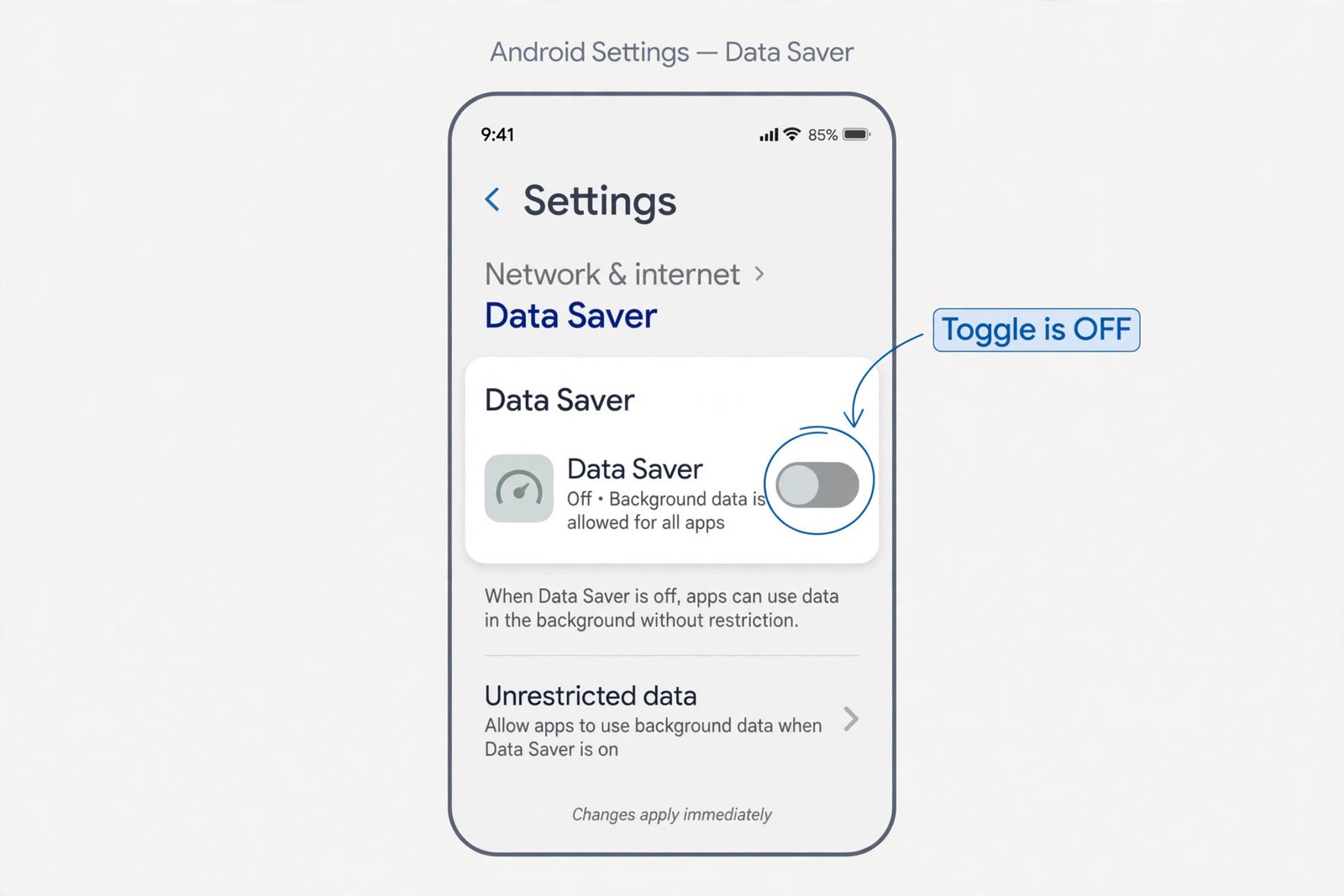
Google Pixel Phones

Steps to disable Low Data Mode on Google Pixel:

  1. Open Settings
  2. Scroll to Network and Internet
  3. Tap Mobile Network
  4. Look for Data Saver
  5. Toggle Data Saver off (if it’s on)

Google calls their version “Data Saver” instead of Low Data Mode, but it does the same thing.

Samsung Galaxy Phones

Steps for Samsung devices:

  1. Open Settings
  2. Go to Connections
  3. Tap Data Usage
  4. Look for Data Saver or Power Saving Mode
  5. Toggle off whichever one is enabled

Samsung sometimes combines data saving with power saving. You might need to disable both to get full performance.

Other Android Brands

Different manufacturers use different names. Common terms include:

Data Saver, Data Saving Mode, Ultra Data Saving Mode, Power Saving Mode, Battery Saver Mode

Check your phone’s Settings menu under Network, Connections, or Battery. If you’re not sure what to look for, search your Settings for “data” or “saver”.

Finding Low Data Mode in Android Settings

Android doesn’t always make data restrictions obvious. Here’s how to search for them:

  1. Open Settings
  2. Tap the search icon (usually at the top)
  3. Type “data saver” or “low data”
  4. Select the result that appears
  5. Toggle it off

This search method works on most Android phones and saves you time hunting through menus.

Key Differences Between iPhone and Android Data Modes

FeatureiPhone Low Data ModeAndroid Data Saver
Location in SettingsCellular or WiFiNetwork or Connections
Default NameLow Data ModeData Saver
Shows indicatorYes, at topVaries by brand
Applies to WiFiYesOnly cellular on some phones
Auto-disable optionRequires manual toggleSome phones auto-disable over WiFi
Restart neededNoNo

Understanding these differences helps you navigate your specific device faster.

What Happens When You Turn Off Low Data Mode

The moment you disable Low Data Mode, several things change immediately.

Your phone uses full cellular speeds. Background app refresh turns back on. Email and messages sync in real time. Automatic app updates resume. Photos and videos upload at full quality. Streaming video quality increases. Cloud backups restart.

You’ll notice your phone responding faster to actions like loading web pages or opening social media apps. This happens because the operating system removes the data restrictions it was enforcing.

However, turning off Low Data Mode also increases your data usage. Your phone will now download updates, stream higher quality video, and refresh apps more often in the background. Monitor your data usage for a few days after making this change.

See also  Best Room Temperature App for Android: Complete Guide to Monitoring Your Home Climate

When You Should Leave Low Data Mode On

Not everyone should turn off Low Data Mode. Consider keeping it enabled if you:

Have a limited monthly data plan. Frequently hit data limits. Want maximum battery life. Use your phone primarily for calls and messages. Have poor cellular coverage in your area.

Low Data Mode is designed for these situations. It genuinely helps if you’re in any of these categories.

Checking Your Data Usage After Turning Off Low Data Mode

After you disable Low Data Mode, monitor how much data your phone uses.

On iPhone:

  1. Go to Settings
  2. Tap Cellular
  3. Scroll down to see which apps use the most data
  4. Compare usage over several days

On Android:

  1. Open Settings
  2. Go to Network and Internet
  3. Tap Mobile Network or Data Usage
  4. Check which apps are using data
  5. Review daily or weekly totals

If your usage suddenly spikes beyond your comfort level, you might want to turn Low Data Mode back on. Some users find a middle ground by enabling it only during certain times or on certain networks.

Toggling Low Data Mode Automatically Based on Your Needs

You don’t have to keep Low Data Mode permanently off. You can enable and disable it based on your situation.

Turn it on when you’re traveling and data is expensive. Disable it when you’re at home with unlimited WiFi. Enable it near the end of your billing cycle if you’re close to your limit. Disable it when you need to download large files quickly.

This flexible approach lets you balance data usage with performance needs.

Troubleshooting Low Data Mode Issues

Low Data Mode Won’t Turn Off

If the toggle doesn’t respond when you try to turn it off:

Restart your phone completely. Go back to Settings and try again. Check if parental controls are restricting this change. Force close the Settings app and reopen it.

Settings Look Different Than Expected

Phone manufacturers customize Android heavily. Your menu might look different than described here.

Try searching Settings for “data saver” using the search function. Ask your phone’s voice assistant to find data saver settings. Check your phone manufacturer’s support website for exact instructions for your model.

Apps Still Running Slowly After Disabling Low Data Mode

Low Data Mode might not be the cause of slow performance.

Check if your WiFi or cellular signal is weak. Restart your phone to clear temporary glitches. Check if other power-saving modes are still enabled. Restart your router if using WiFi.

Summary

Low Data Mode limits data usage to save money and battery. On iPhone, you’ll find it in Cellular settings. On Android, it’s usually called Data Saver and lives in Network settings. Turning it off takes about 30 seconds.

See also  Best Alarm Clock Apps for iPhone: A Complete Guide to Waking Up on Time

You should disable it if you have sufficient data and want full phone performance. Keep it enabled if you’re on a limited plan or want maximum battery life.

After turning it off, monitor your data usage to ensure it stays within your budget. If your usage becomes a problem, you can always turn Low Data Mode back on.

The key is understanding your data needs and matching your phone’s settings to them. Low Data Mode is a tool. Use it when it helps. Disable it when you need full performance.

Frequently Asked Questions

Does Low Data Mode slow down my internet speed?

Low Data Mode doesn’t technically slow your speed, but it prevents your phone from using its full capabilities. Videos stream at lower quality. Apps load content more slowly. Uploads and downloads pause or run in the background. Your internet connection remains the same speed, but your phone chooses not to use it fully.

Will turning off Low Data Mode drain my battery faster?

Yes, it will use more battery. Your phone works harder when Low Data Mode is off because it’s constantly syncing data, checking for updates, and refreshing apps. The difference might be noticeable if you leave your phone heavily used throughout the day. On lighter usage, you might not notice much difference.

Can I turn Low Data Mode on for specific apps only?

Most phones don’t offer per-app low data control. However, you can manage individual app settings. For example, you can disable background refresh for certain apps even when Low Data Mode is off. This gives you partial control over specific apps’ data usage without restricting everything.

Does Low Data Mode affect phone calls or text messages?

No. Low Data Mode doesn’t impact regular calls or standard SMS text messages. It only affects data services like streaming, web browsing, and automatic app syncing. Calls and texts work normally regardless of Low Data Mode status.

How often should I check Low Data Mode settings?

Check it if you notice unusual phone behavior like slow loading or stuck updates. Check it when switching between WiFi and cellular to ensure you have the right settings. Most people check it once when setting up their phone and then forget about it. Annual reviews are sensible if you’ve changed your data plan.

Pradeep S.
Scroll to Top