
Microsoft keeps refreshing its emoji collection in Windows 11, and if you’re wondering how to actually use these updated emoji in your daily work, you’re in the right place. This guide walks you through every method to access, use, and customize emoji in Windows 11, whether you’re chatting, working in documents, or posting on social media.
Three Ways to Open the Emoji Panel
The fastest way to access emoji in Windows 11 is pressing Windows key + Period (.) or Windows key + Semicolon (;). This opens the emoji picker instantly in any text field. You can also right-click in most text areas and select “Emoji” from the context menu, or use the touch keyboard if you have a touchscreen device.
Windows 11’s Emoji Updates
Windows 11 receives regular emoji updates through system updates. Microsoft redesigned the entire emoji set with a modern, 3D Fluent design when Windows 11 launched, moving away from the flat style of Windows 10. Throughout 2025 and into 2026, Microsoft has continued adding new emoji from the Unicode Consortium standards, including updated skin tone options, gender-inclusive designs, and entirely new symbols.
These emoji aren’t just decorative. They’re part of your system fonts and work across all applications, from Microsoft Teams and Outlook to web browsers and third-party apps.
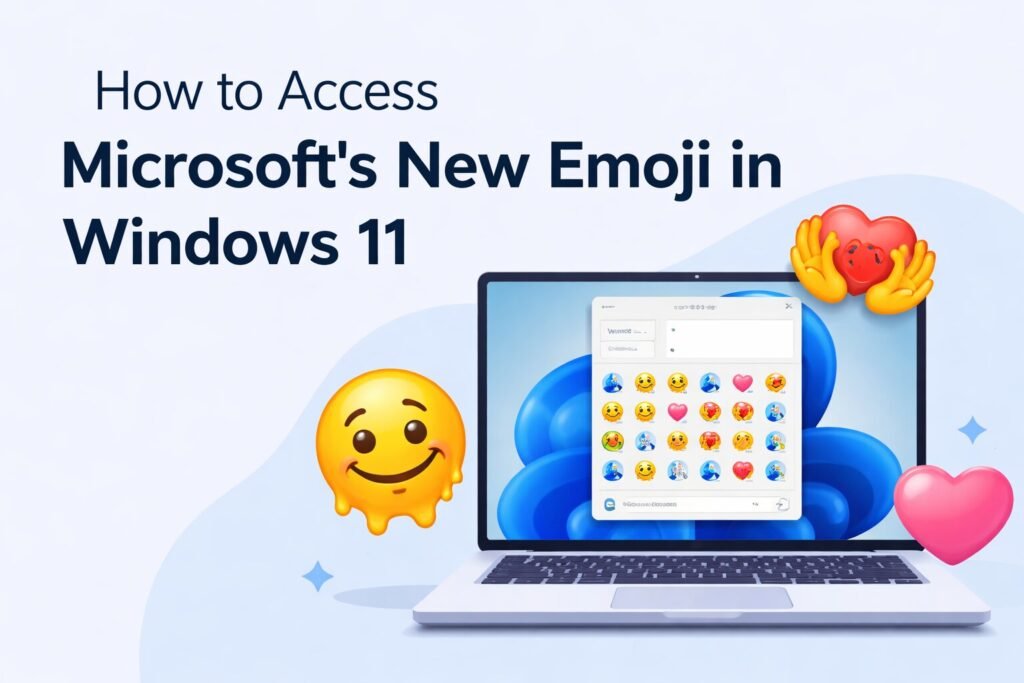
Method 1: Using the Keyboard Shortcut
This is the method most people use once they discover it:
Step 1: Click inside any text field where you want to insert an emoji. This works in Word, Excel, PowerPoint, email clients, web browsers, messaging apps, and virtually any program that accepts text input.
Step 2: Press Windows key + Period (.) together. The emoji panel appears immediately.
Step 3: Browse through categories at the bottom of the panel (smileys, people, celebrations, animals, food, travel, activities, objects, symbols) or use the search box at the top.
Step 4: Click any emoji to insert it. The panel stays open so you can add multiple emoji in sequence.
Step 5: Press Escape or click outside the panel to close it.
The same panel also gives you access to GIFs, kaomoji (text-based emoticons like ¯\_(ツ)_/¯), and special symbols. Just click the tabs at the top to switch between these options.
Method 2: Touch Keyboard Access
If you’re using a tablet, 2-in-1 device, or just prefer the touch keyboard:
Step 1: Right-click your taskbar and make sure “Show touch keyboard button” is enabled. You’ll see a small keyboard icon in your system tray.
Step 2: Click the touch keyboard icon to open the on-screen keyboard.
Step 3: Look for the emoji button on the keyboard, it’s typically to the left of the spacebar and shows a smiley face icon.
Step 4: Tap the emoji button to switch the keyboard to emoji mode. You’ll see the same categories available as in the emoji picker.
Step 5: Tap any emoji to insert it, then tap the ABC button to return to the regular keyboard.
This method works particularly well on touchscreen devices where typing with the physical keyboard isn’t convenient.
Method 3: Right-Click Context Menu
Some applications in Windows 11 include emoji access directly in the right-click menu:
- Right-click in a text field
- Look for an “Emoji” option in the context menu
- Click it to open the emoji panel
This doesn’t work in every application, but it’s available in many Microsoft apps and modern Windows programs.
Finding Specific Emoji Quickly
The emoji panel includes a search function that saves considerable time:
Using Search Effectively: Click in the search box at the top of the emoji panel and type keywords. For example, type “heart” to see all heart variations, “flag” for country flags, or “happy” for various smiling faces.
Common Search Terms:
- Emotions: happy, sad, angry, love, surprised
- Objects: phone, computer, book, money, tools
- Nature: sun, moon, tree, flower, animal names
- Food: pizza, coffee, fruit names, vegetables
- Activities: sports names, music, celebration
The search understands synonyms and related terms, so you don’t need to know the exact official emoji name.
Accessing the Full Emoji Character Map
For advanced users who want to see every available character:
Step 1: Open the Start menu and type “Character Map” to launch the built-in character map application.
Step 2: In the Character Map window, scroll through the font dropdown and select “Segoe UI Emoji”. This is Windows 11’s primary emoji font.
Step 3: Scroll through the grid to browse all available emoji. You can also search by Unicode value if you know it.
Step 4: Double-click an emoji to select it, then click “Copy” to add it to your clipboard.
Step 5: Paste the emoji wherever you need it with Ctrl + V.
This method shows you absolutely every emoji character available on your system, including ones that might not appear in the standard emoji picker.
| Access Method | Speed | Best For | Shortcut |
|---|---|---|---|
| Keyboard Shortcut | Fastest | Daily use, any application | Win + . or Win + ; |
| Touch Keyboard | Fast | Touchscreen devices | Taskbar icon |
| Right-Click Menu | Fast | Supported applications | Context-dependent |
| Character Map | Slow | Finding rare characters | Search “Character Map” |
Recent Emoji Additions in Windows 11
Microsoft regularly updates the emoji collection. Recent additions through 2025 and early 2026 include:
Expanded Diversity Options: Many people emoji now support six skin tone variations plus neutral yellow. To access these, click on a person emoji in the picker and hold for a moment, or right-click it to see all skin tone options.
Gender-Inclusive Designs: Emoji previously associated with specific genders now have neutral and alternative gender options for many professions, activities, and family combinations.
New Unicode 15.1 and 16.0 Emoji: Windows 11 includes the latest Unicode standards, adding items like additional hand gestures, new animals, food items, and symbolic representations.
Customizing Your Emoji Experience
Recent Emoji Section: The emoji panel remembers your frequently used emoji and displays them in the first row for quick access. This personalized section adapts based on your usage patterns.
Clearing Recent Emoji: Unfortunately, Windows 11 doesn’t provide a built-in way to clear your recent emoji history. The panel maintains this automatically based on usage.
Skin Tone Preferences: Once you select a skin tone variation for any person emoji, Windows 11 remembers this preference and applies it to other person emoji automatically. This preference persists across sessions.
Using Emoji in Specific Applications
Microsoft Office Applications
Word, Excel, PowerPoint: The Windows key + Period shortcut works perfectly. Emoji insert as Unicode characters and appear the same on any device viewing the document. In Word specifically, you can also go to Insert > Symbol > More Symbols and select the Segoe UI Emoji font.
Outlook: Emoji work in email subject lines and body text. Recipients see your emoji if their email client supports Unicode emoji. Note that very new emoji might not display correctly for recipients on older systems.
Web Browsers
Chrome, Edge, Firefox: The emoji picker works in all web form fields, including social media posts, comments, web-based email, and content management systems. Your emoji appear correctly regardless of which browser the recipient uses.
Messaging and Communication Apps
Microsoft Teams: The built-in emoji picker works, but Teams also has its own emoji selector with additional animated options. Click the emoji icon below the message box to access Teams-specific emoji.
Discord, Slack, Other Chat Apps: Windows emoji work universally. Some apps like Discord have their own custom emoji systems that supplement the standard Windows emoji.
Troubleshooting Common Emoji Issues
Emoji Appear as Boxes or Question Marks
This usually means the font being used doesn’t support emoji. Solution:
- Make sure you’re using a modern application with Unicode support
- Update Windows 11 through Settings > Windows Update
- In some applications, change the font to Segoe UI Emoji manually
Emoji Panel Won’t Open
Try these fixes:
Check Keyboard Settings: Go to Settings > Time & Language > Typing and ensure the touch keyboard is enabled. Even on non-touch devices, this setting affects the emoji panel.
Restart Windows Explorer: Open Task Manager (Ctrl + Shift + Esc), find “Windows Explorer” under processes, right-click it, and select “Restart”.
Update Your System: Go to Settings > Windows Update and install any pending updates. Emoji features occasionally have bugs that Microsoft patches.
New Emoji Don’t Appear
Install Latest Updates: Microsoft delivers new emoji through Windows updates. Check Settings > Windows Update > Check for updates and install everything available, including optional updates.
System Requirements: Some new emoji require the latest version of Windows 11. Check your version by pressing Windows key + R, typing “winver”, and pressing Enter. Compare your build number to the latest release notes from Microsoft.
Emoji in Professional Settings
Using emoji professionally requires judgment:
Appropriate Professional Use:
- Internal team chats for tone and clarity
- Casual client communications when you’ve established rapport
- Bullet points or section markers in informal documents
- Feedback and recognition in collaboration tools
Situations to Avoid Emoji:
- Formal business proposals
- Legal documents
- Official company communications
- First contact with new clients or senior leadership
- Any context where professionalism is uncertain
The general rule: match the communication style of your workplace and recipient.
Advanced Tips for Power Users
Unicode Input Method: If you know an emoji’s Unicode codepoint, type it in any text field, then press Alt + X to convert it. For example, type “1F600” and press Alt + X to get 😀.
AutoCorrect Shortcuts in Office: In Microsoft Office apps, you can create AutoCorrect entries that replace text shortcuts with emoji. Go to File > Options > Proofing > AutoCorrect Options and add entries like “:smile:” to automatically insert your preferred emoji.
Clipboard History: Windows 11’s clipboard history (Windows key + V) remembers emoji you’ve recently copied. This provides another quick access method if you’re using the same emoji repeatedly.
Keeping Your Emoji Current
Microsoft continuously updates Windows 11’s emoji library. To ensure you always have the latest:
- Enable automatic Windows updates in Settings > Windows Update
- Check monthly for optional updates that might include emoji additions
- Follow Microsoft’s official Windows Insider Blog for announcements about new emoji releases
- Review the Unicode Consortium’s approved emoji list to see what’s coming in future updates
New emoji typically arrive through feature updates rather than regular monthly patches. Major emoji additions usually coincide with the annual feature updates that Microsoft releases.
Summary
Accessing emoji in Windows 11 is straightforward once you know the methods. The Windows key + Period keyboard shortcut opens the emoji panel instantly in any application, giving you access to hundreds of emoji organized by category with search functionality. Touch keyboard users can tap the emoji button on the on-screen keyboard, while some apps offer emoji access through right-click menus.
Microsoft regularly updates the emoji collection through Windows updates, adding new designs and expanding diversity options. The system remembers your frequently used emoji and skin tone preferences to speed up future selections. Whether you’re writing documents, sending emails, posting on social media, or chatting with colleagues, Windows 11 makes emoji accessible and consistent across all your applications.
The key is simple: press Windows + Period, search or browse for what you need, click to insert, and continue working. Everything else is optional refinement of that basic workflow.
