
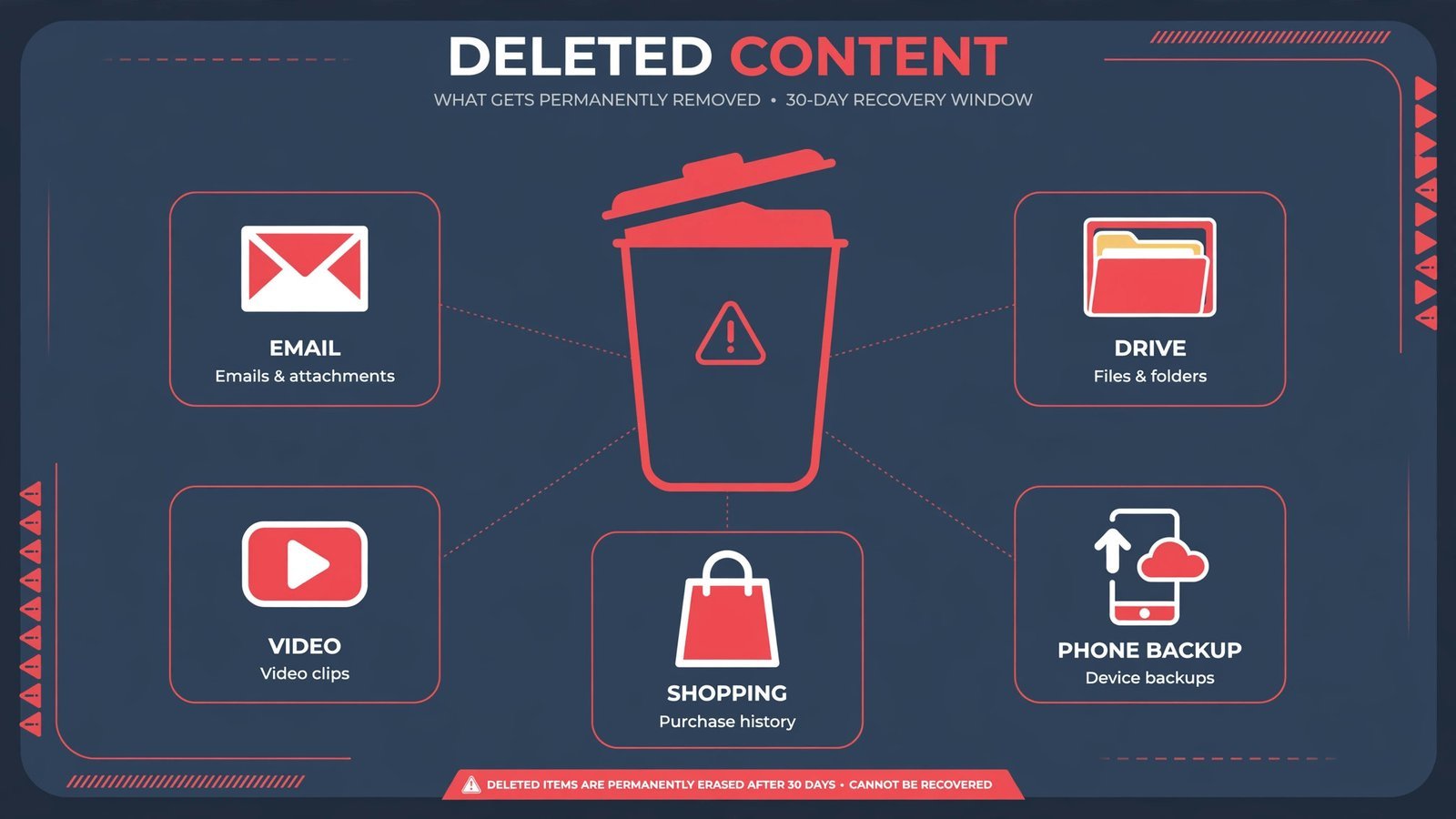
- Deleting your Google account destroys everything tied to it, your Gmail address (gone forever), Drive files, Photos, YouTube channel, Play Store purchases, and Android backups.
- Google may allow a short recovery window after deletion, but it isn’t guaranteed. Treat the click as permanent.
- The fastest path: myaccount.google.com → Data privacy → Delete your Google Account.
- The one warning: download your data with Google Takeout before you start. There is no undo afterward.
In this guide, I’ll show you how to delete your Google account for good, including what to back up first, the lighter alternatives most people actually want, and exactly what happens after you click delete. (Steps verified against Google’s account pages, October 2026.)
- Save your data with Google Takeout
- Delete just one service instead
- Delete your Google account, step by step
- What happens after deletion
- Our take: should you actually do this?
Save your data with Google Takeout
Do this first. Once the account is gone, Google keeps no copy of your files for you.
- Sign in to the Google account you plan to delete at myaccount.google.com.
- Click Data privacy in the left menu, then scroll to Download your data and click Download or delete your data.
- Select the services you want to keep, Gmail, Drive, and Photos are the big ones for most people.
- Choose your export format (.zip is fine) and delivery method (a download link by email works).
- Click Create export and wait. Large accounts can take hours or even days.
- Open the archive and spot-check it before you move on, a corrupted or partial backup is the same as no backup.
Warning: Pay special attention to Google Photos and YouTube. Photos backed up only to Google Photos exist nowhere else, and if your account owns a YouTube channel, the channel and its videos are deleted with the account.
Delete just one service instead
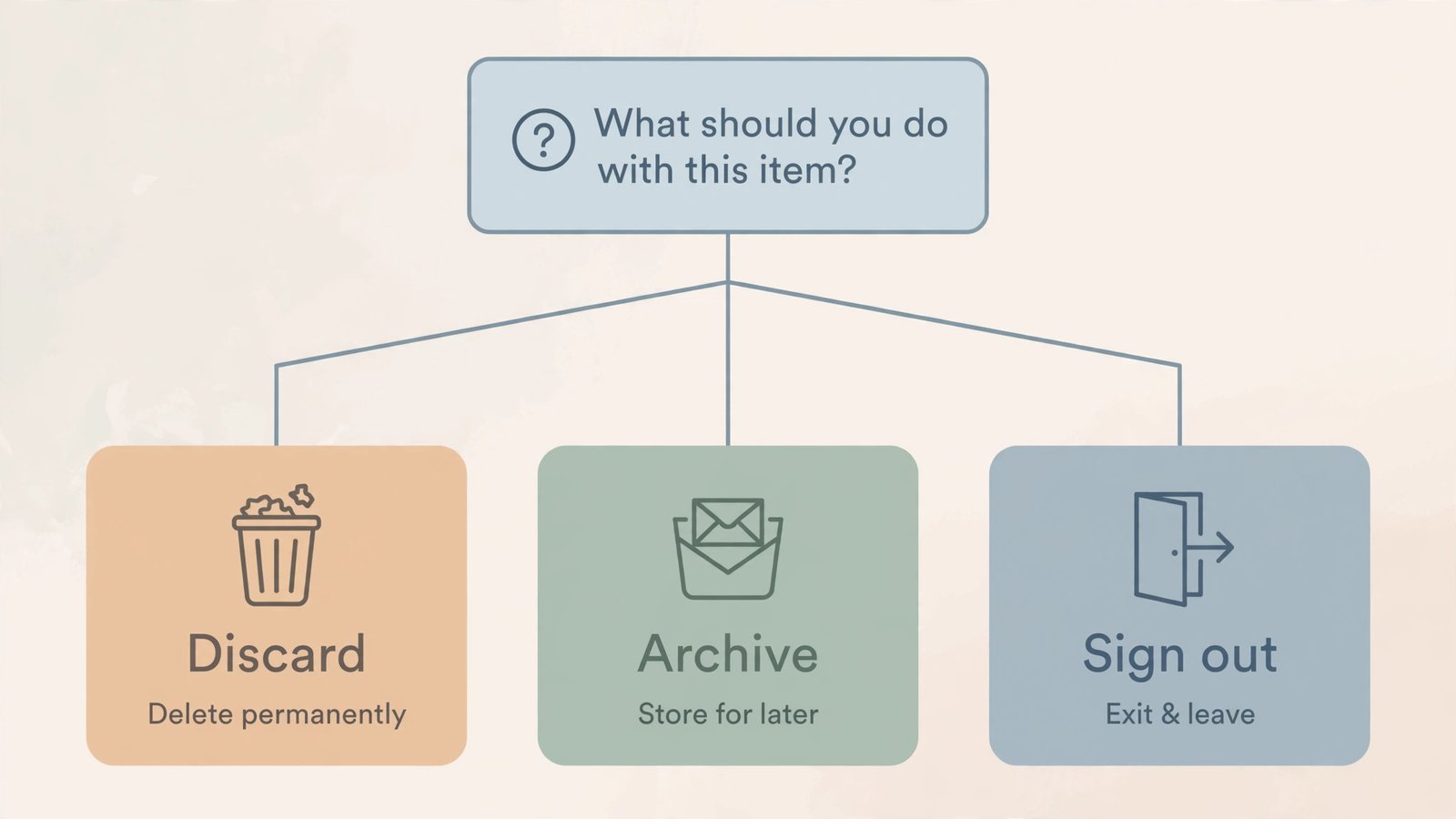
Most people who search for “delete my Google account” don’t actually want the whole thing gone, they just hate their inbox or want a fresh YouTube identity. Google lets you delete individual services and keep the rest.
- Go to myaccount.google.com → Data privacy.
- Under “Download or delete your data,” click Delete a Google service.
- Re-enter your password, then click the trash icon next to the service you want gone (Gmail, YouTube, etc.) and confirm.
Warning: Deleting Gmail still kills that email address permanently, you can’t get the same address back later, even on a new account.
Delete your Google account, step by step
Backup verified? Double-check you’re signed in to the right account, this is the step where people delete the account they meant to keep.
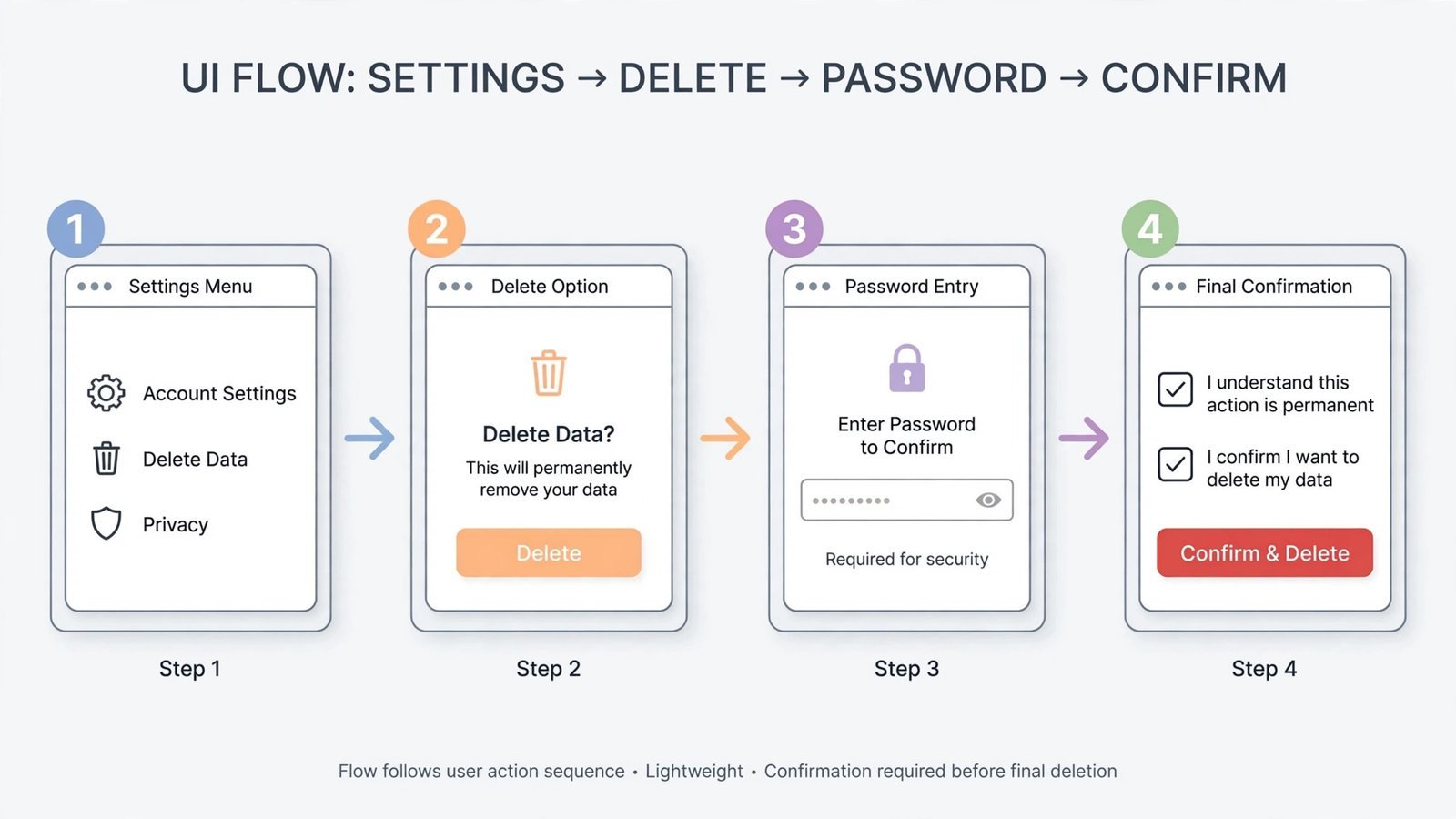
- Go to myaccount.google.com and click Data privacy in the left menu.
- Scroll down to More options and click Delete your Google Account.
- Re-enter your password (and complete 2-step verification if it’s on) to prove it’s you.
- Read Google’s summary of what will be deleted. This is your last honest look at the damage.
- Check the two boxes confirming you understand the consequences and accept responsibility for any pending charges.
- Click Delete Account.
Warning: Paid apps, movies, and books bought on Google Play are tied to the account, not the device. They stop working the moment the account is gone, and Google won’t transfer them to a new account.
What happens after deletion
- You’re signed out of the account on every device, and the account stops working for Gmail, Drive, YouTube, and everything else.
- Google may let you recover a recently deleted account through its account-recovery page, but only within a short window, and only sometimes. Don’t plan around it.
- Any site or app where you used “Sign in with Google” will stop logging you in. Switch those to a password or another login method first.
- Your old Gmail address typically can’t be reused right away, and often never by you again.
- On Android, remove the account from the phone before any factory reset, or you’ll trip Factory Reset Protection and get locked out at setup.
Our take: should you actually do this?
Full deletion makes sense if you’re leaving Google’s ecosystem on principle, consolidating down to one account, or closing an account tied to a name you no longer use. For almost everything else, it’s overkill. Hate spam? Delete just Gmail and keep Drive and Photos. Tired of YouTube recommendations? Delete the YouTube service or just sign out. Worried about privacy? Tighten your browser and account settings instead of torching fifteen years of purchases and photos. Deletion is the one option you can’t take back, pick the smallest change that solves your actual problem.
If you do go ahead, line up a replacement inbox first: see our Gmail alternatives, move your photos to your PC, and if you’re cutting ties with more than Google, here’s how to delete your LinkedIn account too.
Read next: Best Gmail alternatives, set up your replacement email before you pull the plug.

- How to Fix the Brightness Slider Missing in Windows 11 - October 22, 2026
- How to Stop Phone Link From Opening on Startup in Windows 11 - October 21, 2026
- How to Turn Off the Snap Layouts Popup When Dragging a Window to the Top in Windows 11 - October 20, 2026