
“The User Profile Service failed the sign-in. User profile cannot be loaded.” This error means Windows could not load your personal profile at sign-in, so it refuses to log you on at all. It is almost always fixable, and the fixes below move from the most reliable (a registry repair) through to the last resort (a new profile). Each one starts with what is actually going wrong, so you can pick the fix that matches your situation.
Fix 1: Boot Into Safe Mode With the Hidden Administrator Account
You cannot repair a broken profile from inside that same profile, because you cannot sign in. What you need is a second, working administrator account to make the repairs from. Windows ships with one, the built-in Administrator account, but it is disabled by default. Safe Mode gives you a minimal Windows where you can turn it on.
- Step 1: On the sign-in screen, hold Shift and click Power, then Restart. This opens the recovery environment.
- Step 2: Go to Troubleshoot, then Advanced options, then Startup Settings, and click Restart.
- Step 3: Press 4 or F4 for Safe Mode. Sign in with any account that works, or continue to the Command Prompt from the recovery options.
- Step 4: Open an elevated Command Prompt and enable the hidden administrator:
net user administrator /active:yesExpected output: “The command completed successfully.” Restart, and you will see an Administrator account on the sign-in screen. Use it for Fix 2 and Fix 3. When everything is repaired, disable it again with net user administrator /active:no, because a permanently enabled Administrator account is a security risk.
Fix 2: Repair the ProfileList Registry Key
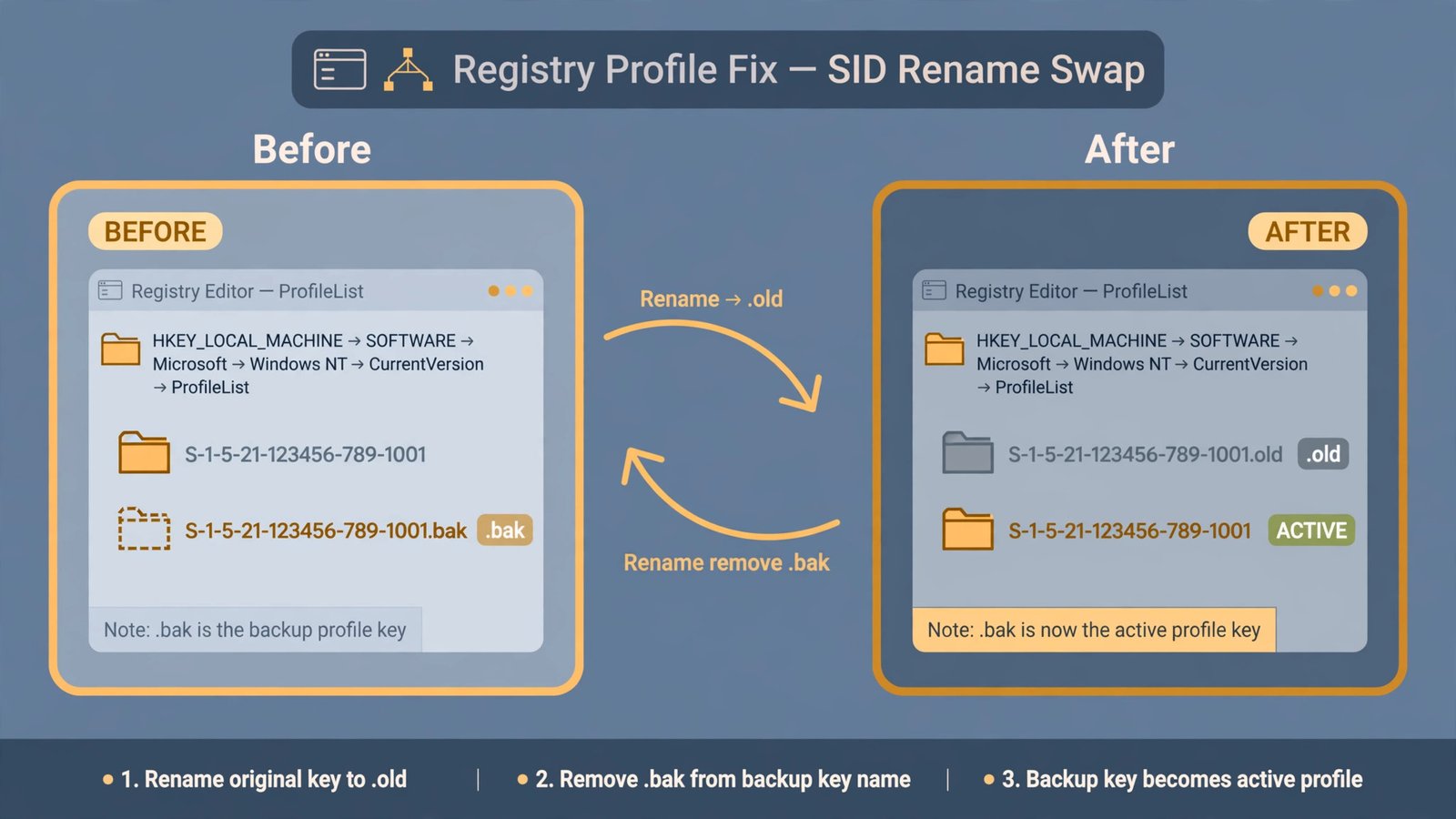
Windows keeps a map of every user account in the registry at HKEY_LOCAL_MACHINE\SOFTWARE\Microsoft\Windows NT\CurrentVersion\ProfileList. Each account gets a subkey named after its security identifier (SID), a long string starting with S-1-5. When a profile fails to load, Windows sometimes creates a temporary profile and renames your real key with a .bak extension, leaving two nearly identical entries. Sign-in then picks the wrong one and fails. The fix is to swap them back.
Caution: back up the key before touching it. In an elevated Command Prompt, run:
reg export "HKLM\SOFTWARE\Microsoft\Windows NT\CurrentVersion\ProfileList" C:\ProfileList_backup.reg- Step 1: Press Win + R, type regedit, and press Enter.
- Step 2: Navigate to HKEY_LOCAL_MACHINE\SOFTWARE\Microsoft\Windows NT\CurrentVersion\ProfileList and expand it.
- Step 3: Find the two entries with the same SID, one ending in .bak. Right-click the one without .bak and rename it by appending .old.
- Step 4: Right-click the entry with .bak and rename it, removing the .bak extension. This restores your original profile as the active one.
- Step 5: Click the restored key and check the ProfileImagePath value on the right: it should point at your profile folder, usually C:\Users\YourName. Then double-click RefCount and State and set both to 0.
Expected result: one active SID key, ProfileImagePath pointing at your real folder, RefCount and State both 0. Restart and try signing in. If the error is gone, you are done. Do not delete any other SID key; deleting the wrong one can damage another account’s profile.
Fix 3: Restart the User Profile Service
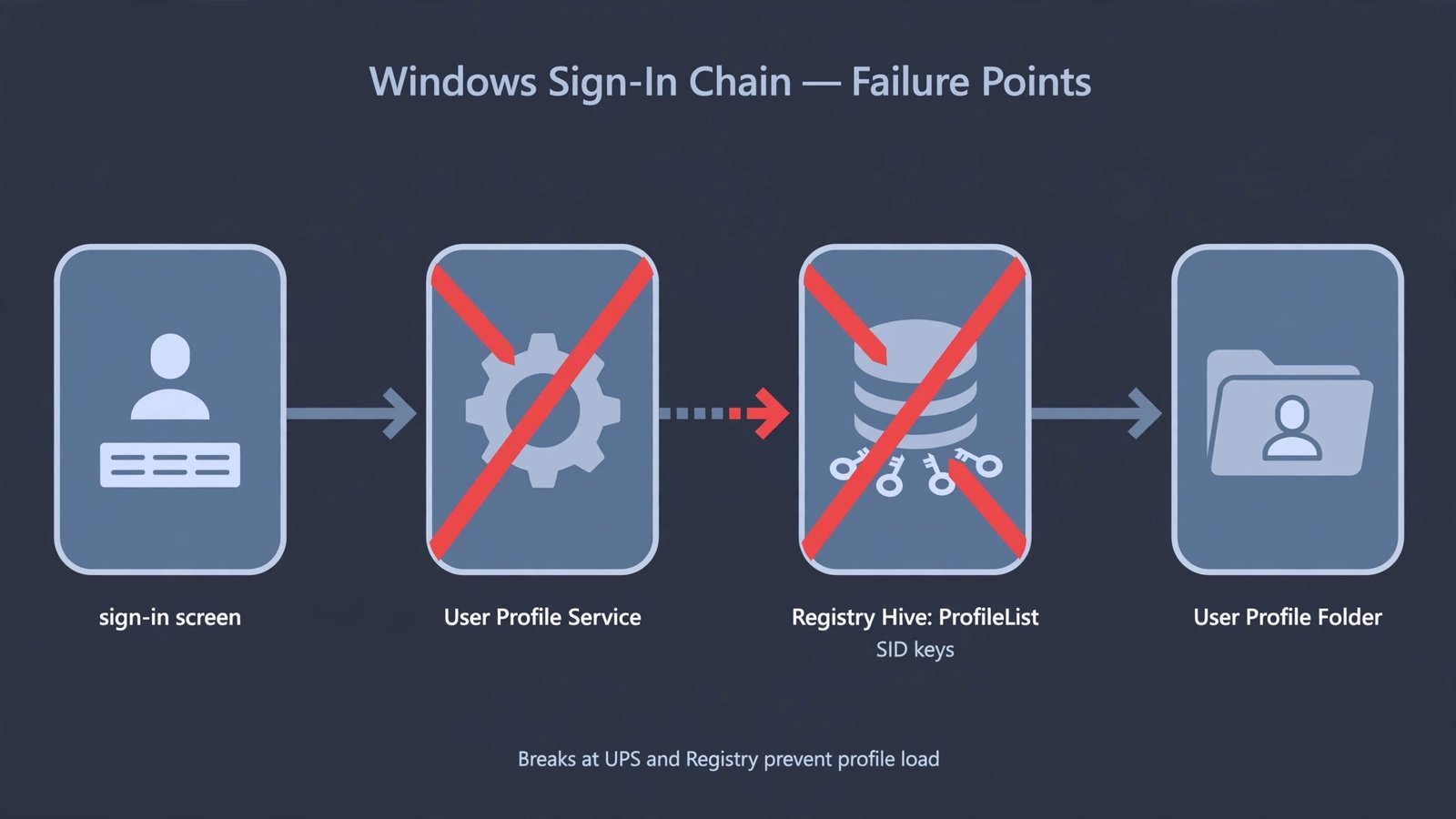
The User Profile Service (service name ProfSvc) is the Windows component that loads your profile at sign-in. Aggressive “debloat” tools and some third-party optimizers disable it, and with it disabled, every sign-in fails with this exact error. If the service is the problem, restarting it is a thirty-second fix.
sc config ProfSvc start= auto
sc start ProfSvc
Expected output: the first command returns “[SC] ChangeServiceConfig SUCCESS”, and the second shows the service state as RUNNING. Restart and sign in normally. If the service refuses to stay running, treat that as a sign of deeper corruption and move to Fix 4.
Fix 4: Create a New Profile and Move Your Files
Sometimes the profile itself is beyond repair: the NTUSER.DAT file that holds your personal registry settings is corrupt, and no registry swap will bring it back. In that case the honest fix is a fresh profile. Your documents, photos, and downloads are just files in C:\Users\YourName; they survive even when the profile’s settings do not.
- Step 1: In Safe Mode as Administrator, go to Settings, then Accounts, then Other users, and add a new account with administrator rights. If you prefer a local account over a Microsoft account, create it as a local one.
- Step 2: Sign into the new account once so Windows builds its profile folders, then sign out.
- Step 3: Open File Explorer, go to C:\Users\YourOldName, and copy your Documents, Pictures, Downloads, Desktop, and any other personal folders into C:\Users\YourNewName. Skip hidden system files like NTUSER.DAT; they belong to the broken profile.
- Step 4: Sign into the new account and confirm everything is there. Only then delete the old account. If you need to rescue files from a profile you can no longer open at all, see how to recover files in Windows before you delete anything.
When this fix is needed: the .bak swap in Fix 2 does not stick (the error returns after a reboot), or the profile folder itself is missing files. A new profile takes longer to set up, which is why it is last, but it has the highest success rate of all four fixes.
If sign-in works again but you hit a different account quirk afterward, such as the “user must change password at next logon” option not working, that is a separate policy issue with its own fix.

- How to Change the Screenshot Save Location on Mac - October 24, 2026
- How to Turn Off Stage Manager on Mac - October 23, 2026
- How to Reset Your Private Space PIN on Android If You Forgot It - October 22, 2026