
Your Gmail inbox stopped updating on your iPhone, new mail is not arriving, but everything else looks perfectly normal? Your email is not lost, and you are not doing anything wrong. This almost always means the Gmail app has lost its live connection to Google’s servers, and one of the fixes below gets it syncing again within minutes.
Key Takeaways
- Gmail sync problems on iPhone are almost always a stalled app connection, not lost email, your mail is safe on Google’s servers.
- Start with the 30-second fixes: pull-to-refresh, restart the app, and check your connection.
- The most reliable deep fix is removing and re-adding your Google account; it rebuilds the connection from scratch.
- If sync only happens when you open the app, Background App Refresh is off, that is the setting to check.
Basic fixes: try these first
Respect the obvious before going deeper, most people stop here.
- Pull to refresh. Open Gmail, swipe down from the top of your inbox until the spinner appears, and wait. If new mail arrives, the app was just stuck.
- Force-close and reopen Gmail. Swipe up from the bottom (or double-press Home on older iPhones), flick the Gmail card away, and reopen it. This clears a surprising number of temporary glitches.
- Check your connection. Open Safari and load any page. If it struggles, toggle Airplane Mode on for ten seconds and off again, or switch between Wi-Fi and cellular data. Weak hotel and cafe Wi-Fi is a classic cause.
- Update the Gmail app. Open the App Store, tap your profile picture, and pull down to check for updates. Install any Gmail update you see, then reopen the app.
- Restart your iPhone. Hold the side button and a volume button, slide to power off, wait thirty seconds, and power back on. Unfashionable, effective.
If mail is flowing again, you are done. If not, the fixes below go after the specific causes, easiest first.
1. Turn on Background App Refresh for Gmail
When this works: new mail only appears when you open the app, nothing arrives while the phone sits idle.
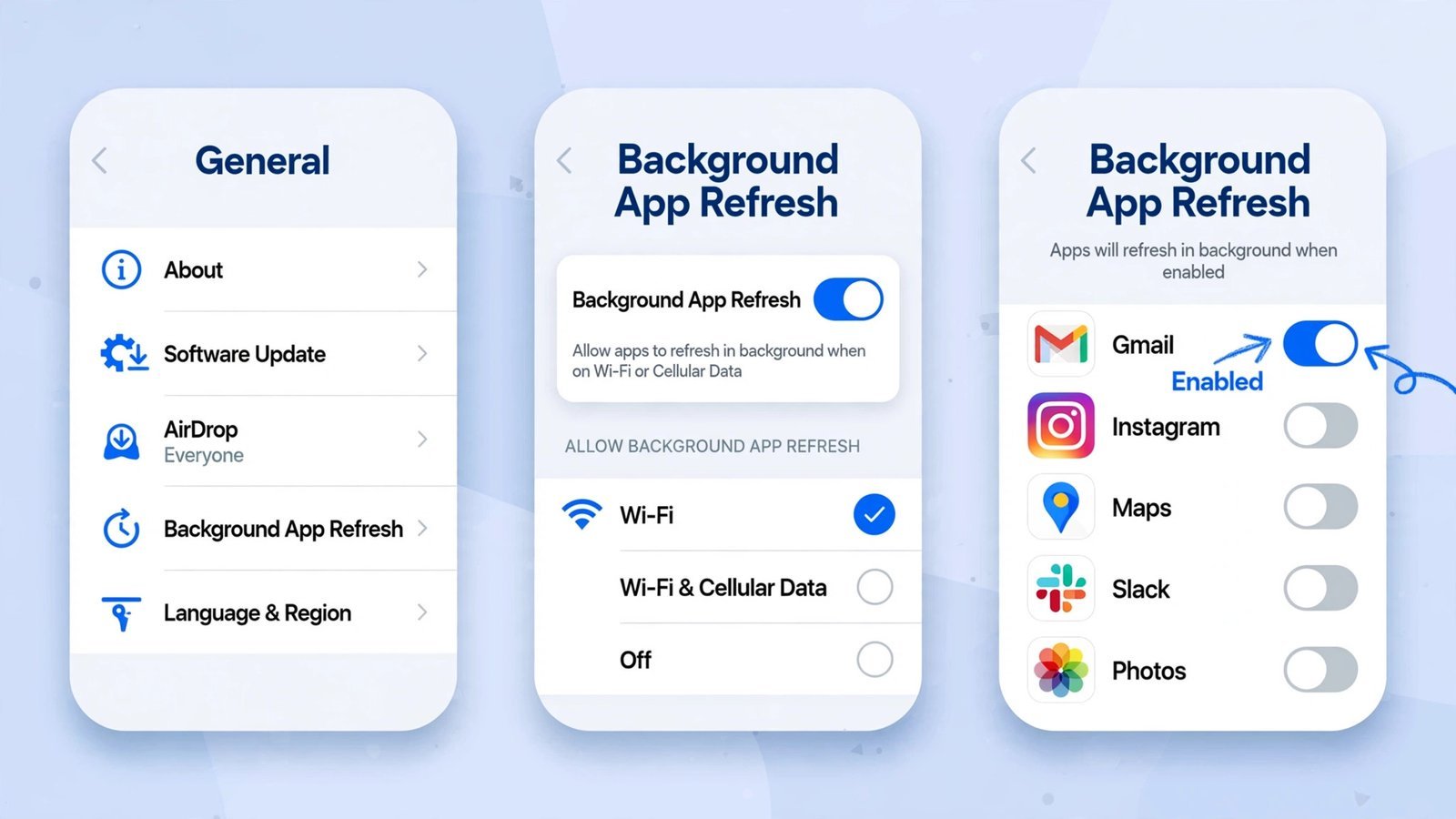
- Open Settings General Background App Refresh.
- Make sure the master Background App Refresh switch is on.
- Scroll to Gmail in the list and toggle it on.
You should now see: close Gmail completely, wait five minutes without opening it, then open it, new mail should already be sitting in the inbox without a manual refresh. The battery cost is tiny, usually well under one percent a day.
2. Check Gmail’s own sync settings
When this works: old mail is there but nothing new arrives, or only the last few days of mail ever appear.
- In the Gmail app, tap the menu (three lines, top left), scroll down, and tap Settings.
- Tap your Gmail account, then Sync settings.
- Drag the slider to 30 days or more. If it is set very low, the app simply is not keeping much mail on the device.
You should now see: pull to refresh once, and mail from the newly covered period starts filling in.
3. Turn off Low Data Mode
When this works: sync is fine on Wi-Fi but stalls on cellular data, or it stalls everywhere after you enabled a data-saving setting.
Low Data Mode tells iOS to pause background activity, which quietly strangles Gmail sync. Check Settings Wi-Fi tap the (i) next to your network make sure Low Data Mode is off. Then check Settings Cellular Cellular Data Options Data Mode and set it to Standard or Allow More Data on 5G.
You should now see: background sync resumes on its own within a few minutes. If you want the full rundown of what this mode affects, here is how to turn off Low Data Mode on iPhone and Android.
4. Check your Google storage
When this works: everything looks right, but sync silently stopped, and you get a lot of large attachments.
Google gives you 15GB shared across Gmail, Drive, and Photos. When it fills up, Gmail stops receiving new mail without much fanfare. Visit one.google.com/storage in Safari and check. If you are at the limit, delete large Drive files, clear old Photos trash, or buy more storage.
You should now see: once you are under the limit, pending mail starts arriving within minutes, sometimes in a sudden flood.
5. Remove and re-add your Google account
When this works: nothing above helped, the connection between the app and Google’s servers is likely corrupted.
- In the Gmail app, tap your profile picture Manage accounts on this device Remove from this device for the problem account.
- Force-close the Gmail app.
- Reopen Gmail, tap Sign in, and add the account again with your Google credentials.
- Leave the app open on Wi-Fi for five to ten minutes while it re-syncs. Do not force-close it during this window.
You should now see: your inbox repopulates and stays current from here on. Nothing is deleted by this, every email lives on Google’s servers and simply re-downloads. This is the single most reliable fix for stubborn sync failures.
6. Reinstall the Gmail app
When this works: you suspect corrupted app data, the app crashes, behaves oddly, or re-adding the account did not stick. Note that iPhones have no per-app “clear cache” button like Android, so reinstalling is the only way to wipe the app’s local data.
- Touch and hold the Gmail icon, tap Remove App Delete App.
- Restart your iPhone.
- Reinstall Gmail from the App Store and sign in again.
You should now see: a completely fresh app that syncs normally. Only use this step if the earlier fixes failed, it is the most disruptive option short of an iOS update.
7. Update iOS
When this works: your iPhone is running an old iOS version, Gmail is tuned for current releases (iOS 27 is current as of late 2026), and old system versions cause exactly this kind of background-sync breakage.
Go to Settings General Software Update and install anything available. The phone restarts during the process; let it finish uninterrupted, then open Gmail and check.
You should now see: sync working, plus the usual pile of security and stability fixes. This is a last resort only because it takes the longest, not because it is unlikely.
If nothing worked
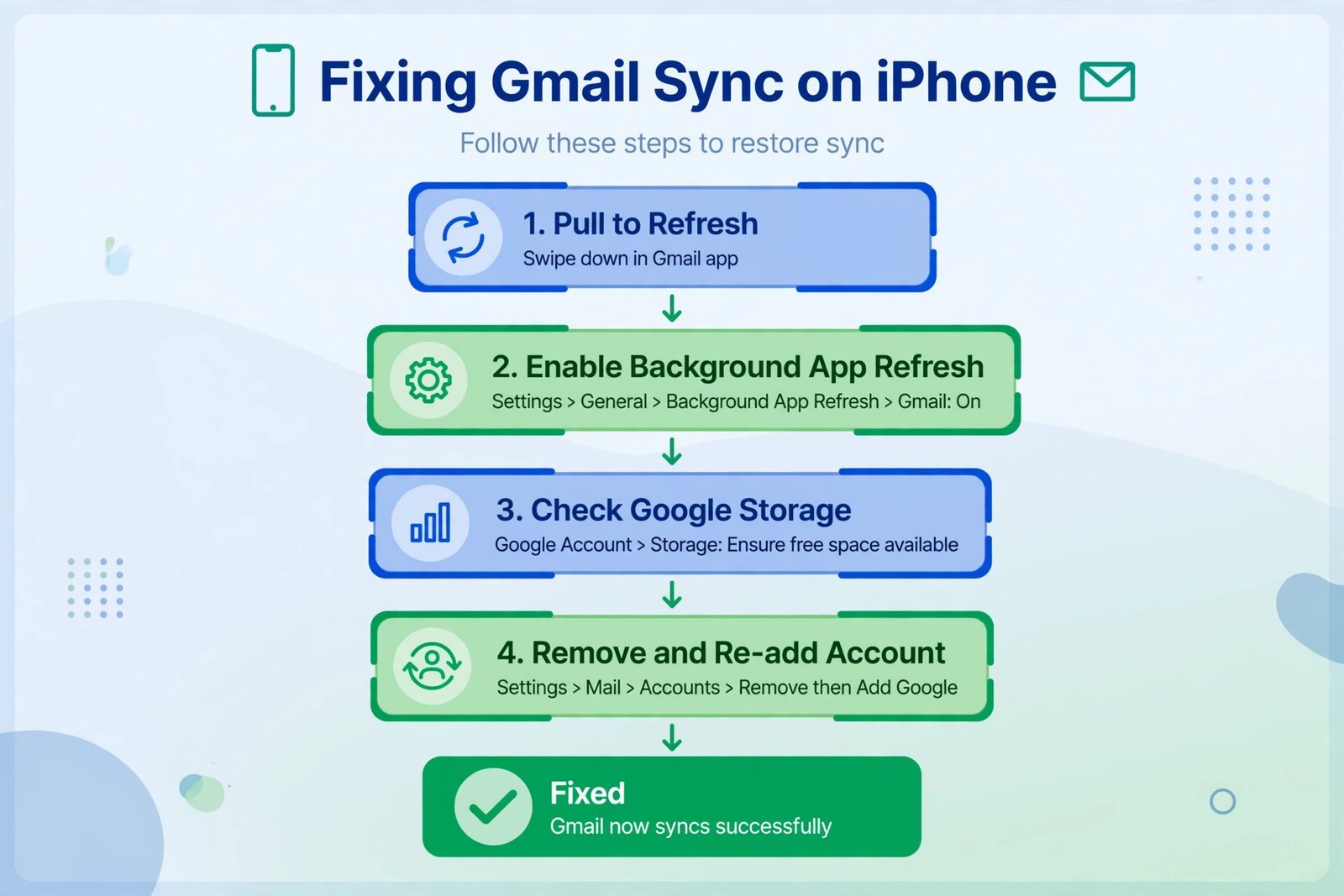
Two things are left, and both are quick to test. First, open mail.google.com in Safari and sign in: if mail arrives fine there, the problem is the app, not your account, reinstall once more and check for iOS updates. If mail does not arrive in Safari either, visit your Google Account security page and check for a security hold or suspicious-activity flag; clear that, and sync resumes.
And if Gmail keeps misbehaving no matter what you do, it may simply not be the right app for you, here are the best Gmail alternatives worth switching to. If you are seeing a “cannot verify server identity” error instead of silent sync failure, that is a different problem with its own fix: fix “Cannot Verify Server Identity” on iPhone or iPad.
Quick answers
I use Apple Mail, not the Gmail app. Is anything different?
Yes, one important thing: Gmail does not support push in Apple’s Mail app, so your iPhone can only fetch mail on a schedule. Go to Settings Mail Accounts Fetch New Data, make sure your Gmail account is set to Fetch (not Manual), and pick a schedule like Every 15 Minutes. A small delay between arrival and appearance is normal here, it is not a bug. Also confirm the Mail toggle is on for the account under Settings Mail Accounts.
Will removing my account delete my emails?
No. Removing the account from your iPhone only removes the local copy. Every message stays on Google’s servers and re-downloads when you sign back in.
Read next: Best Gmail Alternatives, if the official app keeps fighting you, these are worth a look.
Tested on an iPhone running iOS 27 with the current Gmail app, October 2026.

- How to Fix the Brightness Slider Missing in Windows 11 - October 22, 2026
- How to Stop Phone Link From Opening on Startup in Windows 11 - October 21, 2026
- How to Turn Off the Snap Layouts Popup When Dragging a Window to the Top in Windows 11 - October 20, 2026