
Typing your username and password every time you open Remote Desktop gets old fast. Windows can remember your login for each server so you connect in one click. Here are the three ways to allow saved credentials for Remote Desktop Connection, from the simple checkbox to the Group Policy method that unlocks it when it is blocked.
Before you start: what saving RDP credentials means
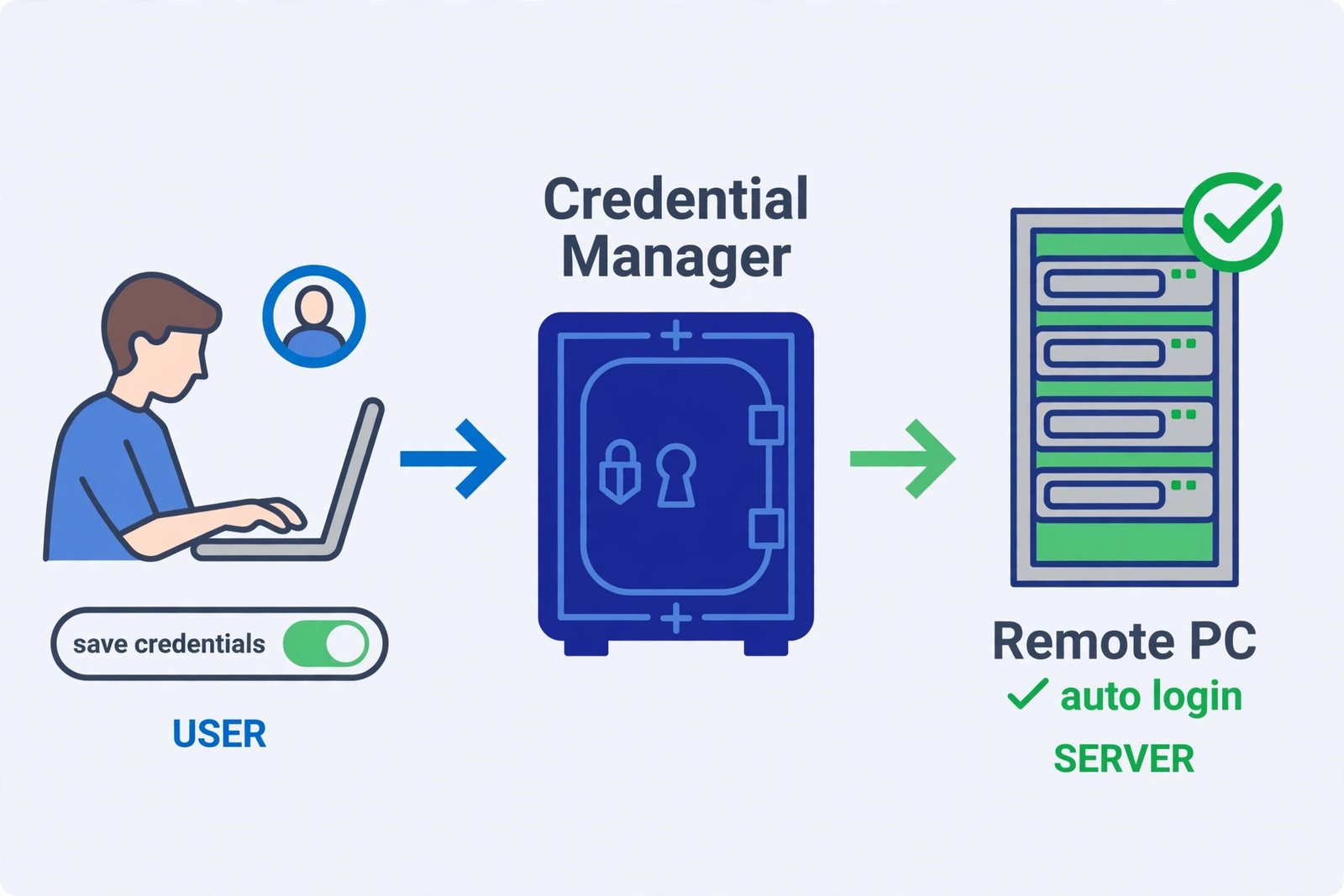
When you save credentials, Windows stores your username and password (in Credential Manager) and sends them to the server the moment you connect. It is convenient, but anyone who can sit at your PC can then reach that server. Only save credentials on a computer you control. On a shared PC, type them fresh every time.
One 2026 note: Microsoft now ships the newer Windows App as its modern remote desktop client, but the classic Remote Desktop Connection (mstsc) is still built into Windows 11 and is what most guides, including this one, refer to.
Method 1: Save credentials in the Remote Desktop Connection app
This is the everyday method and all most people need.
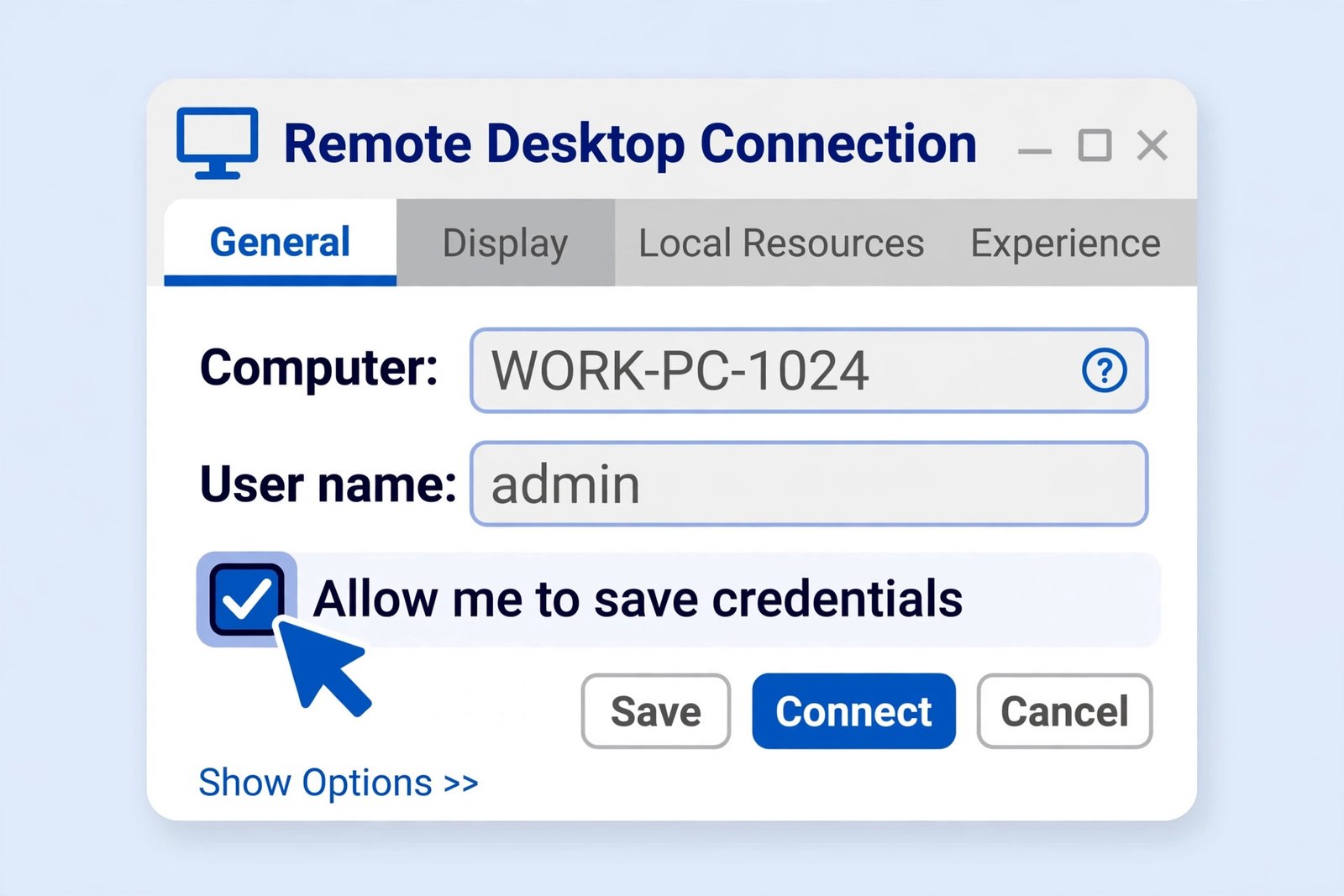
- Open Remote Desktop Connection (search for it in the Start menu, or press Win + R and type mstsc).
- Type the computer name or IP address of the server, then click Show Options.
- On the General tab, enter your username and tick Allow me to save credentials.
- Click Connect. Windows will ask for the password once, with a checkbox to remember it.
- Tick that box and connect. Next time, the connection opens straight away.
Make sure Always ask for credentials on the General tab is unticked, or Windows will prompt you regardless of what you saved.
Method 2: Add the login in Credential Manager
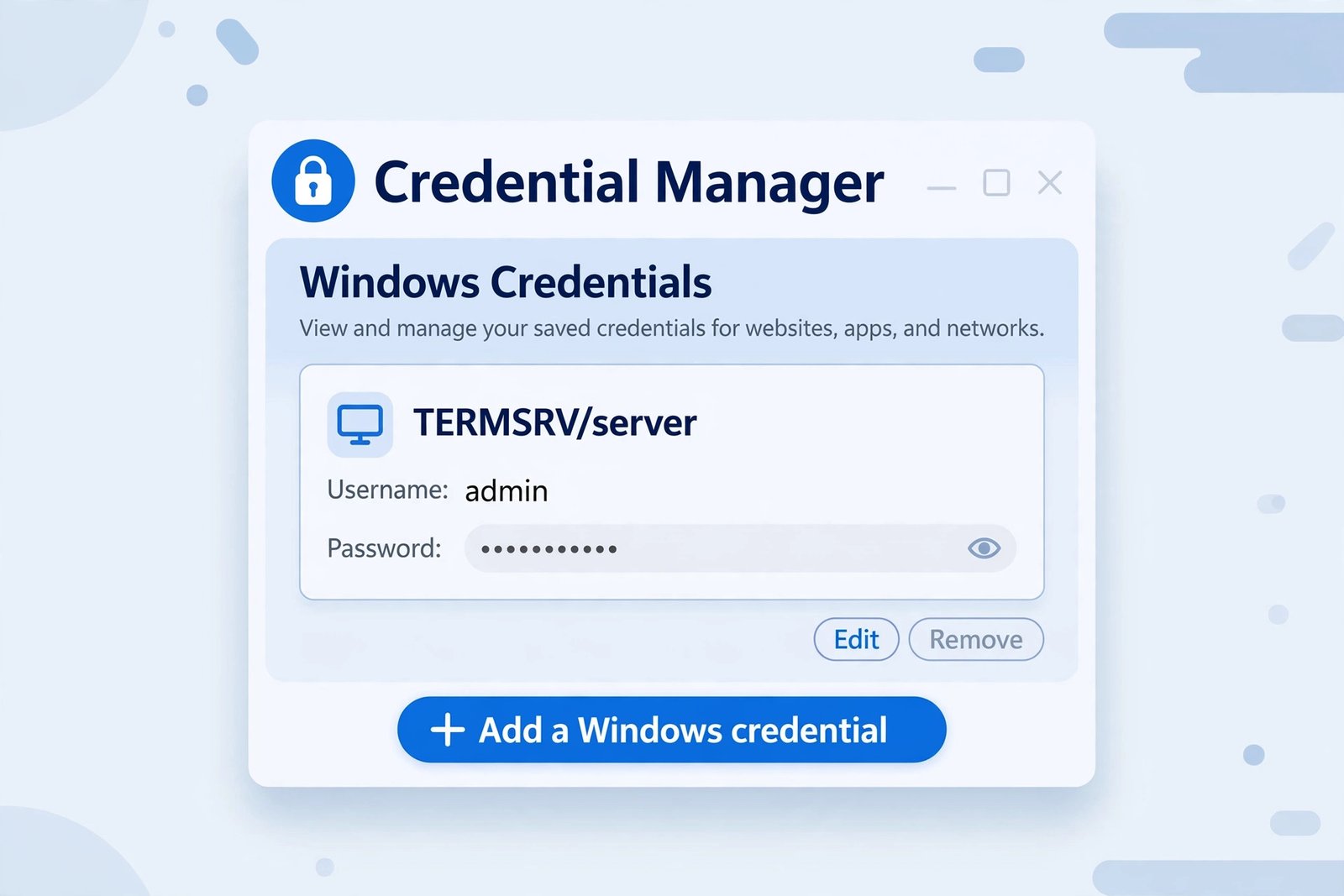
If the checkbox never sticks, or you want to set things up before the first connection, add the credential directly. Press Win + R, type control keymgr.dll, and open Credential Manager. Go to Windows Credentials and click Add a Windows credential. For the network address, enter your server name or IP (entries saved from mstsc appear as TERMSRV/your-server under Generic Credentials), then the username and password. Remote Desktop will pick it up automatically.
This is also where you go to fix things: if a saved login stops working after a password change, delete the old entry here and save it again. If you are tired of juggling passwords in general, a dedicated password manager is a safer long-term home for them; see our roundup of the best password manager apps for Android for the same idea on your phone.
Method 3: Enable it with Group Policy (Windows Pro)
On Windows Pro, Enterprise, or Education, a policy can silently block saved credentials, and you enable saving by explicitly allowing it. Press Win + R, type gpedit.msc, and go to Computer Configuration > Administrative Templates > System > Credentials Delegation. Enable both Allow Delegating Saved Credentials and Allow Delegating Saved Credentials with NTLM-only Server Authentication, click Show in each, and add TERMSRV/* to the server list. Then run gpupdate /force in Command Prompt. Our detailed guide to fixing related Windows connection errors walks through similar policy ground if you hit other cryptic messages.
If credentials still will not save
- The checkbox is greyed out: the “Do not allow passwords to be saved” policy is on. In Group Policy Editor, go to Computer Configuration > Administrative Templates > Windows Components > Remote Desktop Services > Remote Desktop Connection Client and set it to Disabled.
- You get the “system administrator does not allow” error: that is the credential delegation block, covered step by step in Method 3 above.
- It saves but the password is suddenly wrong: the server password changed. Delete the entry in Credential Manager and save it again.
- You are on Windows 11 Home: gpedit.msc does not exist there. Methods 1 and 2 still work; only the policy method is unavailable.
Our take
For a personal desktop connecting to a home server or a VPS you manage, saving credentials is one of those small quality-of-life wins worth setting up once. For anything shared, borrowed, or managed by an employer, skip it. And if you connect to several servers, consider saving the connection as an .rdp file (the Save As button on the General tab) with credentials stored: you get one-click access per server without retyping anything.

- How to Fix the Brightness Slider Missing in Windows 11 - October 22, 2026
- How to Stop Phone Link From Opening on Startup in Windows 11 - October 21, 2026
- How to Turn Off the Snap Layouts Popup When Dragging a Window to the Top in Windows 11 - October 20, 2026