
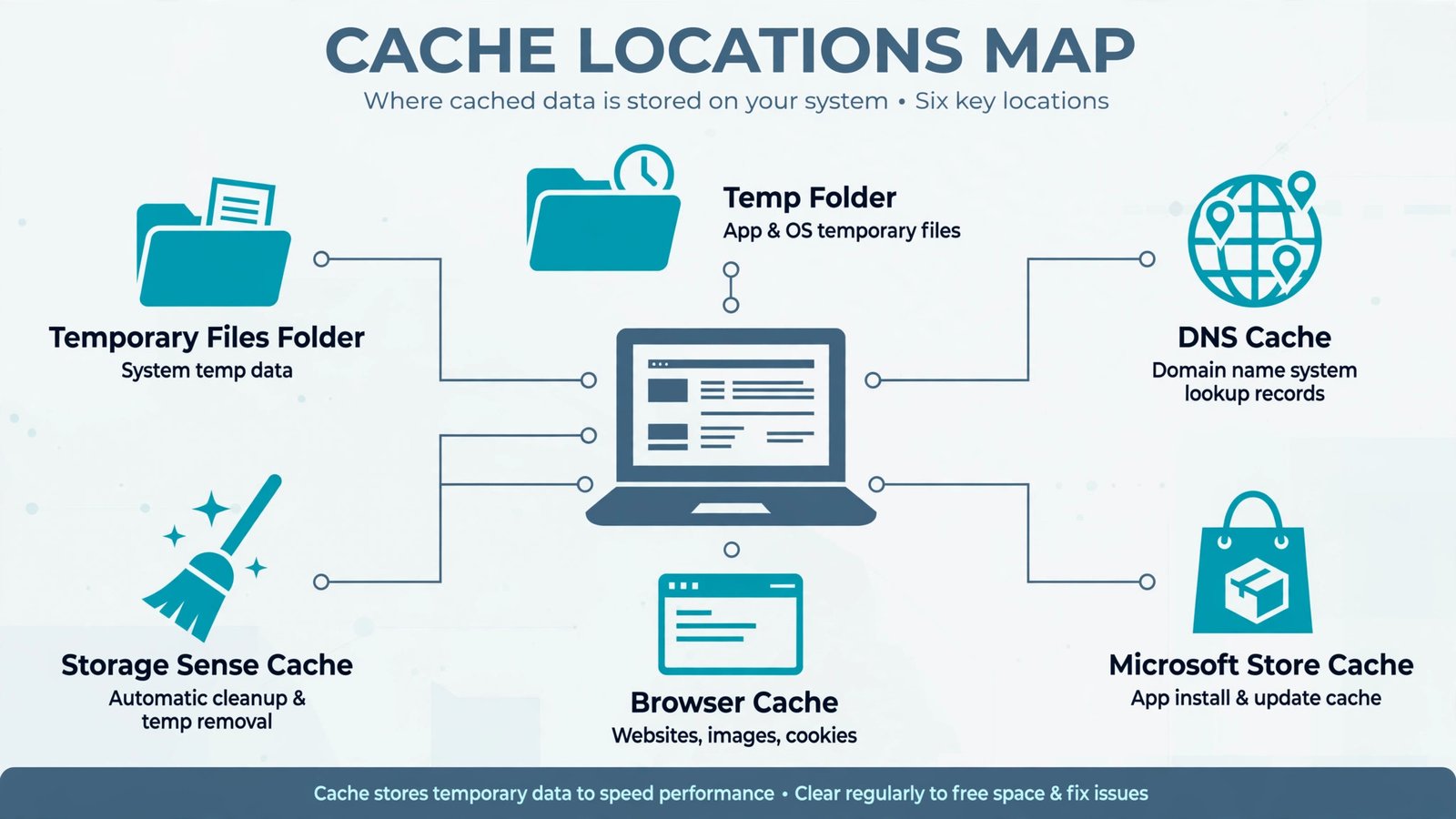
Cache is just your PC’s short-term memory: copies of files, images, and lookups that Windows and your apps save so they don’t have to fetch or compute the same thing twice. It’s useful until it isn’t, because stale or bloated cache is behind everything from websites showing yesterday’s version to gigabytes of mystery disk usage. Here’s what cache actually is in Windows 11, when clearing it helps, and the six places worth cleaning.
What Is Cache in Windows 11?
Windows 11 doesn’t keep one cache; it keeps a dozen, scattered across the system. Temporary setup files live in one folder, the Microsoft Store keeps its own cache to load faster, your browser caches images and pages, and a hidden DNS cache remembers which IP address each website lives at. Each cache exists for the same reason: speed. Reading a local copy is always faster than downloading or recomputing.
The trouble starts when a cache goes stale or grows unchecked. A corrupted Store cache makes the Store refuse to open. A poisoned or outdated DNS entry sends you to the wrong server. Delivery Optimization files pile up after big Windows updates and quietly eat gigabytes. So clearing cache is worth doing when you have a specific symptom: an app misbehaving, a website that won’t load on your PC but works on your phone, or a nearly full system drive.
It is not worth doing as a ritual. Cache makes your PC faster, not slower, and blindly deleting cache folders can break apps or sign you out of everything. The rule is simple: clear the cache that matches your symptom, and leave the rest alone.
How to Clear Cache in Windows 11
Each method below targets one cache location. Start with the one that matches your problem; you rarely need all six.
1. Clear temporary files in Settings (the safest general cleanup)
This is the cleanup to start with when your system drive is nearly full. It sweeps temporary files, Delivery Optimization leftovers from Windows updates, thumbnails, and old Windows Update files in one guided pass.
- Open Settings > System > Storage.
- Select Temporary files and wait while Windows calculates the categories.
- Review the list and check the categories you want gone: temporary files, Windows Update cleanup, Delivery Optimization files, thumbnails.
- Select Remove files.
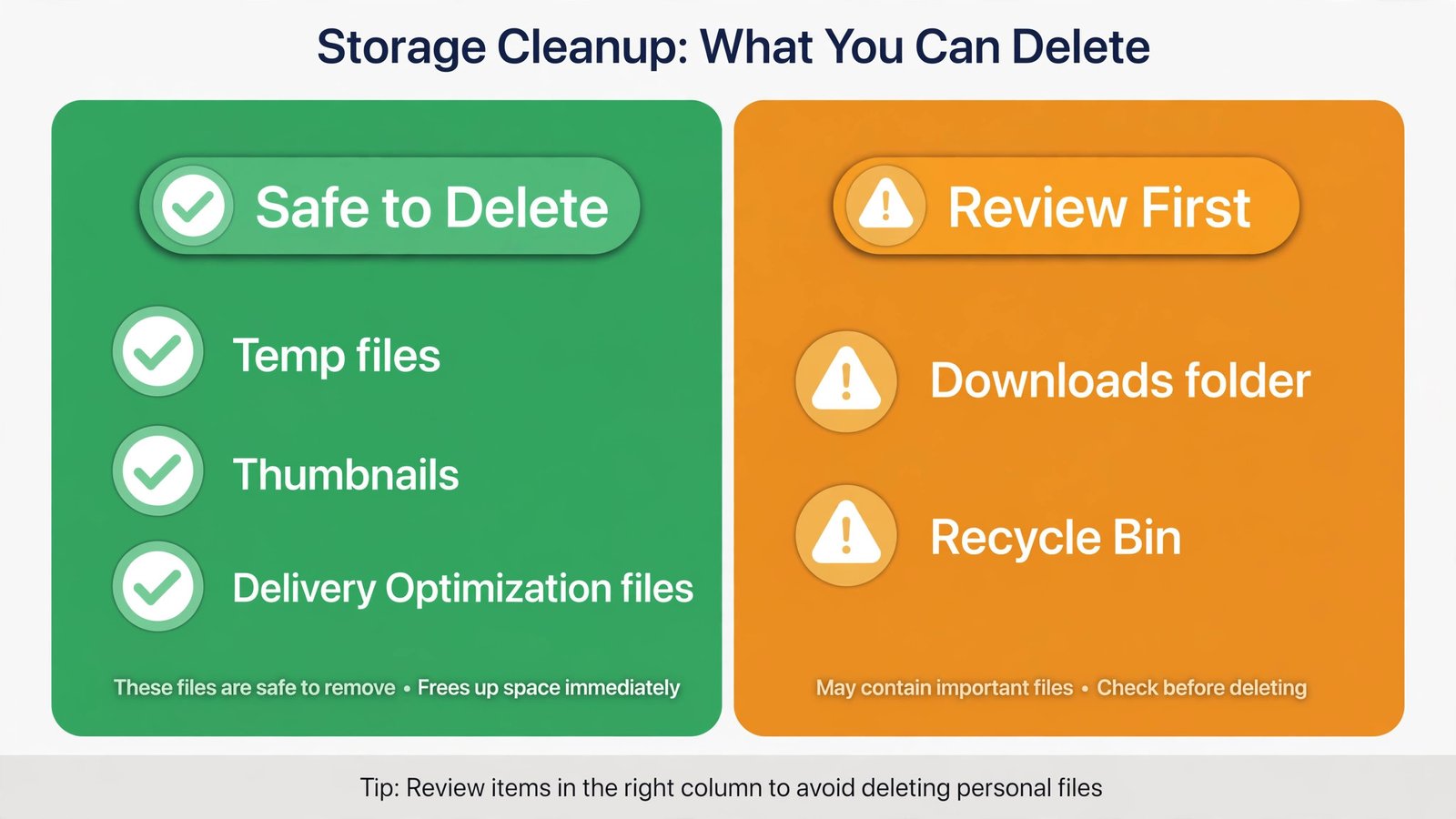
Warning: Two categories deserve a pause. Downloads may contain personal files, not disposable cache; leave it unchecked if you store anything there. And Recycle Bin removal is permanent, so skim it first. If you ever empty it by mistake, recovering permanently deleted files in Windows is possible but never guaranteed.
A nearly full drive also slows down boot and updates, so this cleanup pairs well with speeding up Windows boot time if your PC feels sluggish overall.
2. Empty the Temp folder directly
Some apps leave junk in the user Temp folder that the Settings cleanup misses. This is the manual version of the same idea.
- Press Win + R, type %temp%, and press Enter.
- Press Ctrl + A to select everything, then Delete.
- Skip any files Windows says are in use. That’s normal; those belong to running programs.
3. Flush the DNS cache
Use this one when a specific website won’t load on your PC but works fine on other devices. That’s the signature of a stale DNS entry, and flushing takes five seconds.
- Open Terminal (Admin) with Win + X.
- Run:
ipconfig /flushdnsYou should see “Successfully flushed the DNS Resolver Cache.” Retry the website. Don’t confuse this with browser cache: flushing DNS fixes name-resolution problems, not old page content.
4. Reset the Microsoft Store cache
When the Microsoft Store won’t open, hangs on downloads, or throws cache errors, its own cache is usually the culprit. The fix is a single built-in command.
- Press Win + R, type wsreset.exe, and press Enter.
- A blank command window opens and closes on its own. When it does, the Store cache is cleared and the Store reopens.
Don’t go hunting for the Store’s cache folders manually; they’re protected, and deleting them by hand causes more problems than it solves.
5. Clear your browser cache
When a website shows old content or behaves strangely after an update, the browser’s cached copy is the suspect. This is separate from Windows cache entirely.
- Press Ctrl + Shift + Delete in Chrome, Edge, or Firefox.
- Select Cached images and files only.
- Select Clear data.
Leave cookies and passwords unchecked unless you want to be signed out of every site. Clearing cache alone never signs you out.
6. Turn on Storage Sense and let Windows clean itself
If you’d rather not do this manually every few months, Storage Sense automates the boring parts.
- Go to Settings > System > Storage and turn on Storage Sense.
- Select Storage Sense to configure it: choose how often it runs (daily, weekly, or monthly), when to delete files from the Recycle Bin, and whether to clean the Downloads folder. Set Downloads to Never unless you’re sure.
Our Take
Clearing cache is a targeted tool, not a tune-up ritual. It’s for three people: anyone whose system drive is nearly full (start with temporary files in Settings), anyone troubleshooting a misbehaving app or the Microsoft Store (wsreset and DNS flush), and anyone seeing stale websites (browser cache). For everyone else, the caches are doing their job, and clearing them just makes things slower for a day while they rebuild.
The honest limitation: no amount of cache clearing fixes a slow PC. If your computer is sluggish after all of this, the cause is almost never cache. It’s startup bloat, a dying hard drive, or software you installed and forgot. Removing bloatware from Windows 11 is the cleanup that actually moves the needle on a slow machine, and it’s where I’d look next.

- How to Fix Windows 11 Search Not Finding Files - October 24, 2026
- How to Fix Windows 11 Clock Showing the Wrong Time - October 23, 2026
- How to Fix File Explorer Slow to Open in Windows 11 - October 22, 2026