
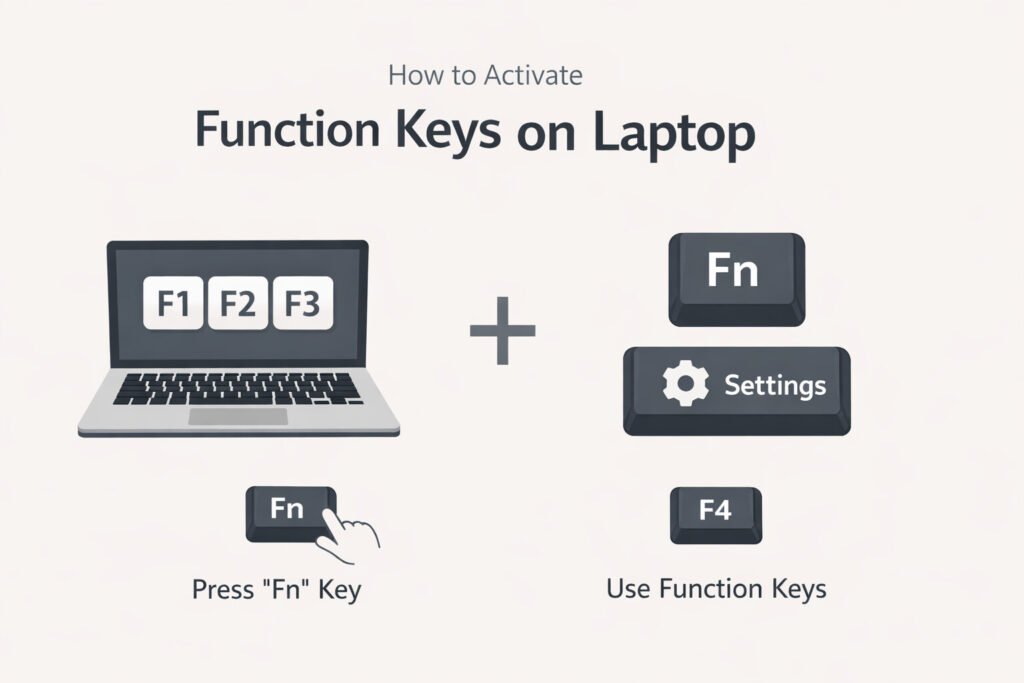
Function keys on most laptops work by pressing the Fn key together with the F1 through F12 keys. Some laptops start with Fn already active, while others require you to hold Fn to use special functions. You can change this in your BIOS settings or keyboard settings depending on your laptop brand and operating system.
Understanding Function Keys
Function keys are the row of keys at the top of your keyboard labeled F1 through F12. They control different things depending on your laptop model and software. You might use them to adjust brightness, volume, or wireless connectivity without opening menus.
Many people struggle with function keys because the behavior changes between laptop brands. Dell works differently from HP. ASUS differs from Lenovo. This guide covers all major laptop brands so you find the exact solution for yours.
Why Function Keys Stop Working
Before activating function keys, understand why they might not respond:
Common reasons function keys don’t work:
- The Fn key is locked or disabled
- BIOS settings have Fn functions turned off
- Keyboard drivers need updating
- Function lock is enabled by mistake
- Operating system doesn’t recognize your keyboard
Most of these problems have simple fixes. You don’t need technical expertise to solve them.
How to Activate Function Keys on Laptop by Brand
For Windows Laptops (HP, Dell, ASUS, Lenovo)
Step 1: Check if Fn Lock is Active
Look at your keyboard. Find the Fn key, usually in the bottom left corner. Look for an Fn Lock indicator light near it or on the key itself.
If you see a lock symbol with an Fn indicator, your Fn Lock is on. This means you must press Fn plus another key to use functions.
To disable Fn Lock:
- Press Fn + Esc (this works on many Dell and HP models)
- Or press Fn + Shift + Esc
- Or press Fn + F12 (varies by brand)
Check your laptop manual or the key caps. Sometimes the symbol on a key tells you what it does when you press Fn with it.
Step 2: Update Keyboard Drivers
Outdated drivers cause function keys to malfunction.
- Right-click Start menu
- Select Device Manager
- Find Keyboards section and expand it
- Right-click your keyboard device
- Choose Update driver
- Select Search automatically for updated driver software
- Wait for the update to complete
- Restart your laptop
This simple step fixes many function key problems.
Step 3: Access BIOS to Change Fn Behavior
If the above steps don’t work, you can change how Fn operates in BIOS.
- Shut down your laptop completely
- Turn it back on and immediately start pressing:
- Dell: Press F2 repeatedly until BIOS opens
- HP: Press F10 or Esc, then F10
- ASUS: Press F2 or Del
- Lenovo: Press F1 or Fn + F1
- Look for menu items like “Integrated Peripherals” or “Onboard Devices”
- Find “Function Key Behavior” or similar option
- Change from “Fn + F1 mode” to “Function Key mode”
- Save changes and exit
Different laptop models have different BIOS menus. If you can’t find the option, search your laptop model number plus “BIOS function key setting.”
For MacBooks
MacBooks handle function keys differently. The top row typically shows special functions by default like brightness, volume, and keyboard illumination.
To use traditional F1 through F12:
- Press and hold Fn (lower left of keyboard)
- Press the function key you want
To make F keys default without holding Fn:
- Click Apple menu
- Select System Settings
- Go to Keyboard
- Find the checkbox that says “Use F1, F2, etc. keys as standard function keys”
- Check the box
Now your F keys work as traditional function keys. Hold Fn if you want special functions like brightness control.
Understanding Function Key Purposes
Different keys control different things. Your laptop might not have all of these.
| Key | Common Function | What It Does |
|---|---|---|
| F1 | Help | Opens help menu in many programs |
| F2 | Rename | Renames selected file in Windows |
| F3 | Search | Opens search function |
| F4 | Close window | Alt + F4 closes active window |
| F5 | Refresh | Refreshes page or file listing |
| F6 | Address bar | Moves cursor to address bar in browsers |
| F7 | Spell check | Checks spelling in some applications |
| F8 | Safe Mode | Hold during startup for Safe Mode |
| F9 | Reserved | Application specific |
| F10 | Menu access | Accesses application menu bar |
| F11 | Full screen | Full screen mode in browsers |
| F12 | Developer tools | Opens developer console in browsers |
On laptops with Fn key overlay, Fn + F1 through F12 typically controls hardware:
- Brightness adjustment
- Volume control
- Display switching
- Keyboard backlight
- Airplane mode toggle
- Touchpad toggle
Step-by-Step Activation Process for Popular Brands
Dell Laptops
Inspiron and XPS Models:
- Press Fn + Esc to toggle Fn Lock
- Check for an Fn Lock indicator light on your keyboard
- If that doesn’t work, enter BIOS:
- Restart your laptop
- Press F2 while Dell logo shows
- Look for Fn Lock setting
- Change it from “Fn Lock On” to “Fn Lock Off”
- Press F10 to save
Result: Function keys now work without pressing Fn, while Fn + key gives hardware controls.
HP Laptops
Pavilion and Envy Models:
- Look for Fn Lock key combo (usually Fn + Esc or Fn + Shift + Esc)
- Your keyboard might have an Fn Lock light that shows status
- If the key combo doesn’t work:
- Press Esc then F10 as your laptop boots
- Navigate to System Configuration
- Find Fn and Ctrl Key Swap option
- Disable any Fn Lock settings
- Save and exit
Key detail: HP sometimes puts Fn Lock toggle in the BIOS under “System Configuration” rather than a direct keyboard shortcut.
ASUS Laptops
VivoBook and ROG Models:
- Press Fn + F12 to toggle Fn Lock (standard on most ASUS models)
- Look for the lock symbol on your F12 key
- A light should appear or disappear on your keyboard
- If no change, restart and press F2 to enter BIOS
- Look for “Fn Lock” in System Settings
- Set it to disabled
- Save with F10
ASUS makes this relatively straightforward since the Fn + F12 shortcut works on most their machines.
Lenovo Laptops
ThinkPad and IdeaPad Models:
Lenovo has two approaches depending on your model year.
Older ThinkPads:
- Press Fn + F11 to toggle Fn Lock
- You should see a light on F11 key
Newer models (2015+):
- Use Fn + Esc to toggle
- Or access Settings through Windows
- Go to Control Panel > Device and Printers
- Find your keyboard device
- Right-click and select keyboard settings
- Change Fn behavior from there
Important for Lenovo: Some ThinkPad models have physical switches or settings in their custom keyboard software. Search your specific model for best results.
Troubleshooting When Function Keys Still Won’t Work
Problem: Fn key doesn’t respond at all
Solution steps:
- Restart your laptop completely
- Check for keyboard dust or debris under keys
- Try pressing Fn + another key
- If nothing happens, uninstall and reinstall keyboard drivers
- Try safe mode to test if third-party software interferes
Sometimes third-party programs override Fn behavior. Gaming software, keyboard remapping tools, or system utilities can cause conflicts.
Problem: Some function keys work, others don’t
This usually means:
- Your laptop reserves certain keys for system use
- The software for that specific function isn’t installed
- Drivers are partially corrupted
Fix this by:
- Going to your laptop manufacturer’s support website
- Downloading keyboard or chipset drivers for your exact model
- Installing them fresh
- Restarting your laptop
Problem: Brightness and volume keys work, but F1-F12 don’t
This is backwards from the default on most laptops. It likely means:
- Fn Lock is on and working as intended
- You need to press Fn to access F1-F12
This is actually normal behavior. The question becomes whether you want to change it.
If you want F1-F12 to work without Fn, follow your brand’s steps above. If the current setup works for you, you don’t need to change anything.
Problem: Function keys worked before a Windows update
Windows updates sometimes reset keyboard settings or remove drivers.
Recovery steps:
- Check Windows Update history (Settings > Update > Update History)
- Note the last update date
- Go to Device Manager
- Find your keyboard
- Right-click and uninstall
- Restart your laptop (Windows will reinstall automatically)
- Download drivers directly from your laptop manufacturer if needed
This often restores functionality after updates break things.
Keyboard Settings in Windows
Windows has dedicated keyboard settings that affect function keys.
To access them:
- Open Settings (Windows key + I)
- Go to Devices
- Select Keyboard
- Look for any Fn key options
- Adjust as needed
Some Dell and HP laptops have custom utilities that appear here. If your laptop has special keyboard software, this is where you control it.
Custom Function Key Mapping
If you want function keys to do something different, you can remap them.
Using Windows built-in tools:
Unfortunately, Windows doesn’t have a native function key remapper. You need third-party software.
Safe options:
- AutoHotkey (free, open source, very reliable)
- SharpKeys (simple remapping tool)
- Your laptop manufacturer’s custom software (if available)
I recommend AutoHotkey if you want precise control. It’s trusted by millions and well-documented at autohotkey.com.
Mac Function Keys in Detail
MacBooks use function keys more extensively than Windows laptops.
Default behavior on Mac:
- F1 and F2: Brightness control
- F3: Mission Control
- F4: Launchpad
- F5: Keyboard illumination down
- F6: Keyboard illumination up
- F7, F8, F9: Usually nothing
- F10: Volume control
- F11: Volume down
- F12: Volume up
To use F1-F12 as traditional function keys:
- Open System Settings
- Click Keyboard
- Check “Use F1, F2, etc. keys as standard function keys”
To keep Mac functions and press F keys another way:
Hold Fn + the function key you want. This gives you F1-F12 while keeping easy access to brightness and volume.
Chromebook Function Keys
Chromebooks don’t have traditional function keys. Instead, they have a search key and media keys.
The top row controls:
- Screen brightness
- Volume
- Refresh
- Full screen
- Window snap
- Screenshot
If you need traditional F1-F12 function keys on a Chromebook, you’re out of luck. These keys simply don’t exist on Chrome OS because the operating system doesn’t use them.
When to Seek Professional Help
Most function key issues you can solve yourself. Get professional help if:
- Your keyboard physically doesn’t respond to any key presses
- BIOS won’t open even with correct key sequences
- You accidentally changed BIOS settings and can’t find them again
- Your laptop makes clicking sounds from the keyboard area
- You spilled liquid on your keyboard
These point to hardware issues that need repair. Trying to fix them yourself might cause more damage.
Summary
Function keys on laptops activate through one of three methods:
- Press Fn + F key – Required when Fn Lock is on
- Press F key alone – Works when Fn Lock is off
- Change in BIOS – Lets you set default behavior
Most Windows laptops have an Fn Lock toggle key (usually Fn + Esc or Fn + F12). MacBooks let you choose the default behavior in System Settings. The exact process depends on your laptop brand and model year.
If function keys don’t work:
- Check Fn Lock status first
- Update keyboard drivers second
- Access BIOS settings third
- Search your exact model number for brand-specific help
You don’t need technical expertise. These steps work for anyone willing to follow them carefully.
FAQ
Why can’t I use function keys without pressing Fn?
Fn Lock is on. Your laptop is set to require Fn for every special function. Press Fn + Esc, Fn + F12, or Fn + Shift + Esc depending on your brand. If that doesn’t work, enter BIOS and change Fn Lock settings there.
Are function keys necessary for everyday laptop use?
No. Function keys are helpful for shortcuts and hardware controls, but you can live without them. They’re nice to have but not essential. Many people don’t use function keys regularly.
Will changing BIOS settings hurt my laptop?
Changing Fn Lock settings in BIOS is safe. These are designed to be user-configurable. Don’t change anything else in BIOS unless you know what you’re doing.
Do gaming laptops have different function key behavior?
Gaming laptops like ASUS ROG might have custom keyboards with different Fn behavior. Check your specific model’s manual. Many still use Fn + F12 to toggle, but some have gaming-specific layouts.
Can I make certain function keys do different things?
Yes, with third-party software like AutoHotkey. You can remap any key to do anything you want. Be careful not to break essential functions, and test thoroughly before relying on custom mappings.
